



Overview
After preparing Microsoft Entra and Microsoft Intune for Autopilot integration, the next step is to configure the OneDeploy WebApp so that devices deployed by OneDeploy can be automatically registered with Windows Autopilot.
During deployment, OneDeploy can collect the device’s Autopilot hardware ID and upload it to Microsoft using the Microsoft Graph API. This allows Microsoft Autopilot to recognise the device when it first boots into the Windows Out-of-Box Experience (OOBE).
Once registered, the device can automatically receive the correct Autopilot deployment profile and enrol into management when the user signs in.
This article explains how to configure the required integration settings within the OneDeploy WebApp.
How to Configure Autopilot Integration
Step 1 — Open the OneDeploy WebApp
After you have completed the Entra Autopilot steps, you should have the following pieces of information:
Directory (tenant) ID
Located on the App Registration Overview page.
Application (Client) ID
Located on the App Registration Overview page.
Client Secret
Created in the App Registration Certificates and Secrets page.
Group Tag Name
The name of the Group tag you selected when creating the Dynamic Membership Rule. This can be found in the Entra group’s Dynamic Membership Rules page.
Sign in to the OneDeploy WebApp.
Autopilot settings are set in three places within OneDeploy.
- General tenant and App Registration settings are configured in Config\Integrations. For MSPs with multiple organisations (and therefore, multiple Entra tenancies) these would be set up individually here.
- Details of Entra group memberships (including a Group Tag to enable auto-assignment into groups) are set in Organisation or Organisations\Locations. The latter allows different settings for the same build according to where it is being deployed.
- Subsequently, you would then configure individual builds to tell them to use the Integration that has been set up in Config\Integrations. The build will derive the location settings (and therefore Entra groups/tags) from the location options selected during a deployment event.
Step 2 — Create OneDeploy secrets for Application ID and Client Secret
Navigate to Definitions\Secrets.
Create two new secrets, one for each of the following:
- A OneDeploy Secret containing the Application (Client) ID you recorded earlier, when configuring the App Registration in Entra
- A OneDeploy Secret containing the Client Secret created for the Entra App Registration.
See Secrets for more information.
Step 3 — Create the Autopilot integration settings
Navigate to the Config\Integrations section of the OneDeploy WebApp.
This section contains the settings required for OneDeploy to authenticate with Microsoft Entra and perform Autopilot device registration.
Create a New ‘Autopilot Integration’ entry here.
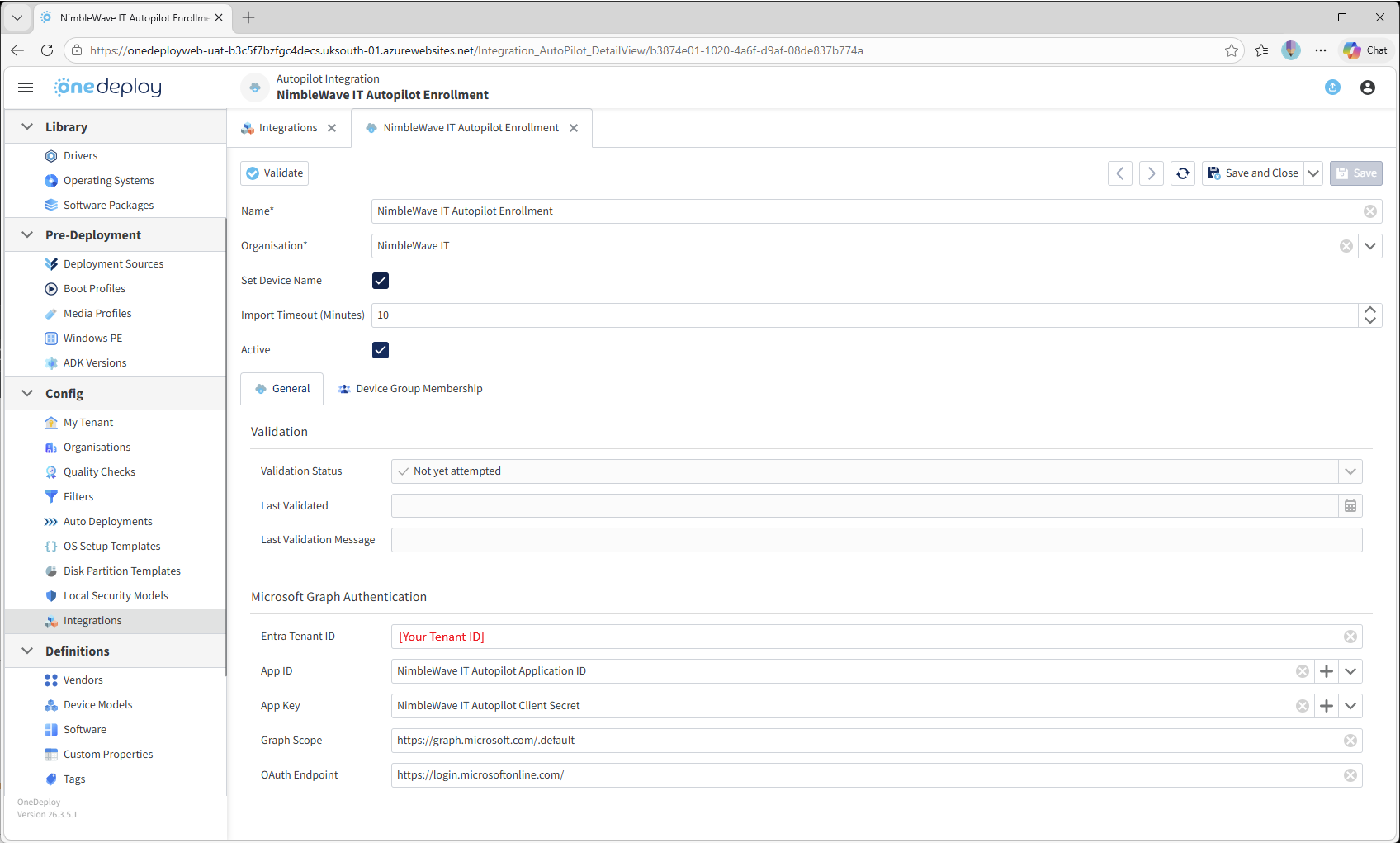
Enter a name for the integration and select the Organisation it applies to.
From the information recorded earlier, enter the Tenant ID of the Entra tenancy that devices will join. For App ID and and App Key, select the Application (Client) ID and Client Secret secrets created earlier.
Leave the pre-populated values for Graph Scope and OAuth Endpoint on their default values. These only need to be changed if you have a bespoke cloud setup arrangement with Microsoft (eg: US Government cloud).
In the ‘Device Group Membership’ tab, select Enabled for Group Membership Check and leave the default of 10 minutes.
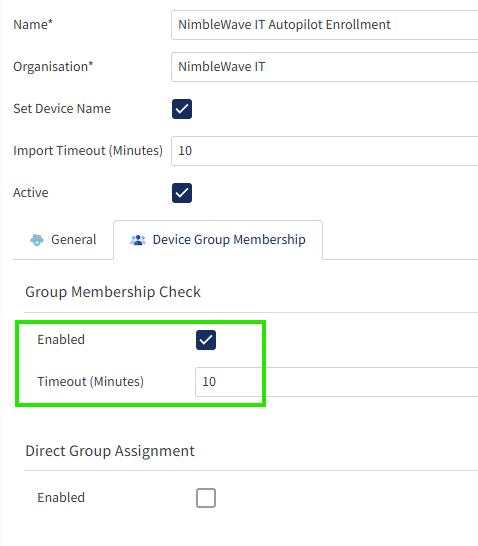
This tells OneDeploy to check for up to 10 minutes for the relevant Entra dynamic group membership to have occurred. Typically these complete within 1-2 minutes.
Use the ‘Validate’ button to have OneDeploy check to ensure that the App ID and App Secret value pass authentication in the Microsoft Graph and that the App has the relevant permissions.
Step 4 — Register the Dynamic Group ID in OneDeploy
Navigate to Config\Organisations and select your Organisation.
In the Entra Groups tab, enter the name and Object ID of your Dynamic Group created earlier in Entra. Select the ‘Dynamic Group’ checkbox.
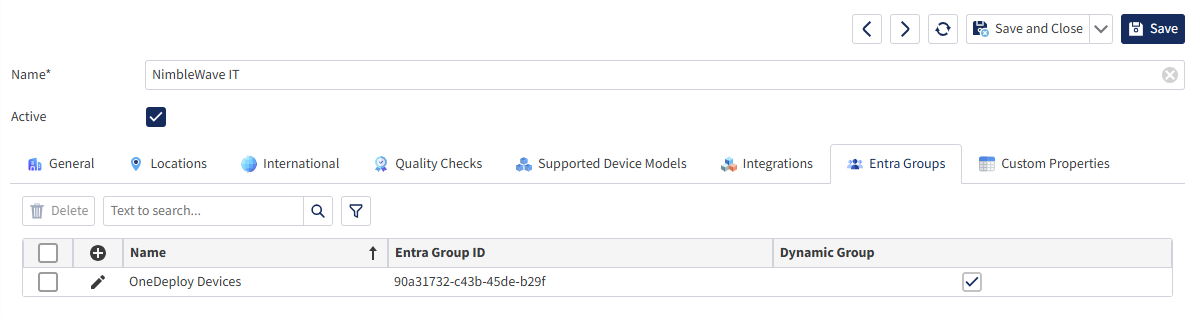
Step 5 — Configure the Dynamic Group Membership Tag
Back in Entra, when we specified the Dynamic Group, in the Dynamic membership rules we specified a Group Tag, which if applied to a device would automatically make that device a member of the group:
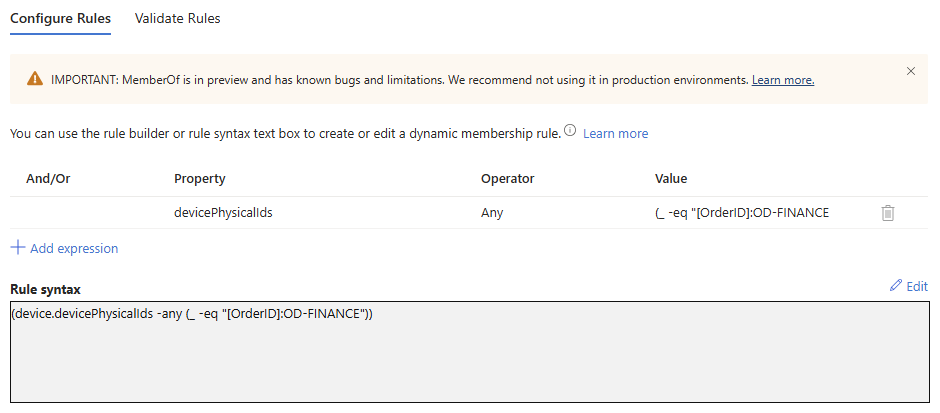
We need to tell OneDeploy about this Group Tag, so that it can be assigned during a build. We can also tell OneDeploy details about the group that the device will automatically assign into, so that this can be monitored for success/completion during a deployment.
Navigate to Config\Organisations. Select your Organisation.
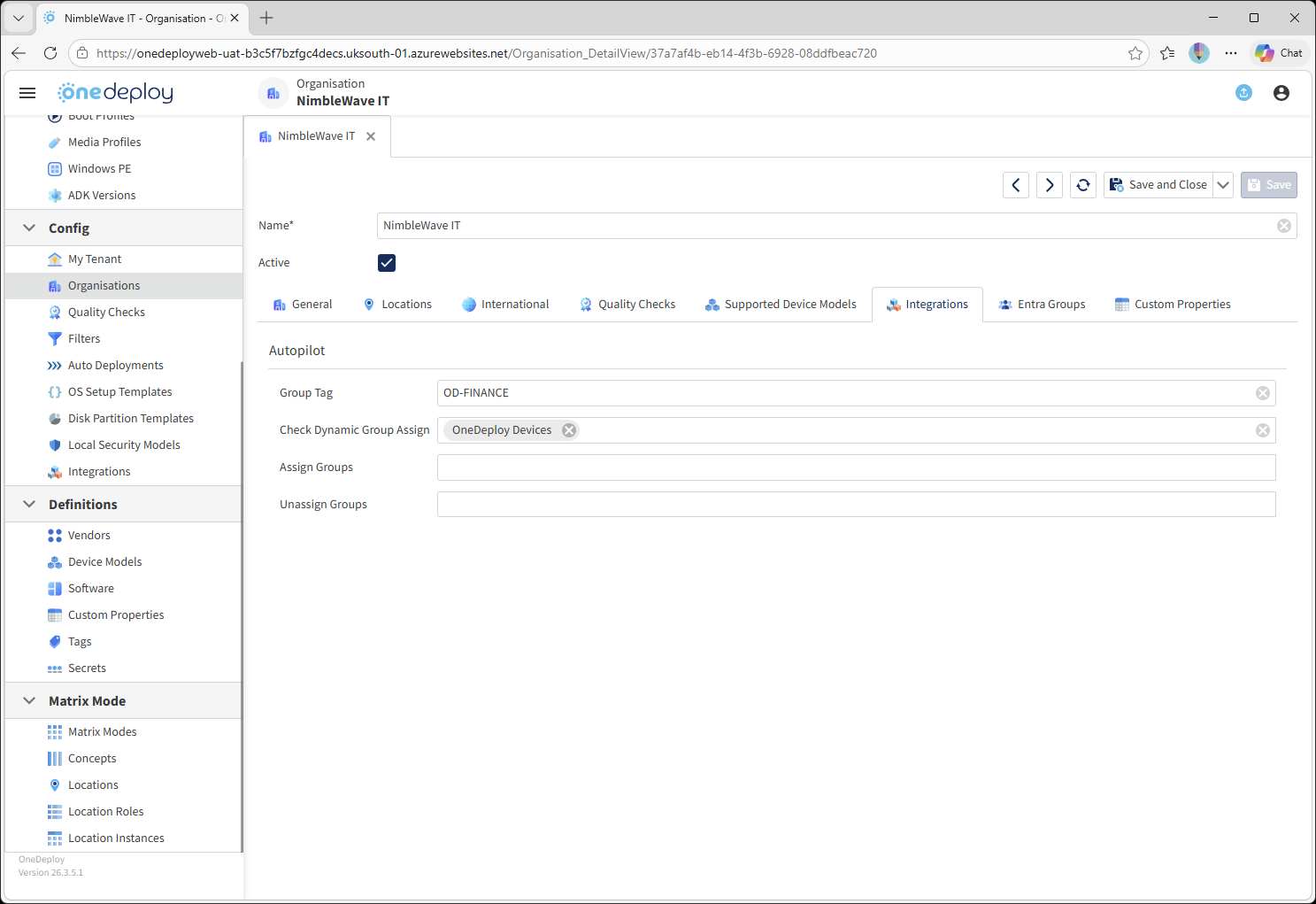
Select the Integrations tab.
Enter the Group Tag. This value must match the Group Tag used in the dynamic device group rule created during the Entra setup.
Next, in Check Dynamic Group Assign, select the name of the dynamic group that this tag will cause the device to be a member of.
In the example below, our tag used on the dynamic group membership rule is ‘OD-FINANCE’ and the Entra group this will cause the device to join is ‘OneDeploy Devices’
Note that you can also set Group Tags at the Location or Build level depending on your requirements. This means you could have:
Different group memberships (and therefore Autopilot deployment profiles) can be configured based on where a deployment is performed
Different Autopilot behaviours based on a build’s properties (eg: some builds end up with a User-driven enrollment, whereas certain other builds could be configured for Self-Deploying)
How Autopilot Registration Works During Deployment
Once the integration is configured, the following process occurs during a OneDeploy deployment.
- Windows is installed on the device using OneDeploy.
- The device hardware ID is collected.
- OneDeploy connects to Microsoft Graph.
- The device is registered with Windows Autopilot.
- The configured Group Tag is applied.
After deployment completes and the device restarts, Windows enters the Out-of-Box Experience (OOBE).
During OOBE:
- Windows contacts the Autopilot service
- The device is recognised as belonging to the Organisation
- The user signs in using organisational credentials
- The device joins Microsoft Entra and enrols into Intune
Important Notes
-
The Microsoft Entra preparation steps must be completed before configuring the OneDeploy integration.
-
The Tenant ID, Application ID, and Client Secret must match the values created in the App Registration.
-
The Group Tag must match the rule used in the Dynamic Device Group.
-
Internet connectivity is required during deployment so OneDeploy can communicate with Microsoft Graph.
Common Questions
Do I need to manually upload hardware IDs to Autopilot?
No. When Autopilot integration is enabled, OneDeploy automatically collects and uploads the device hardware ID during deployment.
What happens if the Group Tag is incorrect?
If the Group Tag does not match the rule used by the Dynamic Device Group, the device may not receive the correct Autopilot deployment profile.
Can multiple Group Tags be used?
Yes. Different deployment configurations can use different Group Tags to assign devices to different Autopilot deployment profiles.
Does the device need internet connectivity?
Yes. Internet connectivity is required during deployment so OneDeploy can upload the hardware ID to Microsoft Autopilot.
Related Articles
- Windows Autopilot with OneDeploy (Overview)
- Preparing Microsoft Entra for Autopilot Integration
- Understanding Autopilot Deployment Profiles
- Creating Dynamic Device Groups for Autopilot
- Testing Autopilot Deployments