



The Software Packages section of the OneDeploy Library is where you define the applications that can be installed as part of a build deployment.
This article documents:
- The Software Packages summary screen
- The Software Package details screen
Other configuration areas within a Software Package (such as Steps and Targeting) are documented in separate articles.
OneDeploy terminology
Understanding OneDeploy’s terminology is key when working with applications:
-
Vendor
The company that produces the application
Example: Adobe Inc. -
Software
The general product name of the application
Example: Adobe Acrobat Reader -
Software Package
A specific version of a piece of a software application, including:- Installation files
- One or more installation steps
- Optional Targeting logic
Example:
Adobe Acrobat Reader v2025.001.20693
(setup.exe /sAll /msi TRANSFORMS=Custom.mst /qb)
A Software Package is the item that gets added to builds.
Navigating to Software Packages
Navigate to Library → Software Packages to view the Software Packages summary screen.

From this screen you can:
- View all Software Packages in your library
- Open a Software Package to view or edit its details
- Add installation files to a Software Package
- Remove Software Packages that are no longer required
- See which platforms a package can run on (Intel/AMD, ARM, bit-level, OS build, language)
- See whether a Software Package is Active or Inactive
Adding a new Software Package
To add a new Software Package:
- Go to Library → Software Packages
- Click New
When creating a Software Package, you must associate it with:
- A Vendor who creates the Software Package
- The general name of a piece of Software
These can be:
- Selected from existing entries, or
- Created during the Software Package creation process
Software Package details screen
When creating a new Software Package (or editing an existing one), the Software Package details screen is displayed.
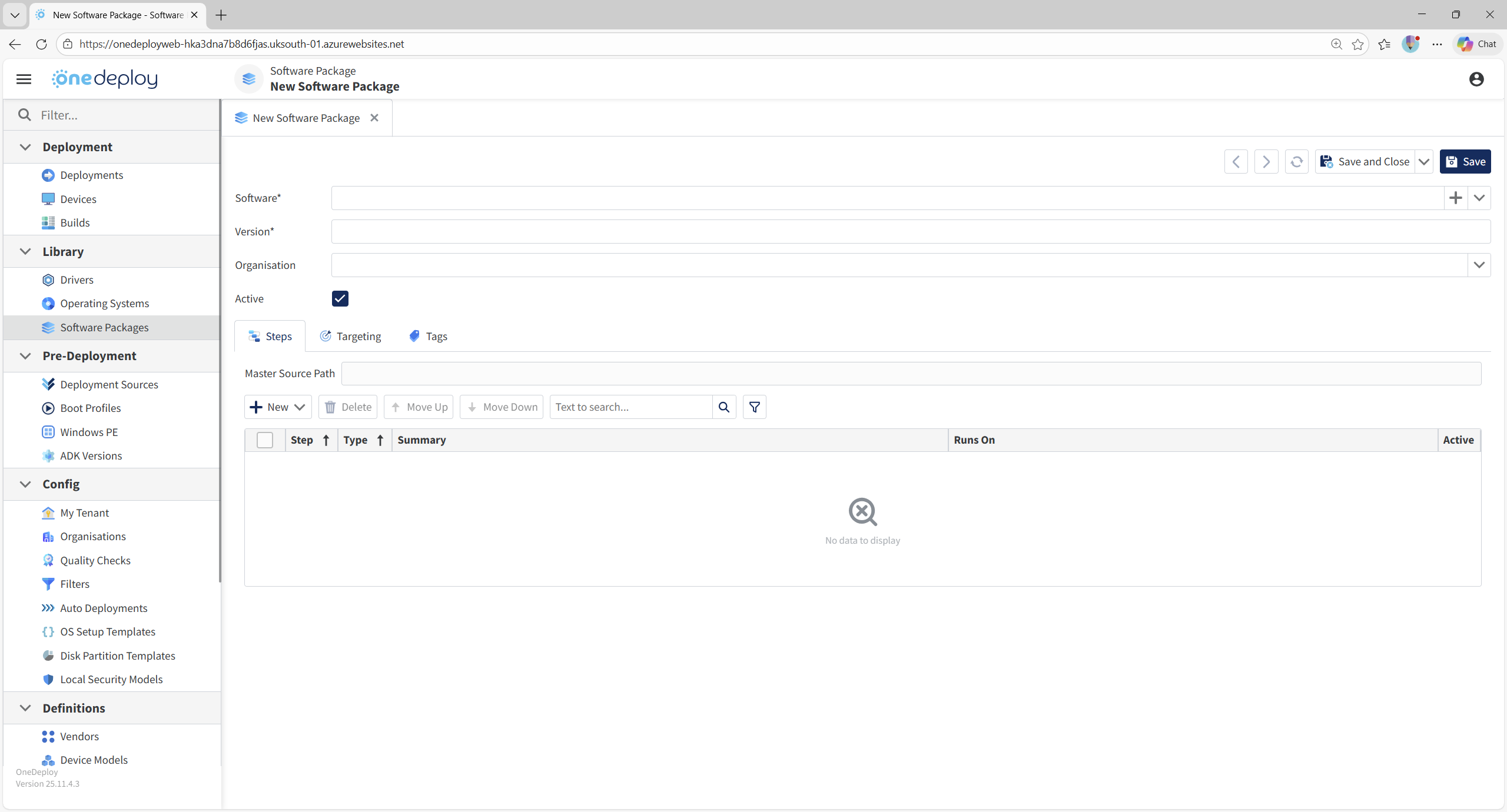
From this screen you can configure:
- Vendor and Software name
- The Version number of the Software Package
- Organisation (only when adding a New Software Package. Once saved, you can only view this field, not edit it)
- Active / Inactive status
- The installation steps for the Software Package (in the Steps tab)
- The applicability of the Software Package (in the Targeting tab)
Software
The Software field allows you to select the Vendor and Software name from a dropdown list.
If the software does not already exist:
- Click the + icon next to the Software field to add a new Software entry
- From there, you can also add a new Vendor if required
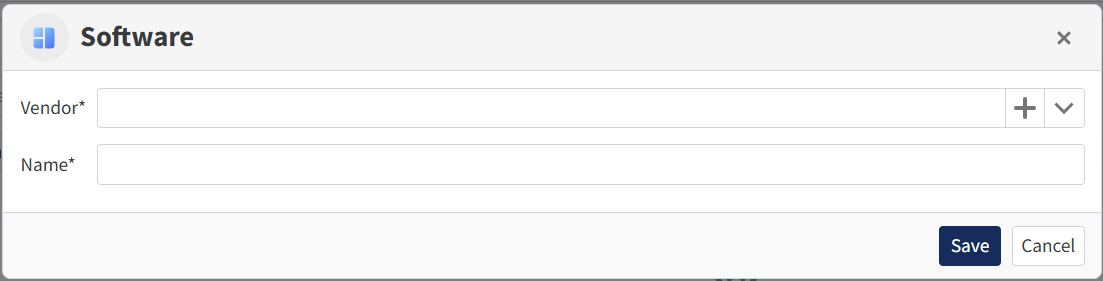
You can also manage Vendors and Software in the Definitions section of the OneDeploy WebApp via:
- Definitions → Vendors
- Definitions → Software
Version
Enter the version number of the Software Package.
This helps:
- Clearly identify the specific release
- Is a text field you can populate with whatever helps you identify and use the Software Package in the future
- Distinguish between multiple versions of the same software
- Avoid ambiguity when adding Software Packages to builds
- Will appear in build deployment reporting
- Will be displayed on-screen during the installation of the Software Package during a build deployment
Example:2025.001.20693
Organisation
The Organisation field allows you to restrict a Software Package to a single Organisation.
This field is only relevant when running OneDeploy in Multi-tenant Mode.
Behaviour
- Software Packages assigned to Customer A are visible only when configuring builds for Customer A
- Software Packages assigned to no Organisation are visible to all organisations
When editing a build for a specific customer, the available Software Packages will be:
- Packages assigned to that customer
- Packages with no Organisation assigned
Important notes
- The Organisation cannot be changed later
- Leave this field blank if you want to use the Software Package across multiple customers
Best practice
Avoid placing customer-specific content in Software Packages that are shared across organisations.
Examples of customer-specific content include:
- Embedded license keys
- Scripts referencing customer servers or URLs or other sensitive information
- RMM agents with the tenancy and/or server name encoded in the installer
- Registry entries containing Organisation names or other customer specific information
Failing to isolate these can cause Software Packages to “spill over” into another customer’s Deployment Sources.
Active / Inactive
You can mark a Software Package as Inactive by clearing the Active checkbox.
Inactive Software Packages:
- Remain in the library
- Cannot be selected when creating or editing builds
- Can be ‘re-activated’ later
Common reasons to mark a package inactive
- Retiring software that is no longer required
- Preventing a newly added package from being used before testing is complete
Adding installation files
A Software Package requires installation files before it can be used.
To add files:
- Select the Software Package from the summary screen (checkbox on the left)
- Click Add Files
- Follow the wizard to select the source location of the files

The files will be copied into the OneDeploy library and associated with the Software Package.
Removing a Software Package
To remove a Software Package:
- Select it from the summary screen
- Click Remove
⚠ Important
Ensure the Software Package is not used by any builds before removing it.
Removing a Software Package that is referenced by a build can cause those build deployments to fail.
Common questions
Do I have to include Software Packages in a build?
No. Software Packages are optional. A build can consist solely of an operating system if required.
Can I have multiple versions of the same software?
Yes. OneDeploy is designed to support multiple Software Packages for the same Software (for example, different versions of Chrome or Acrobat Reader).
Why would I leave a Software Package unassigned to an Organisation?
Leaving the Organisation blank allows the package to be reused across multiple customers, reducing duplication and administrative overhead.
What happens if I mark a Software Package inactive?
Inactive Software Packages cannot be selected in builds, but existing builds that already reference them are not automatically modified.
Related articles
- Builds → Software Packages
- Library → Software Packages → Steps
- Library → Software Packages → Targeting
- Library → Software Packages → Tags
- Definitions → Vendors
- Definitions → Software