



DriverApps
OneDeploy includes a feature called DriverApps, designed to handle hardware-specific drivers and utilities delivered as EXE or MSI installers but without hard-coding them into individual builds.
DriverApps are central to achieving One Build, Many Devices, particularly for environments with mixed OEM hardware, but still retaining the ability to install any required hardware-specific utilities from EXE/MSI as needed when builds are run on particular hardware.
What are DriverApps?
In OneDeploy terminology, DriverApps are:
- Standard Software Packages
- Marked with ‘Class as DriverApp’ in their Software Package settings
- Controlled by one or more Filters
At deployment time, OneDeploy evaluates each DriverApp’s filters and installs it only if the target device meets the criteria.
Typical DriverApp examples
DriverApps are commonly used for:
-
Server OEM tooling
- Dell OpenManage Server Administrator
- HPE Service Pack for ProLiant
- Lenovo XClarity Essentials
- Fujitsu ServerView
-
OEM Driver bundles delivered as EXE/MSI
-
Hardware-specific utilities
- Lenovo battery or power management tools
- Trackpad or touchpad utilities
- RAID management software
- OEM utility for a locally installed printer
- Intel vPro tools
-
Connectivity and expansion hardware
- 4G / 5G modem software
- Thunderbolt controller utilities
- Client VPN packages required for laptops only, but not desktops or servers
These components are usually required only on specific vendors, models, or hardware families.
Examples of filters commonly used with DriverApps
DriverApp filters typically check for one or more of the following:
-
Vendor or manufacturer
-
e.g. Vendor contains
DellorHPE
-
-
Model or model family
- e.g. Model starts with
PowerEdgeor equalsHP ProLiant DL380 Gen11
- e.g. Model starts with
-
Specific hardware identifiers
- Presence of a PCI or USB hardware ID
- Chassis type (laptop vs desktop), as read from the device’s BIOS
-
Operating system constraints
-
Minimum or maximum Windows version
-
-
Other common filters
- Intel/AMD or ARM Processor Architecture
- Restrict a package to specific customer(s) if running OneDeploy in Multi-tenant Mode
Multiple conditions can be combined using All must pass or Any may pass logic.
Two ways to handle these OEM utilities in a build
Manual approach
It is possible to add OEM utilities directly to a build’s Software Packages list and control applicability using filters on the Software Package’s properties, as shown below:

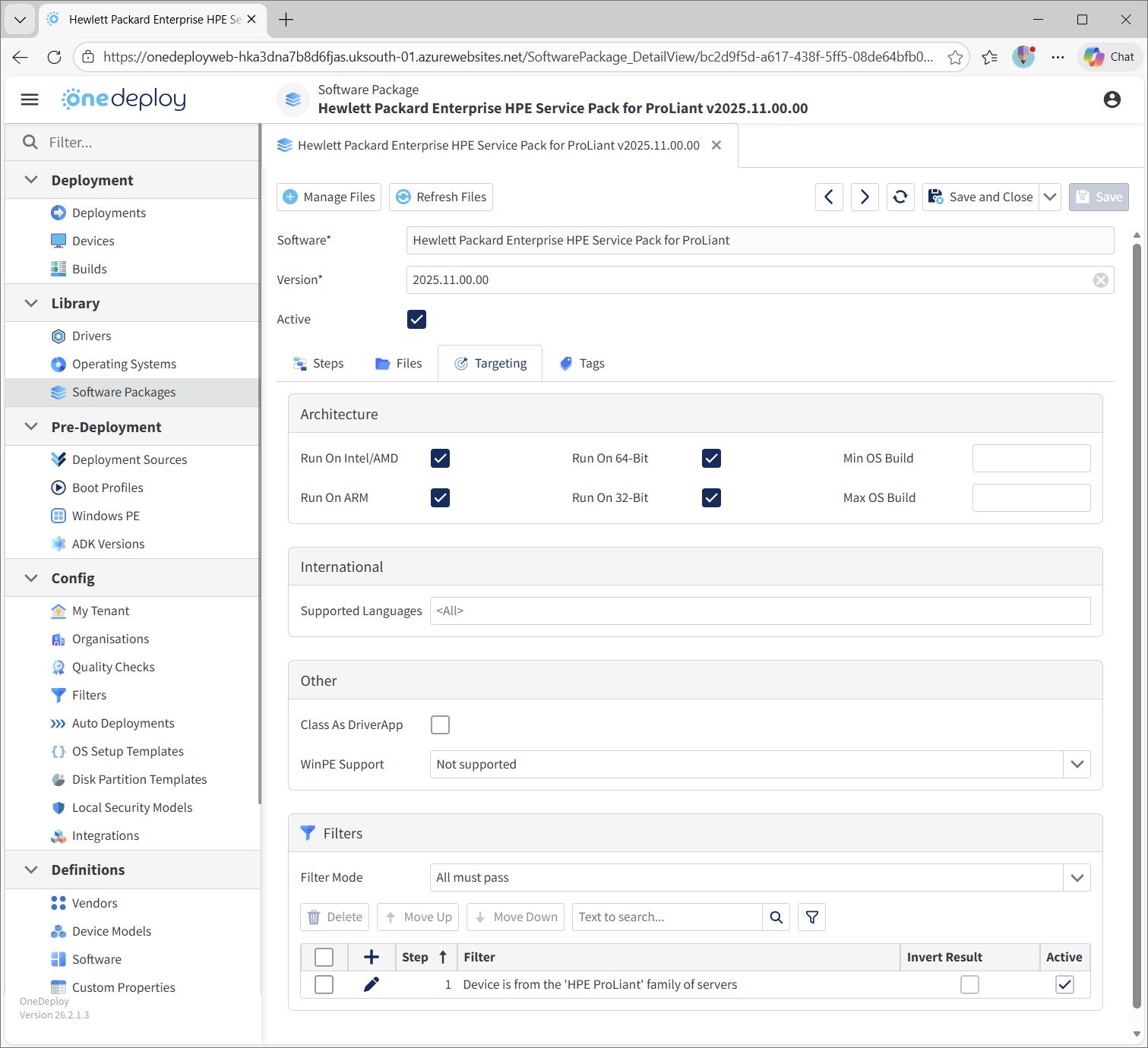
With filters assigned on those Software Packages, we know that if this build is run on a Dell server it will receive the Dell OpenManage components, and if run on a HPE it will receive the Service Pack for ProLiant components.
This approach works, but it does not scale well:
- Builds become cluttered as the number of OEM tools accumulates
- For new builds, you must remember to include all relevant OEM utilities
- Every build must be edited when:
- A package is updated
- A new hardware Vendor is introduced
To combat this, OneDeploy has a feature called DriverApps, which allows the easy configuration and management of OEM utilities without having to edit builds individually.
Recommended approach: Use DriverApps
The recommended method is to keep builds hardware-agnostic and delegate hardware logic to the DriverApps feature.
Instead of listing OEM utilities directly in the Software Packages tab, you add a single built-in step called <DriverApps> to the build instead, and all Software Packages in your library marked as a DriverApp will be considered for installation.
At deployment time, OneDeploy:
- Reviews all Software Packages marked as DriverApps
- Evaluates their assigned filters
- Installs only those that apply to the current device
This allows you to manage hardware-specific software once, centrally.
Step-by-step example
Create a Filter to detect Dell PowerEdge servers:

Add Dell OpenManage as a Software Package (Library → Software Packages), and in the Targeting tab:
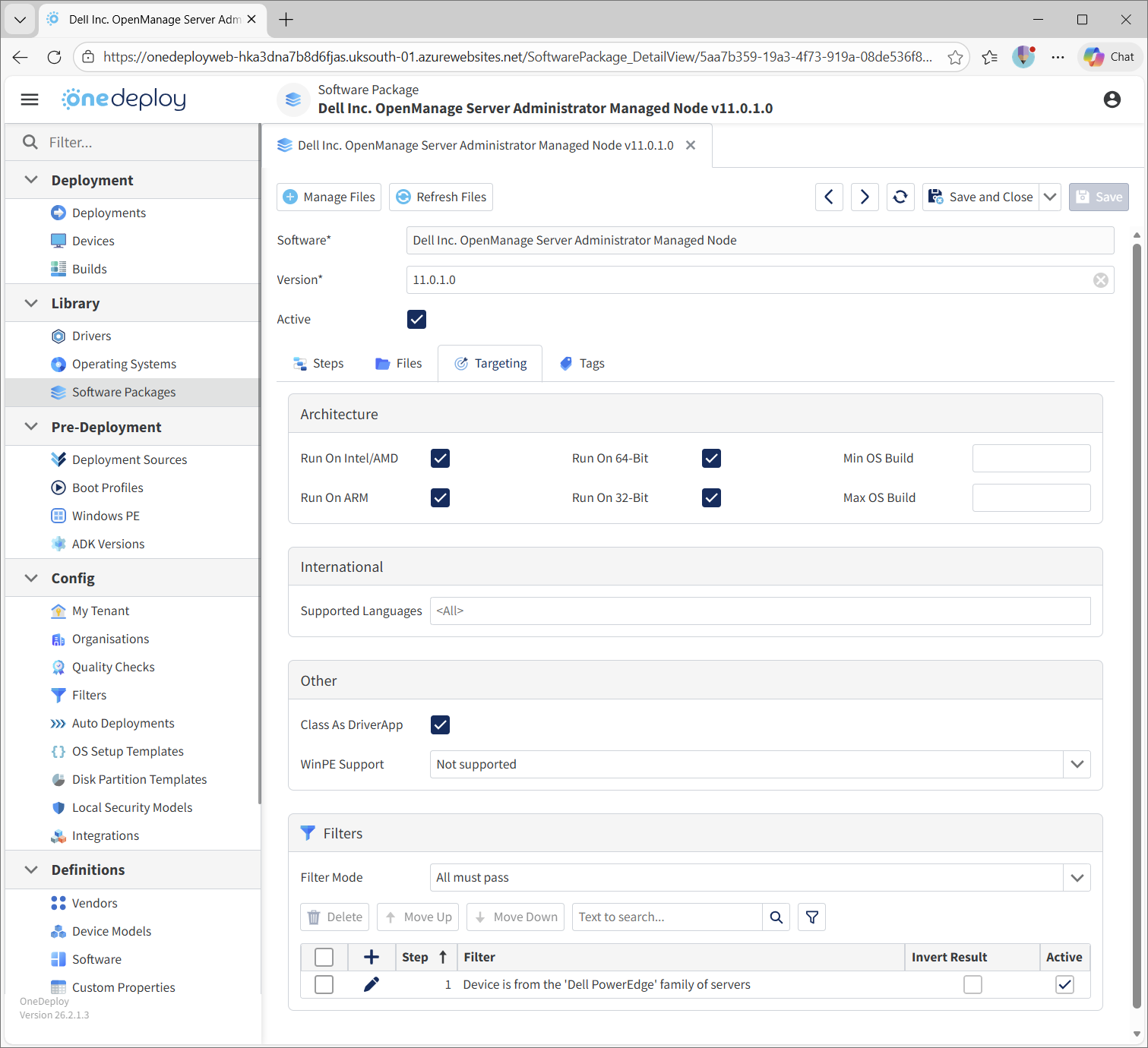
Rather than add the Dell OpenManage Software Package manually to your builds’ Software Package lists, add the <DriverApps> step to your build
Resulting comparison
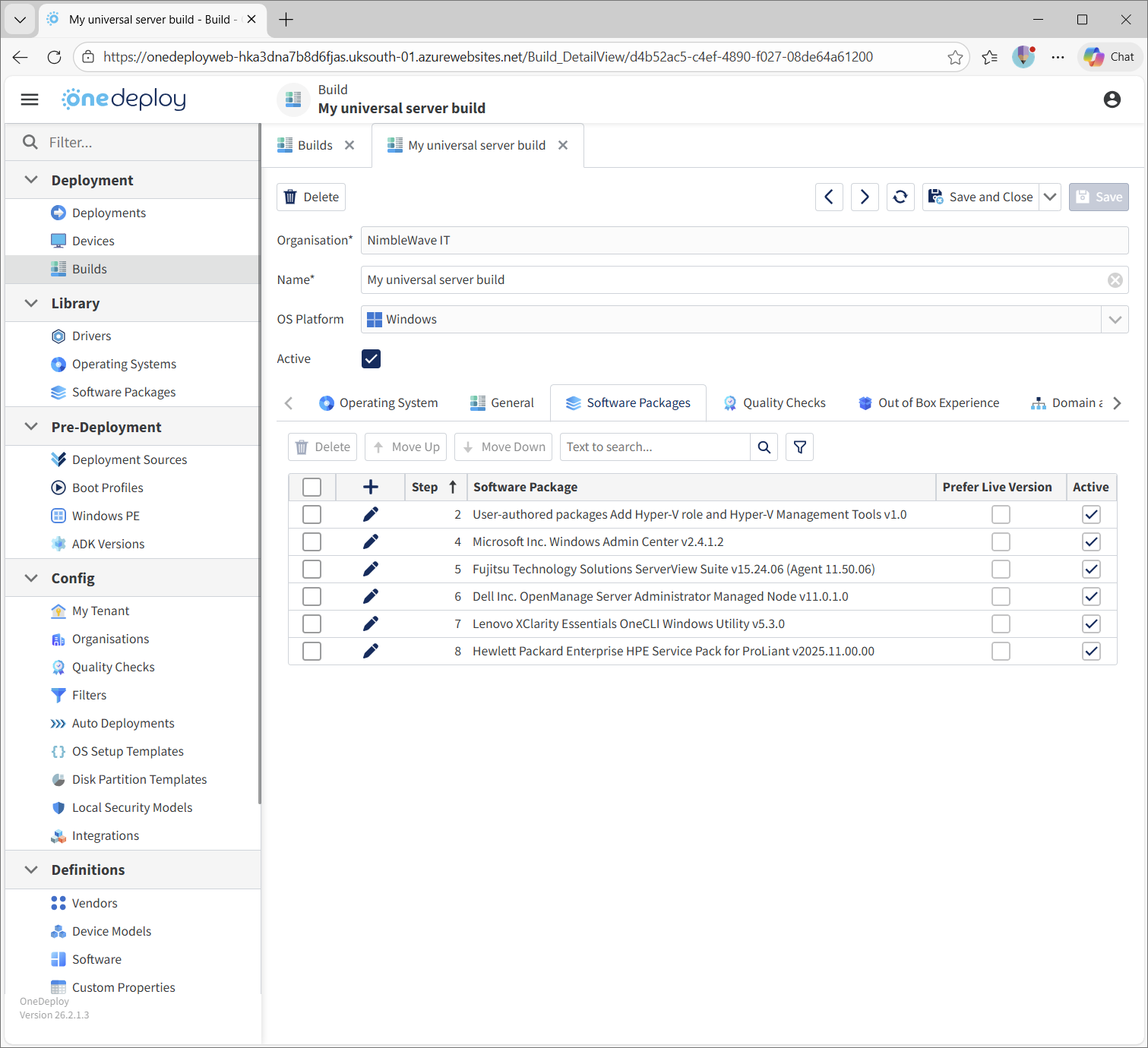
A build with OEM utilities listed individually:
A build using the <DriverApps> step instead:
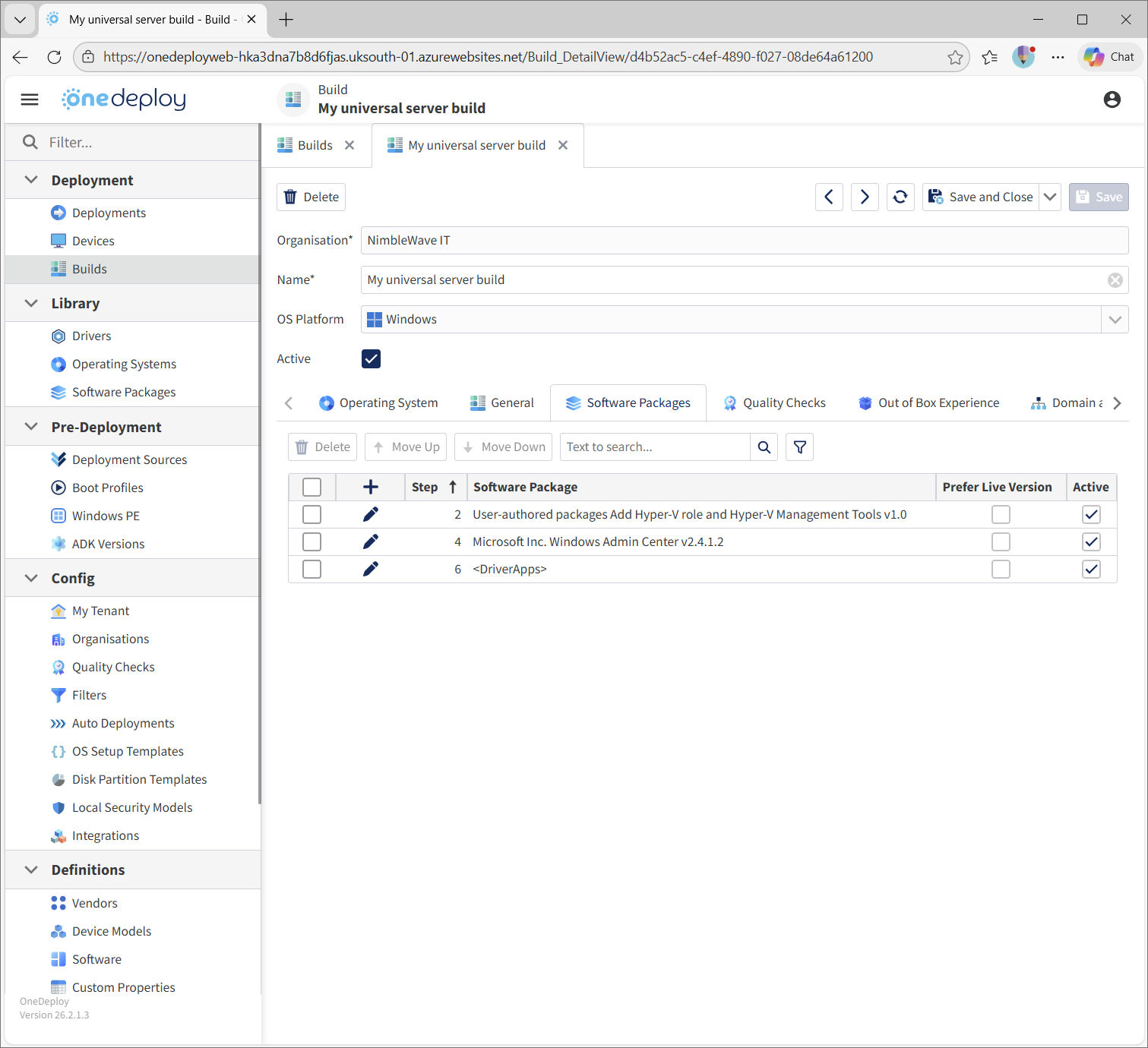
It can be seen that the latter is a much cleaner and easier to manage build, and we know it will adapt automatically to any DriverApp packages that are added in the future.
Summary
- Create a Filter in
Config \ Filters - Add the OEM utility to
Library \ Software Packages - Enable Class as DriverApp and assign the Filter
- Add the
<DriverApps>step to the build - Test
What happens during deployment?
During the <DriverApps> stage:
- All Software Packages marked as DriverApps are evaluated
- Filters are checked against the target device
- Only matching DriverApps are installed
- Non-matching DriverApps are skipped automatically
Important considerations
DriverApps affect all builds that include the <DriverApps> step, so they should be treated as shared infrastructure:
Always test both outcomes:
- Confirm installation when criteria are met
- Confirm non-installation when criteria are not met
Be precise with filters:
- Over-broad filters may install software on unintended devices
When used correctly, DriverApps allow you to scale hardware support cleanly while keeping builds to the ‘One Build, Many Devices’ philosophy.
Common Questions
Do I need to add DriverApps to every build?
No, although it depends on the behaviour you require. Only builds that include the <DriverApps> step will evaluate and install DriverApps.
If the step is not present, DriverApps are ignored.
What happens if multiple DriverApps match the same device?
All matching DriverApps are installed.
If you have overlapping criteria, ensure your filters are specific enough to avoid unintended combinations.
If multiple DriverApps match a device during a build, what order will they install in?
There is no place to specify an ‘order’ for multiple DriverApp matches on the same device. Therefore, consider using a Software Package with ordered steps if the sequence is important.
How do I prevent a DriverApp installing on the wrong hardware?
Use tightly scoped filters and always test both scenarios:
A misconfigured Filter can affect many builds at once.
Are DriverApps installed during WinPE?
No. DriverApps are installed later in the deployment process, during the Finalise stage of Windows, after the OS is running.
When do DriverApps install?
DriverApps will install during the <DriverApps> step of the build’s Software Packages list [if specified]. Software Packages are installed in the Finalise phase of a build deployment, once Windows Setup and Driver integrations have completed.
Related Articles
- Library → Software Packages
- Library → Drivers
- Config → Filters