



Using Quality Checks in a Build
Overview
This article explains how to apply Quality Checks to a build in OneDeploy, including when Checks run, how failures are handled, and how they improve deployment reliability.
When should I use this?
Use Quality Checks when you want to:
- Validate devices before a build starts
- Verify the state of a device after a build completes
- Prevent misconfigured or unsupported hardware from reaching users
- Reduce manual quality assurance effort in deployment workflows
What are Quality Checks?
Quality Checks are an optional set of tests that can be applied during a build deployment.
They allow OneDeploy to:
- Evaluate conditions
- Take action based on the result
- Improve confidence in build outcomes
Quality Checks can be used:
- Before a build is initiated
- After a build has completed

Where Quality Checks are defined
Quality Checks themselves are created and managed in:
Config → Quality Checks
This article focuses on using Quality Checks within a build, not defining them (this is covered elsewhere).
How to access Quality Checks for a build
- In the navigation pane, expand Deployment.
- Click Builds.
- Select an existing build.
- Open the Quality Checks tab.
Selecting the source of Quality Checks
At the top of the Quality Checks tab, use Run Checks From to choose where Checks are sourced from:
-
This build
Uses the Quality Checks defined specifically for this build. -
Organisation
Uses a global set of Quality Checks defined at the Organisation level.
This allows consistent enforcement across multiple builds where required.
When Quality Checks run
Quality Checks can be configured to run at different stages of deployment.
WinPE Checks
Checks configured to run in WinPE are executed before the build starts.
These are typically used to:
- Validate hardware
- Confirm prerequisites
- Prevent an unsupported build from starting
Deployed OS Checks
Checks configured to run in the Deployed OS are executed after the build has completed.
These are used to:
- Verify the final state of the device
- Ensure configuration and software are correct
- Prevent incomplete or faulty builds from being released
Adding Quality Checks to a build
To add a Quality Check:
- Click the + icon.
- Select a Quality Check from the list.
- Choose when the check should run (WinPE or Deployed OS).
- Click the Save (floppy disk) icon to save the row.
You can add as many Quality Checks as required.

Editing and removing Quality Checks
- To edit a Quality Check entry, click the pencil icon and save changes using the Save icon.
- To remove a Quality Check, select it using the checkbox and click Delete.
Quality Checks can also be temporarily disabled by unchecking their Active checkbox.
Quality Check failure behaviour
What happens when a Quality Check fails is defined within the Quality Check itself.
The available behaviours are:
Ignore
- Logs the failure
- Deployment continues as normal
Prompt
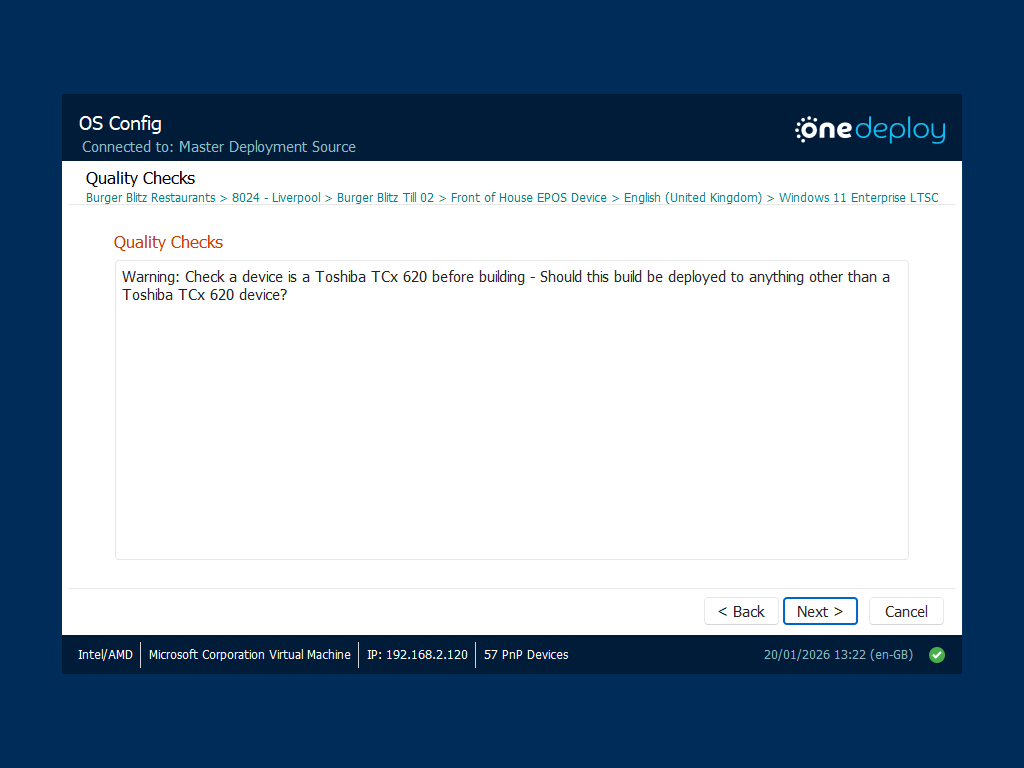
- Displays a warning to the engineer
- Allows the engineer to acknowledge the warning and continue
Halt
- WinPE check: prevents the build from starting
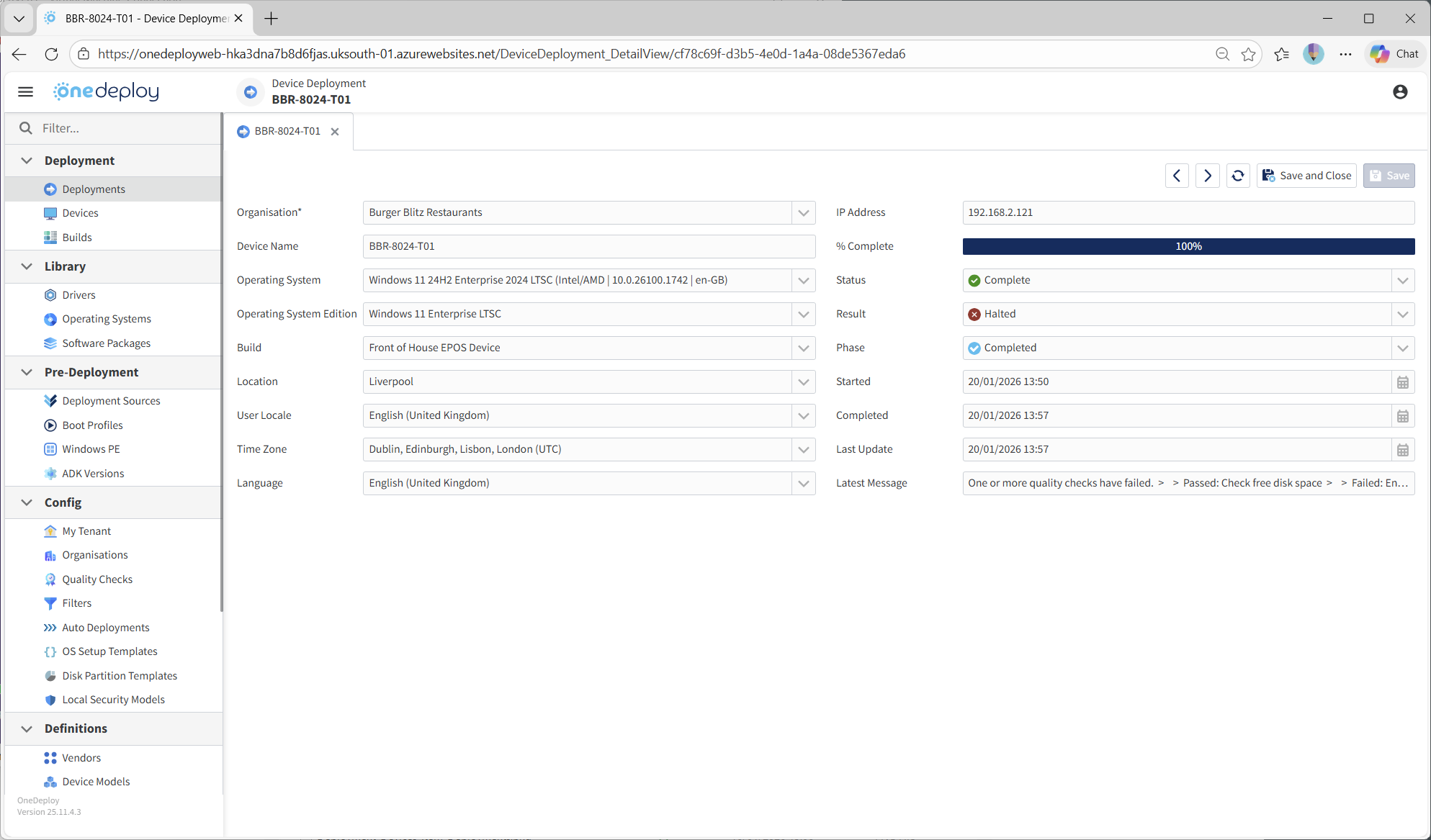
- Deployed OS check: prevents the build from finalising and displays a red halt screen
If a Halt check fails:
- The device is not usable
- The issue must be resolved before proceeding
Example of a ‘Warn’ Quality Check failure in WinPE:
Example of a Halt Quality Check in Deployed OS:

Additionally, failed quality Checks can be reviewed in Deployment → Deployments
Why Quality Checks matter
Quality Checks are optional, but they can add enormous value to large-scale deployments.
They:
- Eliminate manual QA steps
- Reduce human error
- Increase confidence that devices meet requirements
They are especially valuable in scenarios where:
- Engineers do not log into the OS
- Devices are handed directly to end users
- Devices proceed straight to Autopilot or first-use experiences
Real-world Quality Check examples
Before a build starts (WinPE)
- Does the device have sufficient RAM or disk space?
- Is the TPM present and enabled?
- Is this an approved hardware model?
- Is required hardware installed?
- Is the BIOS version compliant?
After a build completes (Deployed OS)
- Are required applications installed?
- Is BitLocker enabled and configured correctly?
- Is sufficient free disk space available?
- Are required files or registry keys present?
- Did the device join the domain successfully?
- Are there unknown devices in Device Manager?
What happens next?
Once Quality Checks are configured:
- Checks run automatically at the defined stage
- Failures are handled consistently
- Only compliant devices progress through deployment
This ensures that devices leaving your deployment environment match your intended standards.
Common questions
Are Quality Checks required?
No. They are optional, but strongly recommended for consistent outcomes.
Can I reuse the same Quality Checks across builds?
Yes. Use Organisation-level Quality Checks to apply them globally. Although, bear in mind you can only select per-build or per-Organisation Checks within a build, not both.
Do Quality Checks replace testing?
No. They complement testing by enforcing known requirements automatically.
Related articles
- Quality Checks (Config)
- Builds
- Devices
- Deployments