



Configuring Domain and Accounts for a Build
Overview
The Domain and Accounts tab controls how a device is joined to a domain or Workgroup during deployment and how users can log on after the build completes.
When should I use this?
Use this section when you need to:
- Join devices to an Active Directory domain
- Deploy standalone or appliance-style devices in a Workgroup
- Control which local accounts exist after deployment, even if joining an Active Directory domain, or enrolling into Entra ID via Autopilot
- Prevent situations where a device cannot be logged into
How to access Domain and Accounts settings
- In the navigation pane, click Deployment → Builds.
- Select a build.
- Open the Domain and Accounts tab.
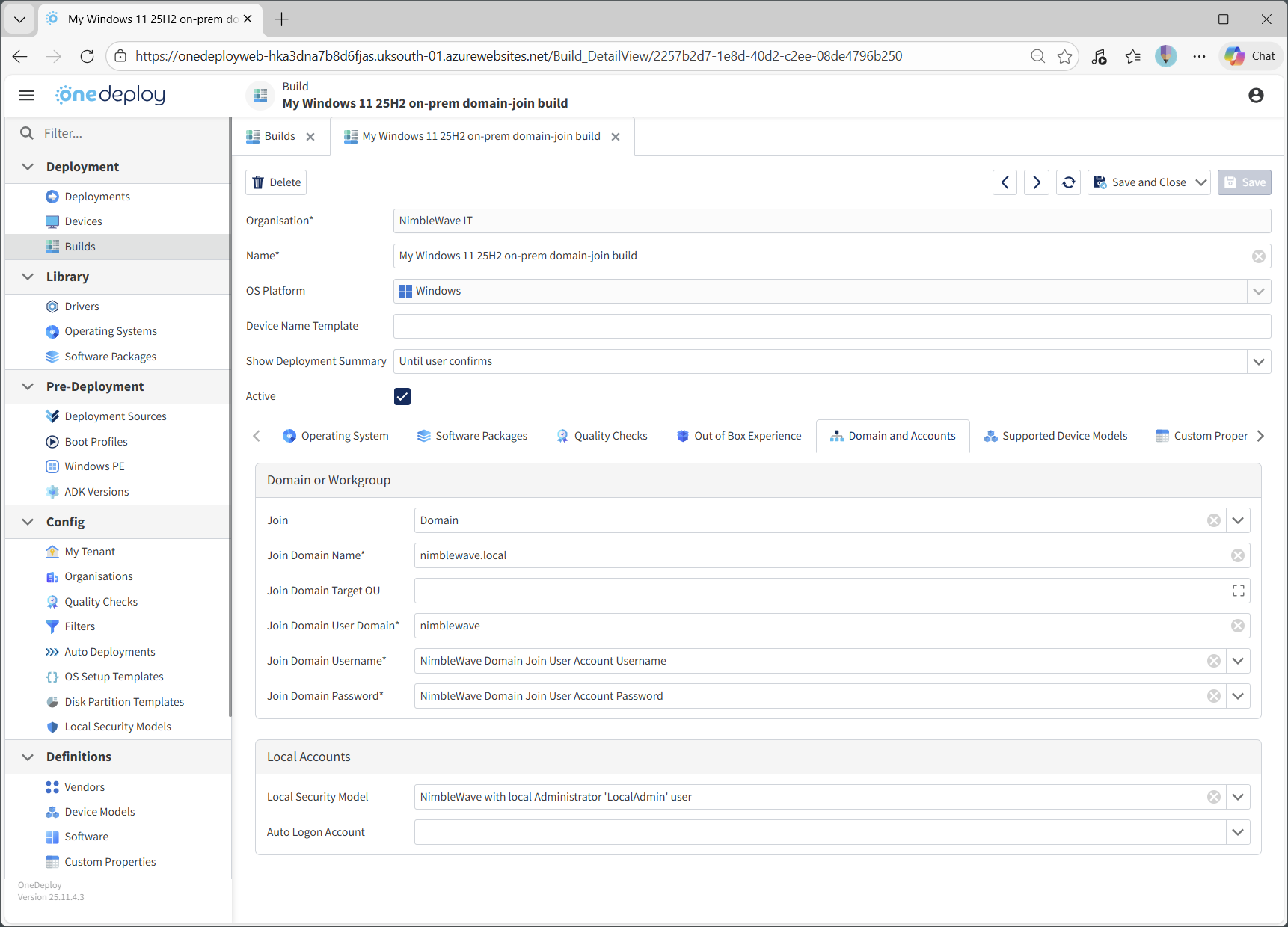
Domain or Workgroup
This section controls whether the device is joined to a domain, a Workgroup, or neither.
Join option
Use Join to select one of the following:
- Domain
- Workgroup
-
(Blank) — no join action is performed
The × icon can be used to clear the selection.
The subsequent options displayed on this screen depend on the selection made.
Joining a Workgroup
When Workgroup is selected, only one option is required:
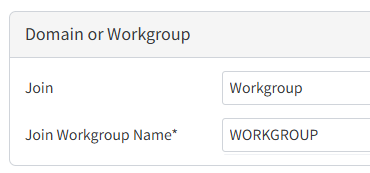
This is commonly used for:
- Kiosk devices
- Appliances
- Meeting room systems
- Isolated or non-managed environments
Joining an Active Directory domain
When Domain is selected, the following options are available:
- Join Domain Name
- Join Domain Target OU
- Join Domain User Domain
- Join Domain Username
- Join Domain Password

Join Domain Name
The fully qualified domain name (FQDN) of the Active Directory domain.
Example:
mydomain.local
Join Domain Target OU
The distinguished name (DN) of the Organisational Unit where the computer account should be created. This field is optional. When not specified, computer objects will go into the Computers OU in most environments.
Example:
CN=Computers,DC=mydomain,DC=local
If this field is left blank, the computer account is created in the domain’s default container.
You can specify an alternate OU for computer objects when joining a domain.
You can only specify alternate OUs in this field. If you specify the default OU here, it will fail. (ie: don’t use OU=Computers,DC=nimblewave,DC=local), so if the intention is to join the default Computers container, leave this field blank.
Ensure the user account joining workstations to the domain has the permissions to create computer objects in that OU.
Important behaviour:
- If the specified OU does not exist, the Domain Join will fail.
- Ensure the OU exists and the join account has permission to create computer objects in it.
Join Domain User Domain
The NetBIOS domain name of the account used to join the device to the domain.
Example:
MYDOMAINJoin Domain Username
The username of the account used to join the device to the domain.
- Enter only the username
- Do not use
MYDOMAIN\usernameformat
Example:
JoinDomainThis value is selected from items that have been configured in Definitions → Secrets.
Join Domain Password
The password for the Domain Join account. This field is:
- Selected from Definitions → Secrets
- Stored securely
- Not visible in the build configuration
Local Accounts
This section controls which local accounts exist on the device after deployment and how logon is handled.
Local Security Model
A Local Security Model defines how local users and groups are configured.
Local Security Models are created and managed in:
Config → Local Security Models
They can:
- Create local users and groups
- Re-enable the built-in local Administrator account
- Control password behaviour
This is a critical setting for ensuring the device can be logged into after deployment if not using an Active Directory domain or Entra ID.
Preventing logon issues
By default, modern Windows deployments:
- Disable the built-in local Administrator account
- Do not automatically create local users
This means it is possible to configure a build that:
- Is not domain joined
- Is not Entra ID joined
- Has no usable local accounts
When OneDeploy detects this scenario, it displays:
- A Potential Logon Issues warning in the build’s properties
- An orange highlight on the build in the Builds list


This helps prevent accidentally creating unusable devices.
Auto Logon Account
Select a user account from the chosen Local Security Model to enable automatic logon at the end of the build.
This is commonly used for:
- Kiosk deployments
- Appliance-style systems
- Single-purpose devices
Notes and best practices
Domain Join account limits
By default, Active Directory limits a user to joining 10 computers to the domain.
If this limit is exceeded, Domain Join will fail.
Recommended approaches for Domain Join permissions
Option 1 — Quick and safe (recommended for most environments)
- Create a dedicated domain user account
- Do not make it a Domain Admin
- Use Group Policy to grant Add workstations to domain user right
This allows domain joins without excessive privileges.
Option 2 — Best practice (most secure)
- Pre-create computer accounts in the target OU
- Delegate Create/Delete Computer Objects permission on that OU only
- Use a tightly scoped join account
This:
- Limits where devices can be created
- Prevents abuse
- Aligns with least-privilege principles
What not to do
- ❌ Do not use a Domain Admin account
- ❌ Do not reuse high-privilege service accounts
Additional considerations
- Domain policies may override local password complexity and local account policies
- Some policies may prevent local account creation if they are non-compliant
- Test Domain Join behaviour before production use
What happens next?
Once configured:
- Devices join the specified domain or Workgroup automatically
- Local accounts are created as defined
- Logon behaviour is predictable and secure
This ensures devices are usable immediately after deployment.
Common questions
What if the OU path is wrong?
The Domain Join will fail. Ensure the OU’s Distinguished name is correct and accessible. eg: OU=Workstations,DC=nimblewave,DC=local
My Computers OU looks correct in ‘Join Domain Target OU’ but domain joins fail?
Ensure you are not specifying the domain’s default computer container in the Join Domain Target OU option. Leave this option empty for joining computers to the default container. Only use the ‘Join Domain Target OU’ field for alternate locations. eg: Don’t use OU=Computers,DC=nimblewave,DC=local
Is a Local Security Model required?
Strongly recommended. Without one, devices may be impossible to log into.
My domain-join isn’t working. What could be the problem?
When Windows Setup attempts to join a domain and the operation fails (for example due to DNS, network, or credential issues), Setup waits for the Domain Join process to retry and eventually time out.
This typically appears as:
- “Getting ready”
- A black screen with a spinning progress indicator
- The pause commonly lasts 15–20 minutes, after which setup continues automatically. This behaviour is expected and does not indicate a crash or frozen installer.

During unattended deployments, Domain Join is treated as a non-fatal step. If the join fails:
- The failure is logged, not surfaced to the user
- Setup continues so the system remains usable
- The device is left not joined to the domain (or joined to a Workgroup)
This design allows administrators to remediate the issue after deployment. Consider making a Quality Check that Checks for domain membership at the end of the build. This ensures non-domain joined computers do not slip through the net.
Domain Join was working, but then suddenly stopped. What could be the problem?
You’ve likely hit Active Directory’s default 10-computer Domain Join limit for standard users.
By default, any authenticated domain user can only join 10 devices to the domain. Once that limit is reached, further Domain Join attempts will fail — even though the same credentials worked previously.
How to fix or prevent it:
- Grant the join account the “Add workstations to domain” user right (recommended quick fix), or
- Delegate permissions on a specific OU for computer account creation (best practice for larger environments)
- Once either of these is in place, the 10-computer limit no longer applies, and domain joins will continue to work normally.
Important:
Avoid using a Domain Admin account for domain joins. Use a dedicated, low-privilege join account instead.
Where can I find logging information?
The primary setup logs are located in:
C:\Windows\Panther\
Key files to review:
- setupact.log – Detailed setup activity, including Domain Join attempts
- setuperr.log – High-level setup errors
- For Domain Join–specific diagnostics, the most important log is:
C:\Windows\Debug\NetSetup.log
This log contains detailed information such as:
- Domain controller discovery attempts
- DNS resolution failures
- Authentication and trust errors
- Timeout and retry behaviour
The most frequently observed causes include:
- DNS not pointing to domain controllers
- Network not fully initialized when the join occurs
- Incorrect Domain Join credentials
- Time skew between the device and the domain
- Firewall or network restrictions blocking LDAP/RPC
Related articles
- Local Security Models
- Builds
- Quality Checks
- Out of Box Experience
- Secrets