



Execute step (Software Packages)
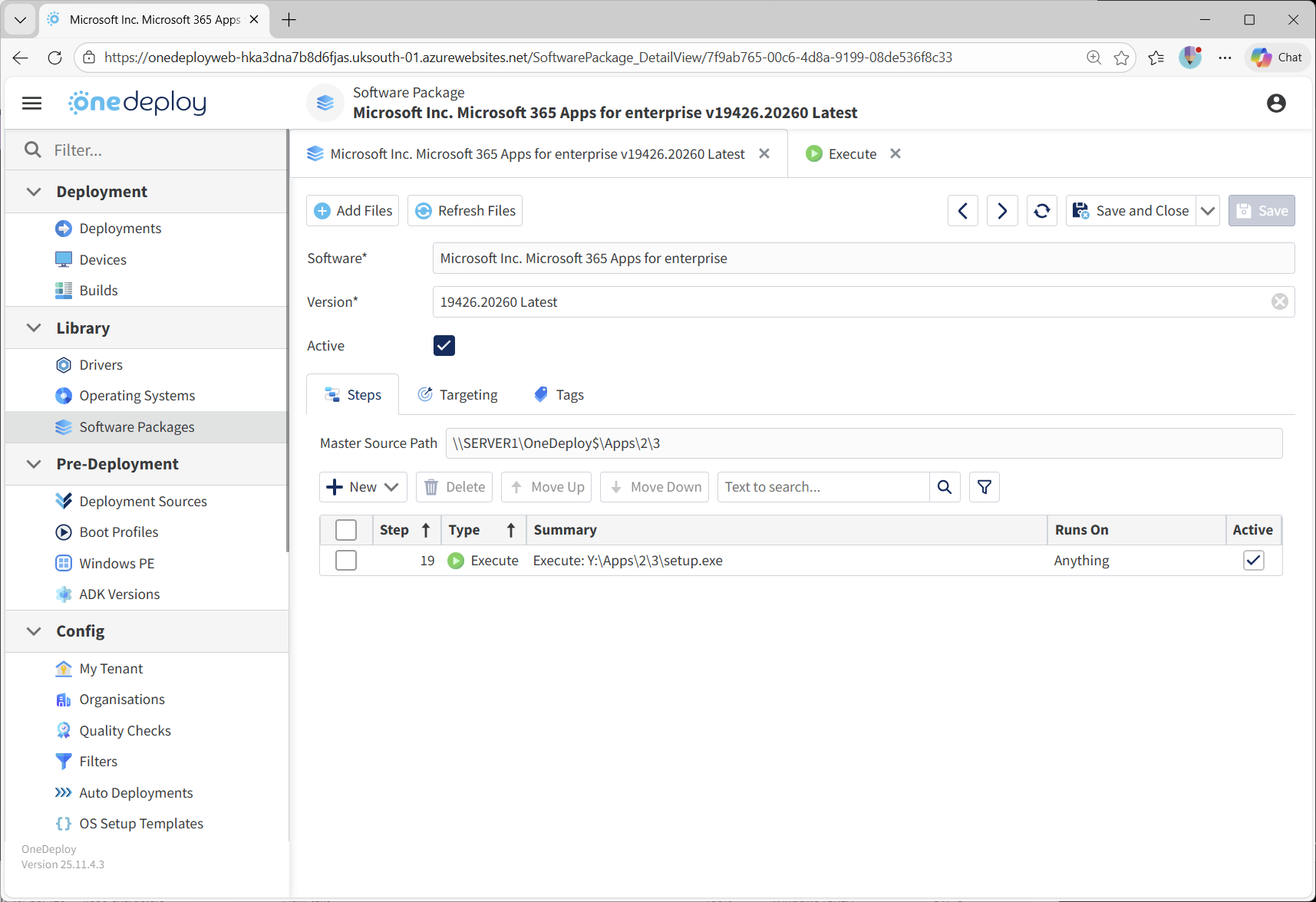
The Execute step allows you to run an executable file as part of a Software Package installation.
This is the most commonly used step for launching installers and setup programs that are already packaged with your software source files.
When to use an Execute step
Use an Execute step when you need to:
- Run an application installer
- Launch a setup executable with command-line parameters
- Execute batch files or command scripts
- Run any supported Windows executable as part of a build
Execute step screen overview
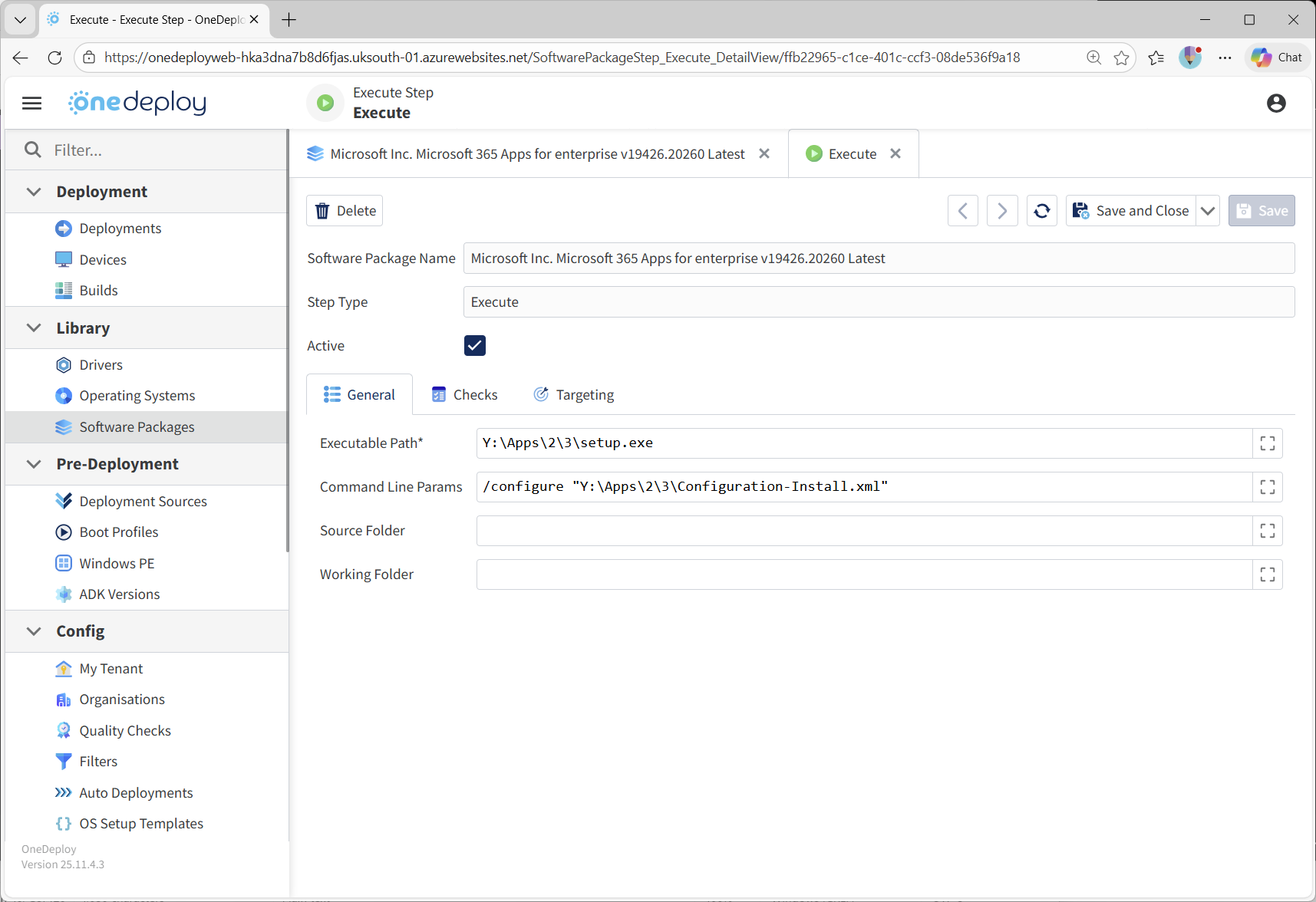
When you add an Execute step to a Software Package, the Execute properties screen is displayed.
From this screen, you can configure:
- Whether the step is Active or Inactive
- The Executable Path
- Command Line Parameters
- An optional Source Folder
- An optional Working Folder
- Optional Checks and Targeting
Executable Path
The Executable Path defines the file that will be executed.
Supported Windows executable types include:
.exe.cmd.bat.com
The path is typically relative to the Software Package’s source location.
Example:Y:\Apps\2\3\setup.exe
Command line parameters
The Command Line Params field allows you to specify arguments passed to the executable when it runs.
This is commonly used to:
- Enable silent or Unattended Installation
- Pass configuration files
- Control installer behaviour
Example:/configure "Y:\Apps\2\3\Configuration-Install.xml"
Ensure the parameters used prevent user prompts and suppress reboots.
Source Folder
The Source Folder field is used when the executable is stored in a subfolder beneath the Software Package’s root directory.
- Leave this field blank if the executable is located directly in the root
- Specify one or more subfolders if required
This helps keep executable paths clean and easier to manage.
Software Package root folder
The root folder for the Software Package is shown on the Software Package page under Master Source Path.
All executables and files referenced by the Execute step must exist within this location or its subfolders.
Working Folder
The Working Folder defines the directory context used when the executable runs.
This is important for installers or scripts that:
- Expect files to exist in the current directory
- Use relative paths
- Write logs or output files without full paths
If a Working Folder is set, the executable runs as if it were launched from that directory.
If left blank, the default execution context is used.
Setting a Working Folder can help prevent file-not-found errors and improve reliability.
Active and inactive steps
The Active option controls whether the Execute step runs during deployment.
- Active steps are executed
- Inactive steps are skipped without being removed
This is useful for testing, troubleshooting, or temporarily disabling installers.
Using Checks and Targeting
You can optionally configure Checks and Targeting for Execute steps.
-
Checks allow you to define success criteria and detect failed installations
-
Targeting allows the step to run only on applicable devices, such as:
- Specific Windows versions
- Processor Architecture (Intel/AMD vs ARM)
- Other device characteristics
These options help ensure installers run only where appropriate and failures are detected early.
Common questions
Where do my executable files need to live?
They must exist within the Software Package’s Master Source Path or its subfolders. Use the ‘Add Files’ option on the Software Packages summary screen to copy your Software Package files to your Deployment Source.
Should I always use silent install parameters?
Yes.
Execute steps should always be configured to run unattended and without reboots.
Can I use Execute for scripts?
Yes.
You can execute .cmd or .bat files directly using the Execute step.
Related articles
- Software Packages overview
- Steps tab overview
- CMD step
- PowerShell step
- Using Checks in Software Package steps
- Targeting Software Package steps