



Registry (Bulk) step (Software Packages)
The Registry (Bulk) step allows you to apply multiple Windows Registry entries in a single Software Package step.
Registry data is entered using the same format as a standard .REG file, making this step ideal for importing existing registry configurations or applying several related settings at once.
When to use a Registry (Bulk) step
Use a Registry (Bulk) step when you need to:
- Set multiple registry keys and values in one step
- Import registry settings from an existing
.REGfile - Configure complex application settings
- Apply REG_BINARY or other advanced registry value types
- Keep related registry configuration grouped together
If you only need to set a single registry value, use the standard Registry step instead.
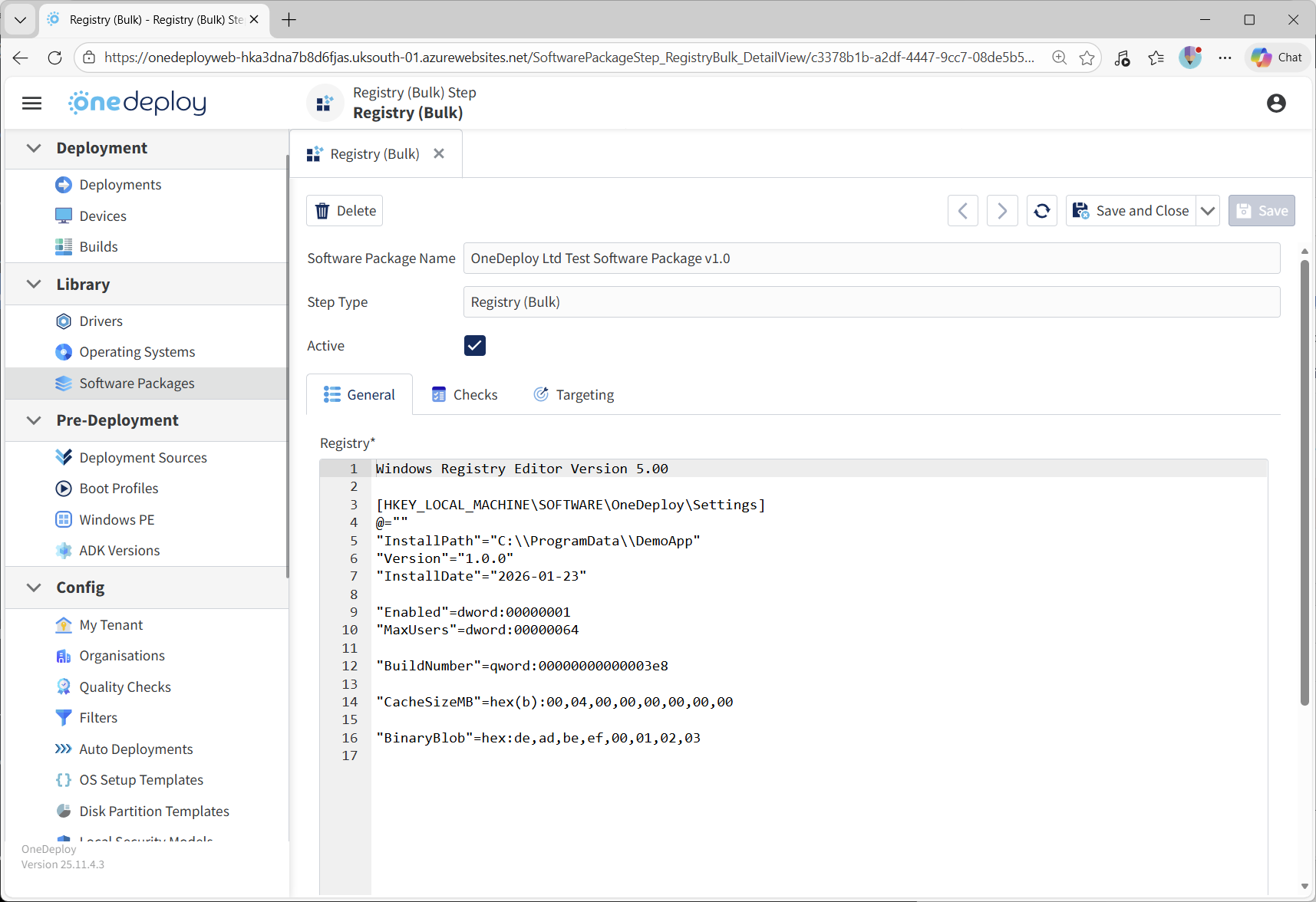
Registry (Bulk) step screen overview
When you add a Registry (Bulk) step to a Software Package, the Registry (Bulk) properties screen is displayed.
From this screen, you can:
- Paste or type registry data in
.REGfile format - Enable or disable the step
- Configure optional Checks to validate successful application
- Configure Targeting to control when the step runs
Registry data format
Registry data must be entered exactly as it would appear in a .REG file.
Required header line
The first line must be:
This header is required for Windows to recognise and process the registry content correctly.
If this line is missing, the registry data will not be applied.
Defining registry keys
Registry keys are defined using square brackets.
Example:
If the key does not already exist, it will be created automatically.
Defining registry values
Each registry value is defined on its own line beneath the key.
Examples:
The value type is determined by the syntax used, matching standard .REG file behaviour.
Using @=”” (Default value)
The @ symbol represents the default value of a registry key.
Example:
This sets the (Default) value of the registry key to an empty string.
In the Registry Editor, this appears as:
- Name: (Default)
- Type: REG_SZ
- Data: (empty)
This is useful when an application expects the default value of a key to exist, even if it does not contain data.
Using binary registry values
The Registry (Bulk) step is particularly useful for REG_BINARY values.
Example:
This allows precise control over binary data that is difficult or impractical to enter using single-value registry steps.
64-bit and 32-bit registry considerations
Registry (Bulk) steps are applied in the 64-bit registry context.
On a 64-bit operating system:
-
64-bit registry values are written under:
HKEY_LOCAL_MACHINE\SOFTWARE -
To write 32-bit registry values, you must explicitly use:
HKEY_LOCAL_MACHINE\SOFTWARE\Wow6432Node
Example (32-bit application)
This ensures the values are visible to 32-bit applications on a 64-bit OS.
Using Checks with Registry (Bulk) steps
The Checks tab can be used to confirm that registry entries were applied successfully.
Checks can be configured to:
- Confirm a key exists
- Confirm specific values exist
- Validate expected data
If a check fails, the Software Package can be halted, helping to catch configuration errors early in the deployment process.
Common questions
Can I mix different registry value types in one step?
Yes.
You can include string, DWORD, QWORD, binary, and other value types in the same Registry (Bulk) step.
Do I need to escape backslashes in paths?
No.
Registry paths use standard backslashes as shown in .REG files.
Will existing values be overwritten?
Yes.
If a value already exists, it will be updated with the new data provided.
Related articles
- Software Packages overview
- Steps tab overview
- Registry step
- Using Checks in Software Package steps