



Adding Drivers
To support new hardware and keep deployments reliable, any deployment system must allow drivers to be added and updated independently of builds. As vendors release new models and update existing components, Driver maintenance becomes an ongoing task rather than a one-time setup step.
OneDeploy allows drivers to be added to a central library so that new or updated drivers are automatically available to all builds without modification.
By default, OneDeploy integrates drivers in two stages: once during the WinPE phase and again during the deployed Windows OS phase.
This allows Plug and Play detection to occur in both environments. Some hardware components are not fully visible or initialised in WinPE and only become detectable once the full Windows operating system is running.
This behaviour can be controlled using filters on a Driver’s properties page.
Starting the Add Drivers Process
To add a new Driver:
- Navigate to Library → Drivers
- Click Add
This launches the OneDeploy Admin Utils Driver import workflow.
In this example, an INF-based Driver is being added.
Selecting the Driver Source Folder
A folder selection prompt is displayed.
- Browse to the location containing your INF-based drivers
- Select the folder
- Click Next
The selected folder should contain extracted Driver files, including one or more .inf files.
Drivers must be extracted before importing. Downloaded OEM drivers are often provided as ZIP, EXE, or MSI files and must be unpacked first.
There is also an option to Treat source folder as one Driver, which is explained later in this article.
Scanning and Importing Drivers
After clicking Next, the selected folder is scanned and all discovered drivers are displayed.
- Review the list of discovered drivers
- By default, all discovered drivers are selected
- Click Next to import the selected drivers into the library
During this process:
- Driver files are copied from the source location
- Files are stored in the OneDeploy Deployment Source
- The drivers become immediately available to future build deployments
Treat Source Folder as One Driver
To simplify library management, OneDeploy provides the option to group multiple discovered drivers into a single logical Driver entry during import.
This option is called Treat source folder as one Driver.

Example: AMD Graphics Driver
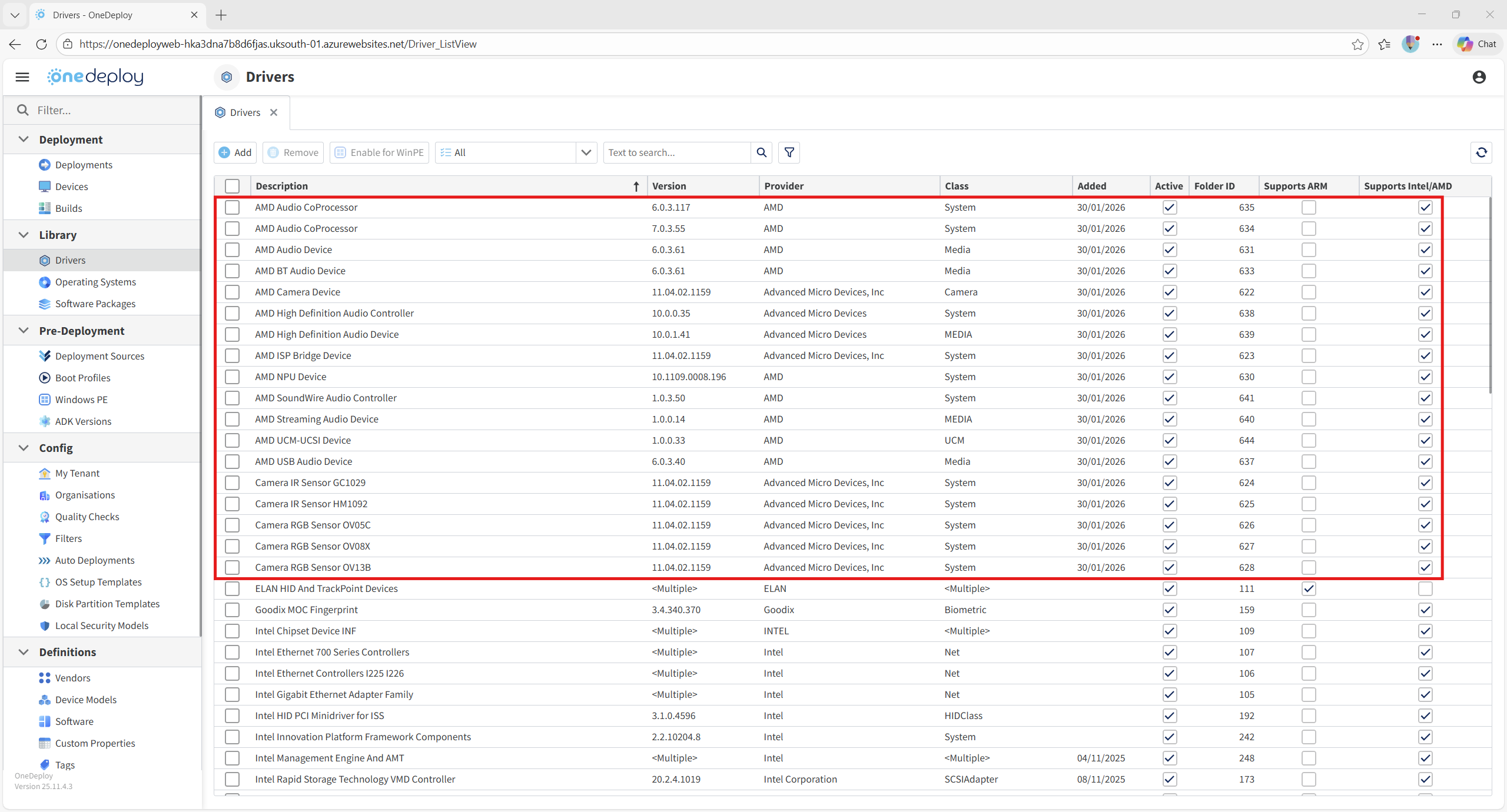
When importing a single AMD graphics Driver download, OneDeploy discovers a large number of individual drivers.
In this example, 23 drivers were discovered within the single AMD download:

If imported individually, the Drivers Summary screen can become cluttered and harder to manage:
Grouping Drivers for Easier Management
By enabling Treat source folder as one Driver, all discovered drivers are grouped into a single Driver entry. This is purely for ongoing management purposes – the Driver will behave exactly the same at deployment time whether it was added as one single Driver or not.
This results in a much cleaner and more manageable library view:
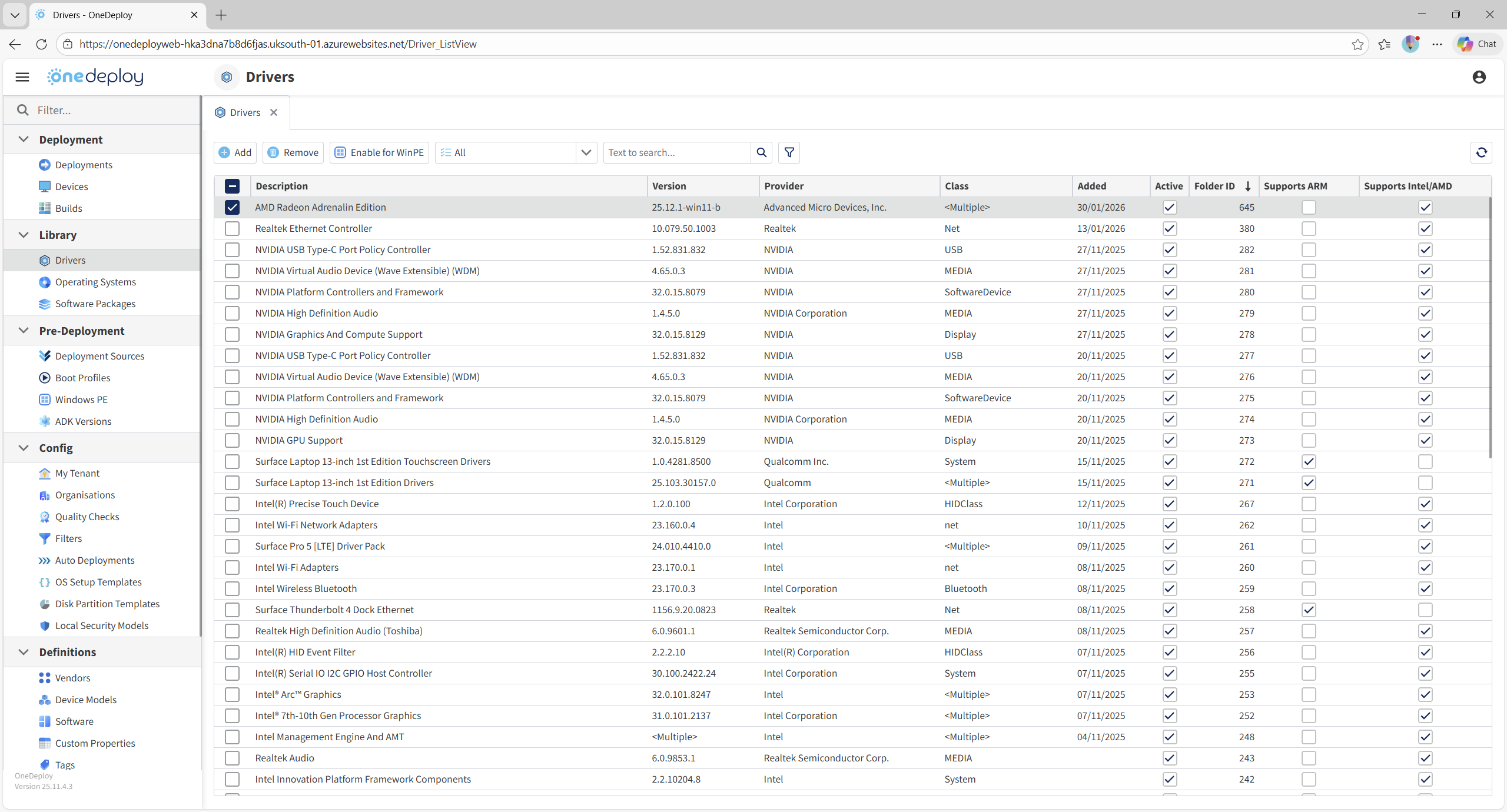
This grouped Driver can now be managed, enabled, disabled, or filtered as a single unit.
Renaming the Driver
After import, you can rename the Driver to something more meaningful.
During Import, OneDeploy attempts to:
- Derive a sensible name from the Driver INFs
- Fall back to AI-based suggestions if required
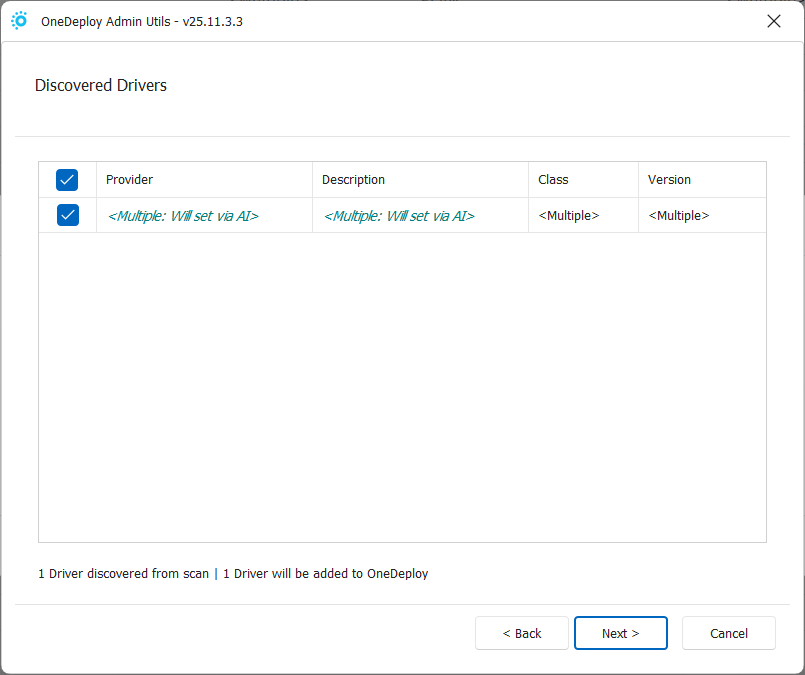
You can set your own description to rename the Driver as needed.
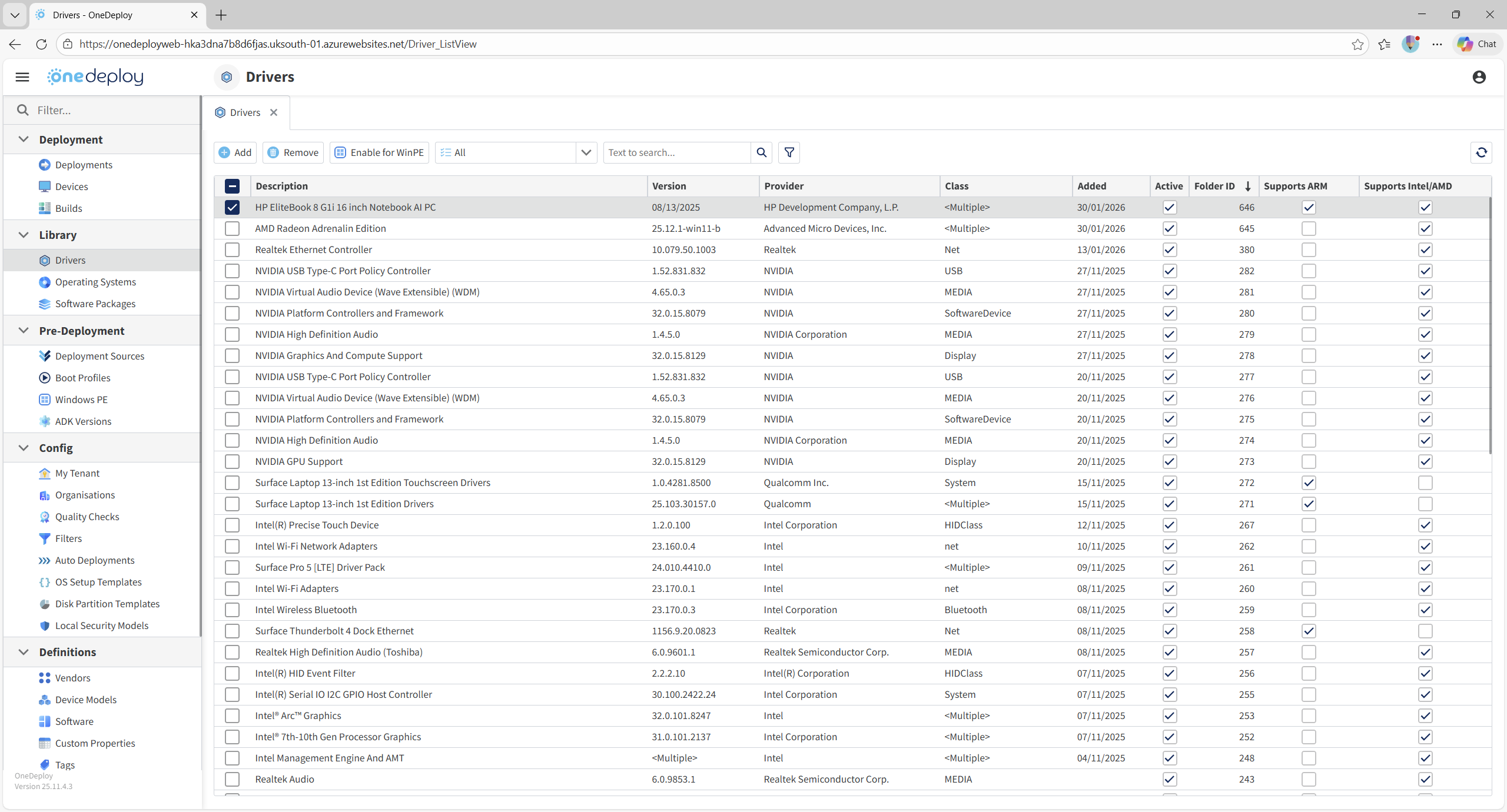
Tip: Finding Newly Added Drivers
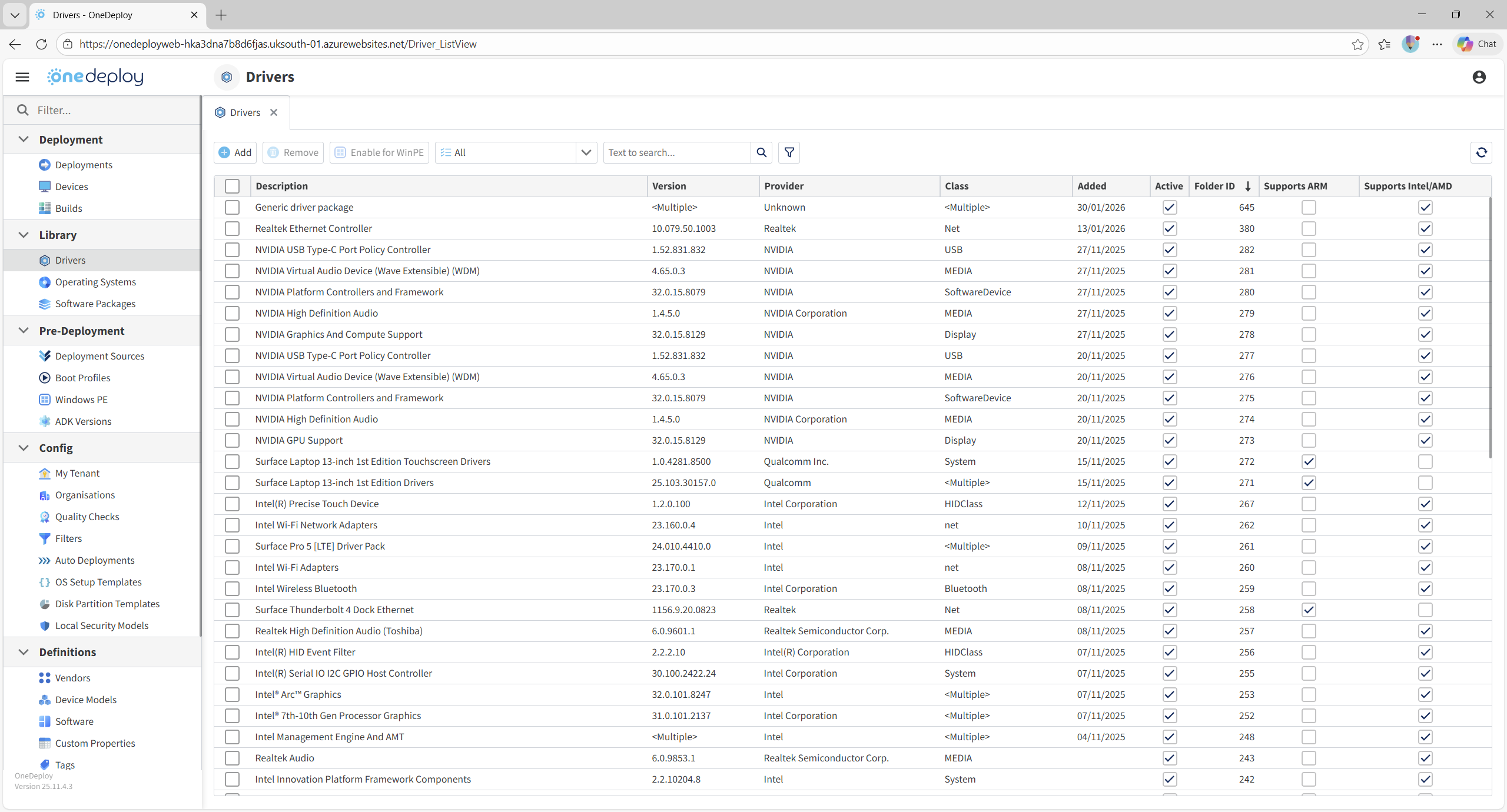
You can use the Folder ID column in the Drivers Summary screen to quickly locate newly added drivers.
The most recently added Driver will have the highest Folder ID value.
Driver Packs and OEM Deployment Bundles
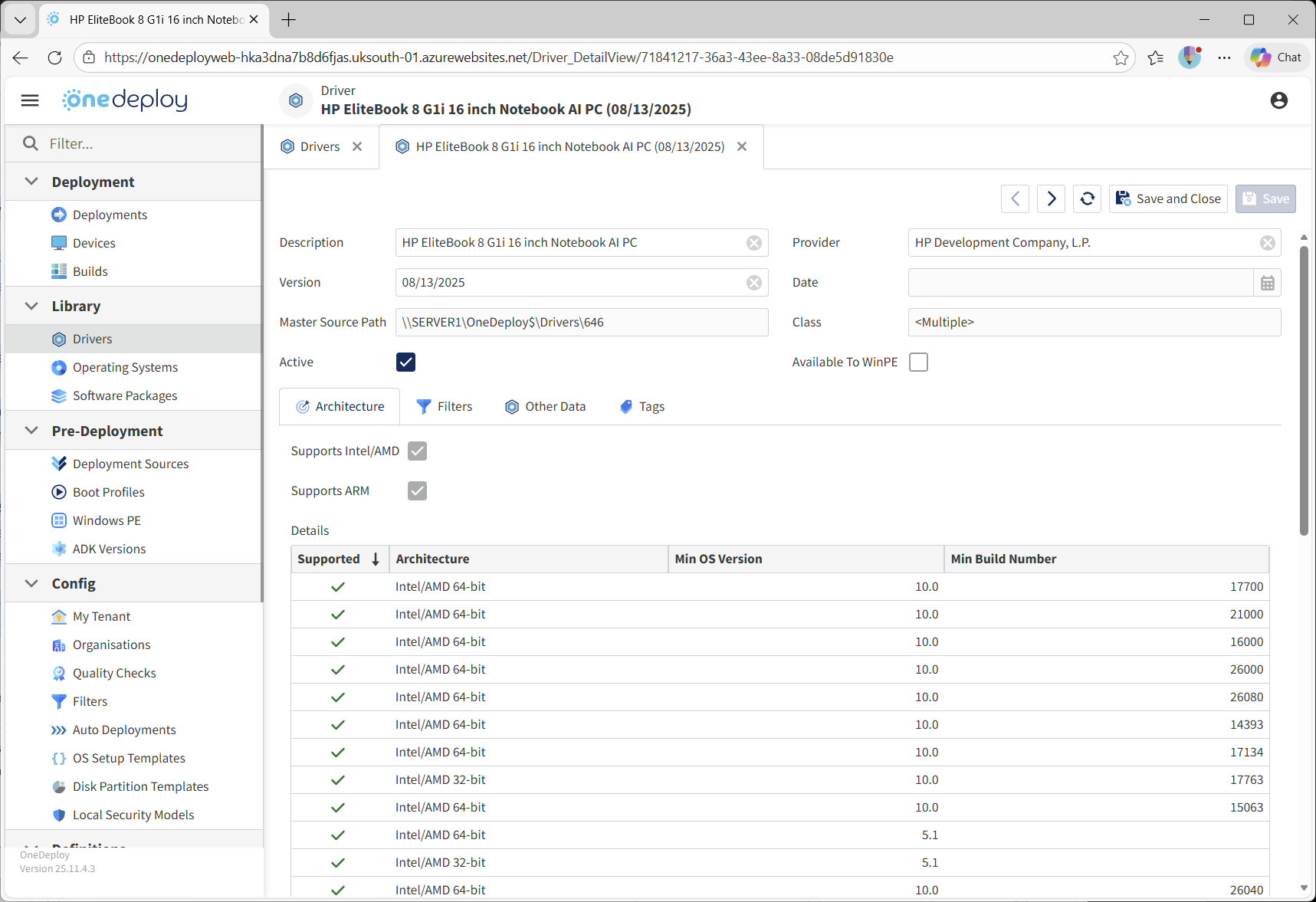
It is recommended to use Treat source folder as one Driver when importing OEM SCCM-style Driver packs.
For example, this HP laptop Driver pack returned over 80 drivers:

When added and grouped into a single Driver entry at the point of import, the result is significantly cleaner:
Driver Pack Behaviour and Filters
By default, drivers added to the library are available to all hardware models.
This means:
- A Dell device could potentially match a device contained within a Lenovo Driver pack
- If a better hardware match is found, that Driver may be selected
If this behaviour is not desired, you can control Driver applicability using Filters.
Filters are configured in:
Config → Filters
Filters can then be assigned to drivers in their properties to enforce rules such as:
- Only use this Driver for a specific hardware model
- Exclude a Driver from certain device types
- Restrict OEM Driver packs to matching manufacturers or models
Common Questions
Should drivers always be extracted before importing?
Yes. Drivers must be extracted so that the .inf files are accessible. OneDeploy cannot import drivers directly from compressed or installer-only formats.
When should I use “Treat source folder as one Driver”?
This option is recommended when:
- Importing OEM Driver packs
- Importing GPU drivers or large Vendor bundles
- Managing drivers as a single logical unit is preferable
It is especially useful for SCCM or MDT-style Driver packs.
This is purely for Library management presentational purposes and does not affect Driver functionality.
Can grouped drivers still be matched individually?
Yes. Although drivers are grouped for management purposes, OneDeploy still evaluates individual hardware matches within the grouped Driver during deployment.
Will adding drivers affect machines I have already built?
No. Drivers added to the library automatically become available to future deployments. Existing builds are not updated.
Related Articles
- Drivers Overview
- Drivers Summary Screen
- Driver Filters
- DriverApps Overview
- Windows PE Overview