Home Logo logo
  • The OneDeploy Platform
    • Build vs. Image: The Deployment Revolution
    • Scalability and Performance
    • Remote Sites: Deployment without border
    • A Unified Deployment Platform
  • About OneDeploy
  • For MSP’s
  • News and Events
    • Why we killed the image
    • How a London Stadium Recovered from the CrowdStrike Outage in Time for a Concert
  • Support and Resources
    • Videos
    • Documentation
  • Contact
Book a Demo
  • The OneDeploy Platform
    • Build vs. Image: The Deployment Revolution
    • Scalability and Performance
    • Remote Sites: Deployment without border
    • A Unified Deployment Platform
  • About OneDeploy
  • For MSP’s
  • News and Events
    • Why we killed the image
    • How a London Stadium Recovered from the CrowdStrike Outage in Time for a Concert
  • Support and Resources
    • Videos
    • Documentation
  • Contact

Introduction

3
  • What is OneDeploy?
  • Concepts and Planning
  • Getting Started – Technical Onboarding

Using OneDeploy

43
  • Config
    • Windows Autopilot – Getting Started
    • Windows Autopilot Integration – OneDeploy Steps
    • Windows Autopilot Integration – Microsoft Entra
    • Organisations – Summary
    • My Tenant
  • Deployment
    • Builds
    • Devices
    • Deployments
    • Builds
      • Build General Settings
      • Builds Overview
      • Configuring the Operating System(s) for a Build
      • Applying Quality Checks to a Build
      • Configuring the Out of Box Experience
      • Domain and Accounts
      • Assigning Software Packages to a Build
  • Library
    • Library Overview
    • Drivers
      • DriverApps
      • Drivers Overview
      • Drivers Summary View
      • Adding Drivers
      • Driver Properties
    • Operating Systems
      • Adding and Managing Operating Systems
    • Software Packages
      • Software Packaging Best Practices
      • Defining Installation Steps for a Software Package
      • Software Package Steps – PowerShell
      • Software Packages Overview
      • Software Package Steps – Registry (Bulk)
      • Software Package Steps – Registry
      • Software Package Steps – Copy
      • Software Package Steps – MSI
      • Software Package Steps – WinGet
      • Software Package Steps – Execute
      • Software Package Steps – CMD
  • Pre-Deployment
    • Windows PE
    • ADK Versions
    • Boot Profiles
    • Deployment Sources
    • Pre-Deployment Overview
  • Definitions
    • Secrets
    • Software
    • Definitions Overview
    • Device Models
    • Vendors

Reference

7
  • How To: Create USB Boot and Deployment Media
  • How To: Create USB Boot Media
  • Technical Overview – Windows Autopilot
  • Test formatting page
  • How To: Update a build from 24H2 to 25H2
  • How To: Upgrade Your Windows ADK Version
  • LAN-Based vs USB Deployment Sources
View Categories
  • Home
  • Docs
  • Reference
  • How To: Create USB Boot Media

How To: Create USB Boot Media

2 min read

Overview

The OneDeploy Media Tool allows you to synchronise Deployment Sources and create bootable USB media.

This guide walks through creating a bootable USB memory stick for environments where PXE booting is not available.

OneDeploy uses Media Profiles to define and save the configuration for different types of media you want to create.


Prerequisites

  • A configured Deployment Source
  • A valid Boot Profile
  • A USB memory stick (this will be wiped during the process)
  • Access to an elevated Command Prompt

Create a Media Profile

  1. Navigate to Pre-Deployment → Media Profiles
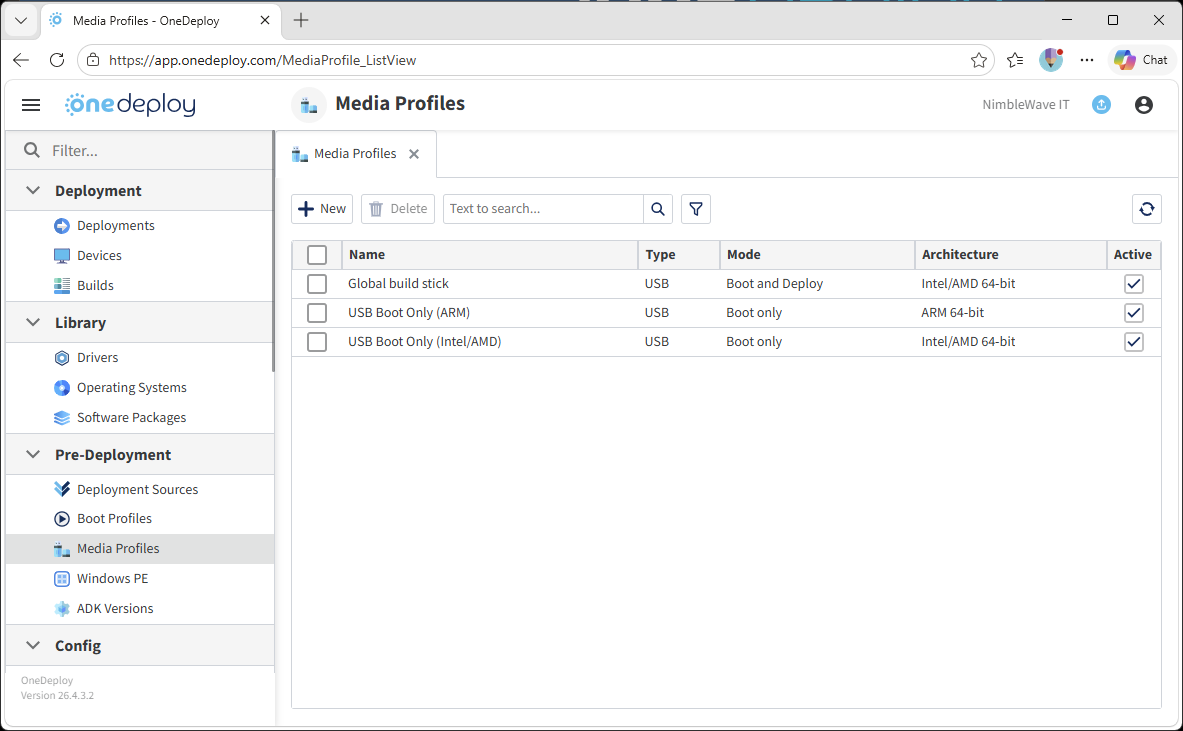
  2. Click New, or select an existing Media Profile to edit
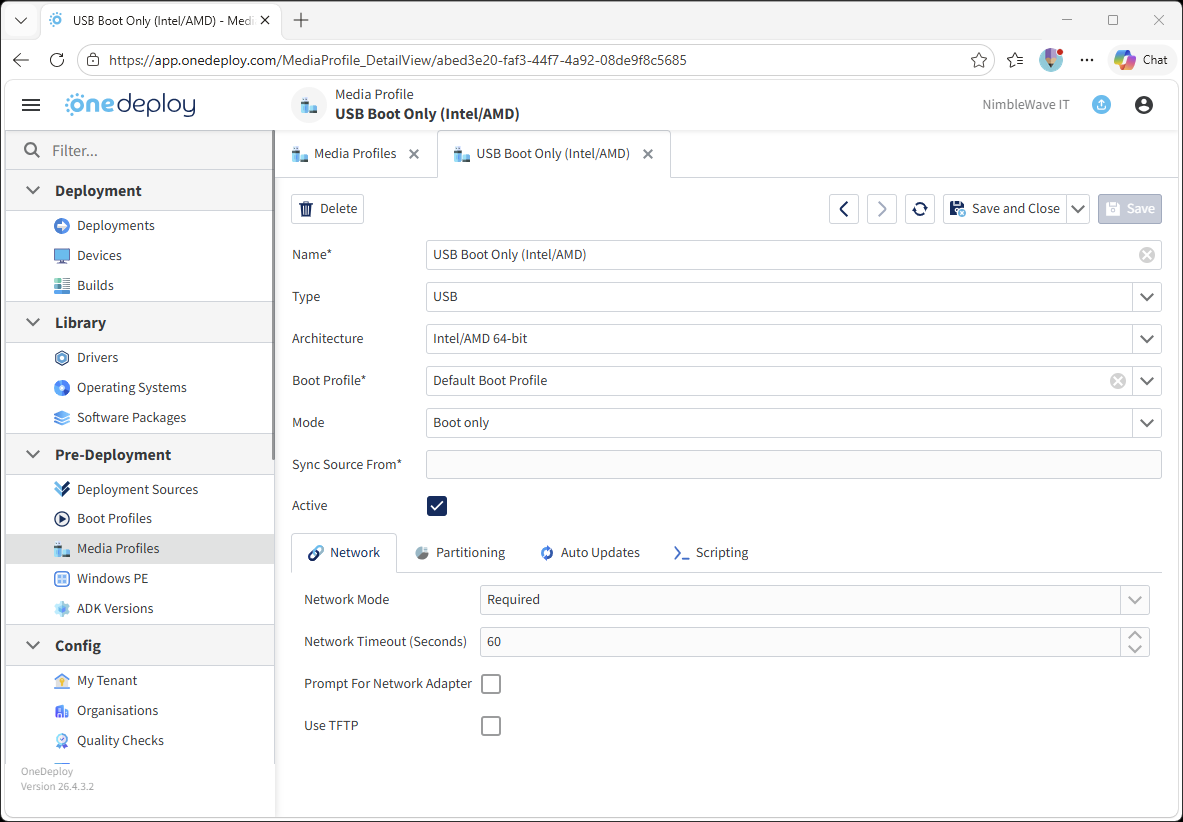
  3. Configure the Media Profile:

    • Enter a Name
    • Set Architecture to Intel/AMD 64-bit
    • Select a Boot Profile (Default is fine if only one exists)
    • Leave other settings as default for standard USB Boot media 
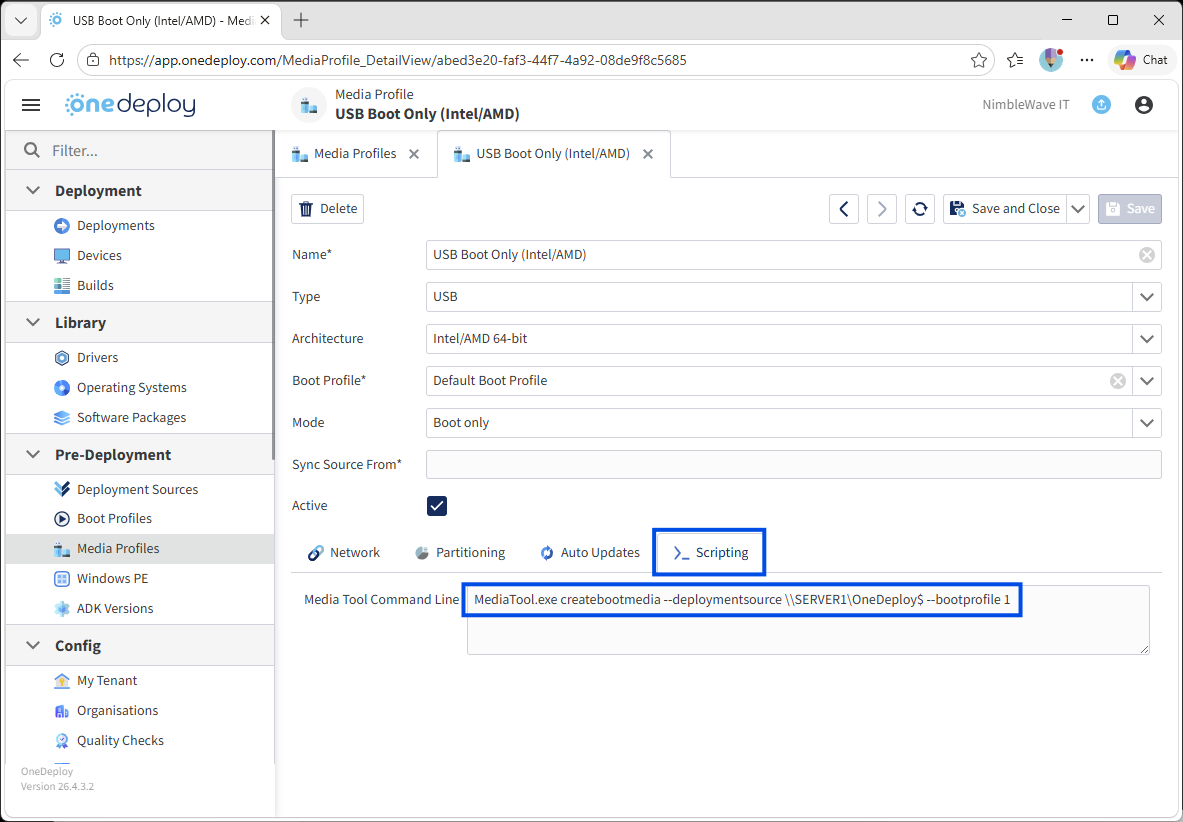
  4. Go to the Scripting tab


  5. Note the generated MediaTool command line
    This command will be used to create the USB media.

Create the USB Boot Media

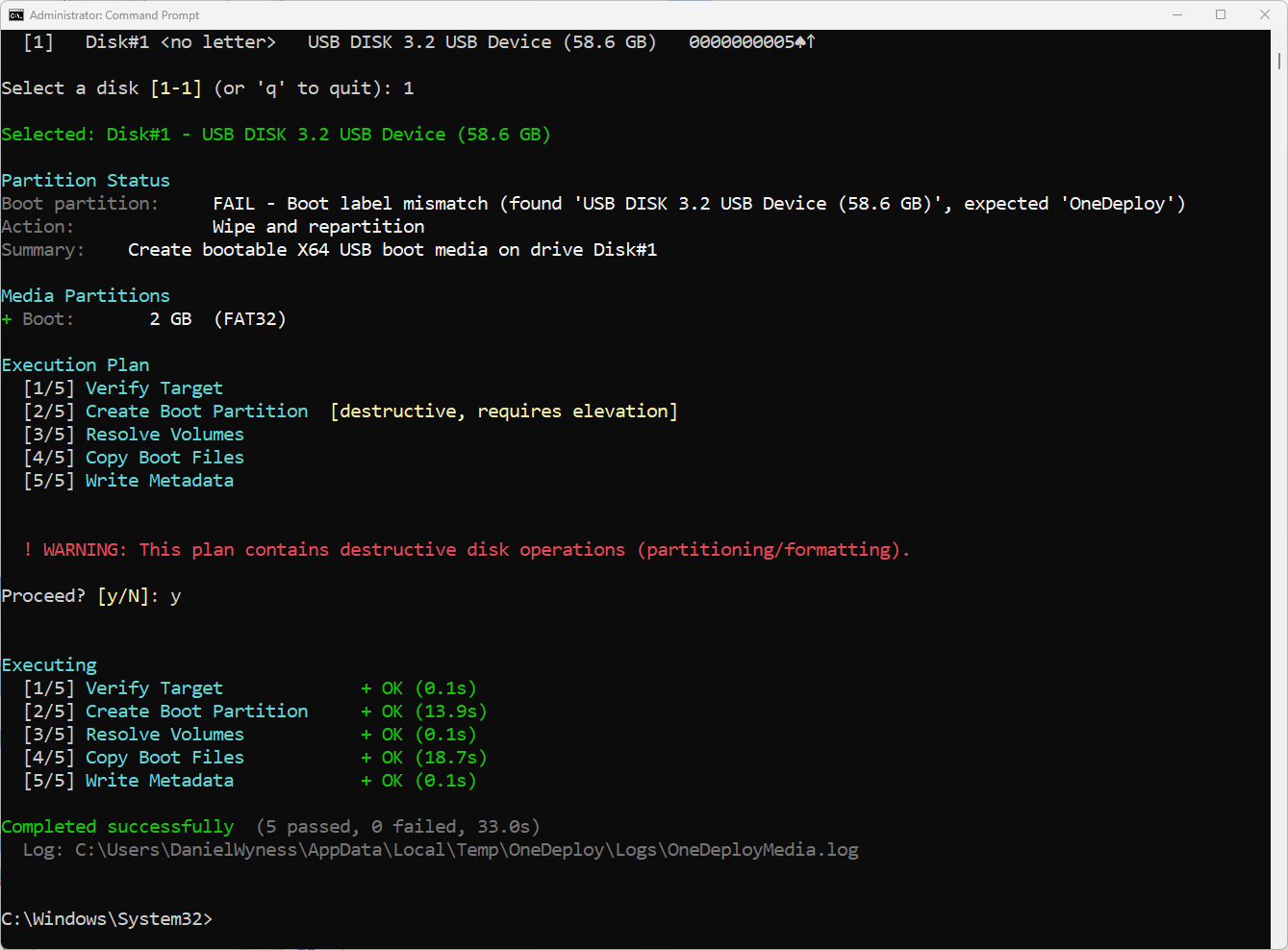
  1. Insert your USB memory stick into the computer
  2. Open an elevated Command Prompt
  3. Run the MediaTool command shown in the Media Profile

  4. Select the correct USB device when prompted
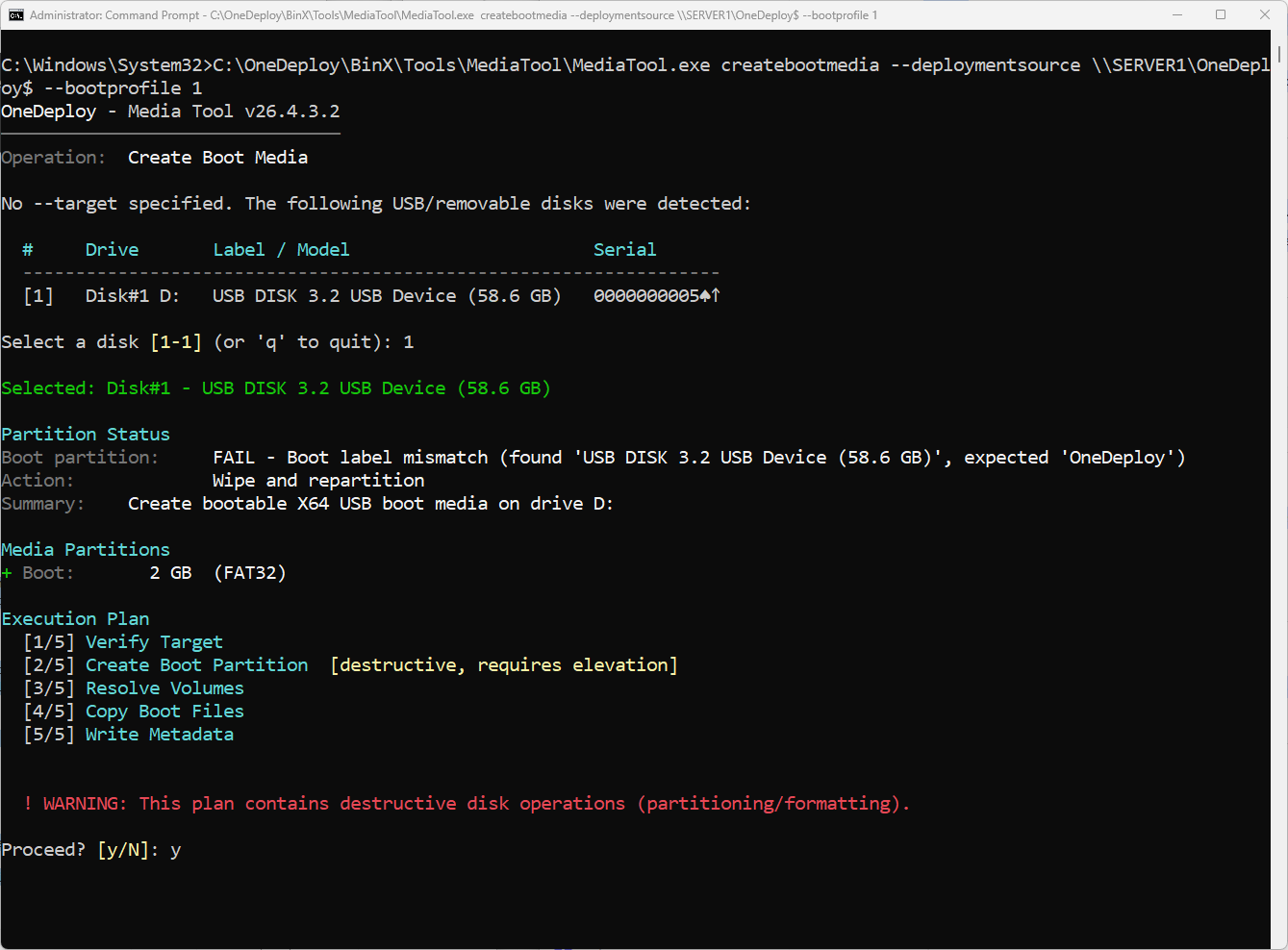
  5. Confirm the operation by entering ‘Y’ when prompted (this will erase the USB drive)
  6. Wait for the process to complete


Result

The USB stick is now bootable and can be used to start a device into the OneDeploy pre-installation environment.

From there, the device will connect to a Deployment Source over the network to perform the OS deployment.


Common Questions

Does creating USB media delete the contents of the USB stick?

Yes. The process wipes and repartitions the USB device, so ensure no important data is stored on it before proceeding.


Where is MediaTool.exe located?

MediaTool.exe is located within your Deployment Source:

[OneDeployFolder]\BinX\Tools\MediaTool

Can I create different types of boot media?

Yes. Media Profiles allow you to create different configurations, including:

  • Boot-only media
  • Boot and deploy media
  • Different architectures (Intel/AMD or ARM)

Do I need PXE if I use USB media?

No. USB Boot media is specifically designed for environments where PXE booting is not available or has degraded performance/reliability.


Related Articles

  • Pre-Deployment → Media Profiles
  • Pre-Deployment → Boot Profiles
  • Pre-Deployment → Deployment Sources
Updated on April 28, 2026

What are your Feelings

How To: Create USB Boot and Deployment MediaTechnical Overview – Windows Autopilot
  • hello@onedeploy.com
  • UK:+44 1462 514624/ US:+1 415 907 7314

Copyright 2026 OneDeploy Ltd Privacy Policy Cookie Policy