



WinGet step (Software Packages)
The WinGet step allows you to install applications using the Windows Package Manager (winget) as part of a Software Package.
This step is useful when you want to install well-known applications from a WinGet repository without packaging the installer files yourself.

When to use a WinGet step
Use a WinGet step when:
- The application is available in a WinGet repository
- You are comfortable installing software from a package source at build time
- You want a simple way to install the latest available version of an application
If you need strict version control or fully offline installs, other step types may be more appropriate.
WinGet step screen overview
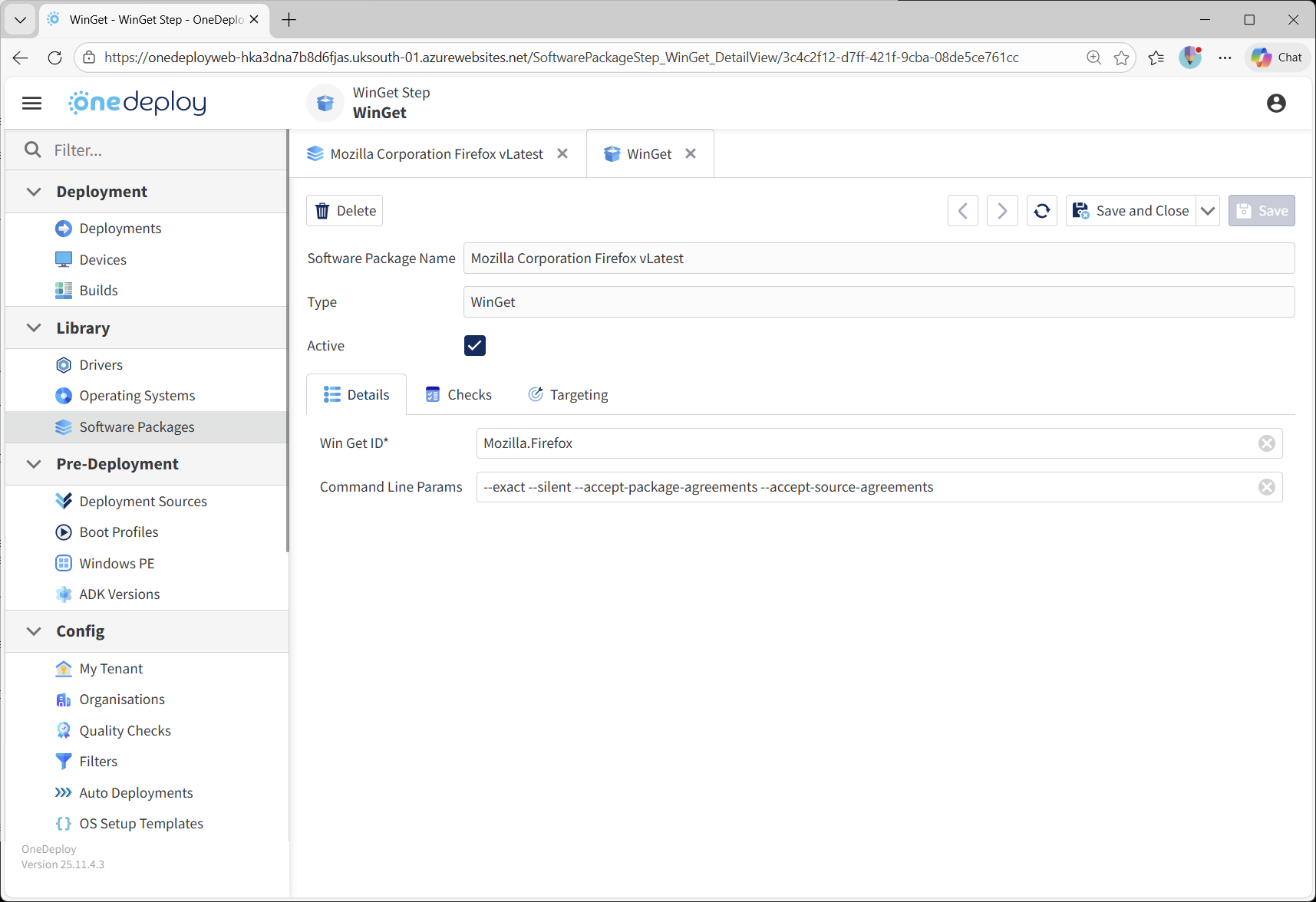
When you add or edit a WinGet step, you can configure:
- The WinGet ID
- Command Line Parameters for the WinGet install command
- Whether the step is Active
- Optional Checks and Targeting
WinGet ID
The WinGet ID identifies the application to install.
Example:Mozilla.Firefox
You do not need to specify:
winget.exe- The
--idpart of the parameter itself
OneDeploy handles this for you automatically.
Command line parameters
The Command Line Params field allows you to specify additional parameters passed to the WinGet command.
Example command you might normally run at a command prompt:
For entering the above into a WinGet installation step in OneDeploy, enter the following:
-
WinGet ID:
Mozilla.Firefox -
Command Line Params:
--exact --silent --accept-package-agreements --accept-source-agreements
Using Checks and Targeting
You can optionally use:
- Checks to validate that the application installed successfully
- Targeting to control when the step runs (for example, OS version or Architecture)
This is strongly recommended, as WinGet installs rely on external sources.
Version control considerations
By default, WinGet installs the latest version available in the selected repository.
This means:
- Two builds run at different times may install different versions of the same application
- Updates to the repository immediately affect future deployments
Some organisations are comfortable with this “always install latest” approach, while others require stricter version control.
If version consistency is critical, WinGet may not be the best fit unless additional controls are put in place.
Using custom or enterprise repositories
WinGet supports multiple repositories, including custom or internally hosted ones.
Benefits of hosting your own repository
- Full control over application versions
- Predictable and repeatable deployments
- Reduced reliance on external sources
- Ability to approve and test packages before release
Considerations and trade-offs
- Additional setup and ongoing maintenance
- Packaging and signing responsibilities
- Repository availability becomes your responsibility
For some organisations, the added control is worth the extra complexity. For others, the default repository is sufficient.
Selecting repositories during deployment
You can influence which repository WinGet uses in several ways:
Using CMD steps before a WinGet step
You can use a CMD step before the WinGet step to:
- Add a repository
- Configure repository priorities
- Remove or disable repositories
This allows you to prepare the WinGet environment before installing applications.
Forcing a specific repository
WinGet supports parameters that allow you to specify a source directly on the command line.
This can be used to ensure a package is installed from a specific repository rather than the default one.
Using multiple repositories
WinGet can work with multiple repositories at the same time.
When doing so, be aware that:
- Package names or IDs may exist in more than one source
- Repository priority and explicit source selection become important
- Ambiguity can lead to unexpected results if not managed carefully
Connectivity and reliability considerations
WinGet installs typically require network connectivity at build time.
When using WinGet, consider:
- Will the device have internet or network access during the build?
- Can it reach the configured repository?
- Are there proxy, firewall, or authentication requirements?
Relying on external sources during a build can reduce deployment reliability if connectivity is unavailable or unstable.
For highly controlled or offline build environments, this may be a significant limitation.
Advantages and disadvantages of WinGet
Advantages
- Minimal packaging effort
- Simple configuration
- Access to a wide range of commonly used applications
- Easy way to keep Software Packages installed during build deployments up to date
Disadvantages
- Limited version control by default
- Dependency on repository availability
- External connectivity requirements
- Less predictable long-term repeatability
Whether WinGet is a good fit depends on your Organisation’s priorities and tolerance for change.
About the default Microsoft WinGet repository
The default WinGet repository is maintained by Microsoft, with package contributions from software vendors and the community.
Key points to be aware of:
- Packages are reviewed before being published
- Microsoft controls acceptance and publication
- Update frequency varies by application and Vendor
- While generally reliable, it is still an external dependency
For many organisations, the default repository works well. Others may prefer additional control through internal repositories.
x64 vs ARM considerations with WinGet
WinGet can run on both x64 (Intel/AMD) and ARM versions of Windows.
In many cases:
- The same WinGet command will work on both architectures
- WinGet will automatically install an ARM-native package if one is available
- If no ARM-native package exists, Windows may use x64 emulation on ARM devices
This behaviour depends entirely on how the application has been packaged and published in the repository.
Things to be aware of
- Not all applications have ARM-native installers
- Some applications may install an emulated x64 version on ARM devices
- Behaviour can vary between applications, even when using the same WinGet parameters
Best practice
If Architecture-specific behaviour matters:
- Use Targeting to control when WinGet steps run
- Validate installs on both x64 and ARM devices
- Use Checks to confirm the expected outcome after installation
This helps ensure predictable results across different device types.
Common questions
Do I need to install winget.exe myself?
No.
OneDeploy handles invoking WinGet for you.
Does WinGet always install the latest version?
By default, yes.
Unless you control the source or version explicitly, the latest available package is installed.
Is WinGet suitable for offline builds?
No.
WinGet typically requires access to a repository during deployment.
How does WinGet behave on ARM devices?
WinGet uses the same commands on ARM as on x64.
If an ARM-native package exists, it will be installed.
If not, Windows may install an x64 version using emulation.
Because this varies by application, use Targeting and Checks if ARM behaviour needs to be controlled or validated.
Related articles
- Software Packages overview
- Steps tab overview
- Execute step
- MSI step
- Using Checks in Software Package steps
- Targeting Software Package steps