
Home Logo logo
  • The OneDeploy Platform
    • Build vs. Image: The Deployment Revolution
    • Scalability and Performance
    • Remote Sites: Deployment without border
    • A Unified Deployment Platform
  • About OneDeploy
  • For MSP’s
  • News and Events
    • Autopilot is not Deployment
    • OneDeploy Sponsoring Workplace Ninjas, Belgium June 26
    • The Latest OneDeploy Release Simplifies Windows Deployment Across ARM and Intel Devices
    • OneDeploy – The Ideal Successor to MDT
    • Why we killed the image
    • How a London Stadium Recovered from the CrowdStrike Outage in Time for a Concert
    • OneDeploy Sponsoring Modern Endpoint Management Summit, Paris
  • Support and Resources
    • Videos
    • Documentation
  • Contact
Book a Demo
  • The OneDeploy Platform
    • Build vs. Image: The Deployment Revolution
    • Scalability and Performance
    • Remote Sites: Deployment without border
    • A Unified Deployment Platform
  • About OneDeploy
  • For MSP’s
  • News and Events
    • Autopilot is not Deployment
    • OneDeploy Sponsoring Workplace Ninjas, Belgium June 26
    • The Latest OneDeploy Release Simplifies Windows Deployment Across ARM and Intel Devices
    • OneDeploy – The Ideal Successor to MDT
    • Why we killed the image
    • How a London Stadium Recovered from the CrowdStrike Outage in Time for a Concert
    • OneDeploy Sponsoring Modern Endpoint Management Summit, Paris
  • Support and Resources
    • Videos
    • Documentation
  • Contact

Introduction

3
  • What is OneDeploy?
  • Concepts and Planning
  • Getting Started – Technical Onboarding

Using OneDeploy

43
  • Config
    • Windows Autopilot – Getting Started
    • Windows Autopilot Integration – OneDeploy Steps
    • Windows Autopilot Integration – Microsoft Entra
    • Organisations – Summary
    • My Tenant
  • Deployment
    • Builds
    • Devices
    • Deployments
    • Builds
      • Build General Settings
      • Builds Overview
      • Configuring the Operating System(s) for a Build
      • Applying Quality Checks to a Build
      • Configuring the Out of Box Experience
      • Domain and Accounts
      • Assigning Software Packages to a Build
  • Library
    • Library Overview
    • Drivers
      • DriverApps
      • Drivers Overview
      • Drivers Summary View
      • Adding Drivers
      • Driver Properties
    • Operating Systems
      • Adding and Managing Operating Systems
    • Software Packages
      • Software Packaging Best Practices
      • Defining Installation Steps for a Software Package
      • Software Package Steps – PowerShell
      • Software Packages Overview
      • Software Package Steps – Registry (Bulk)
      • Software Package Steps – Registry
      • Software Package Steps – Copy
      • Software Package Steps – MSI
      • Software Package Steps – WinGet
      • Software Package Steps – Execute
      • Software Package Steps – CMD
  • Pre-Deployment
    • Windows PE
    • ADK Versions
    • Boot Profiles
    • Deployment Sources
    • Pre-Deployment Overview
  • Definitions
    • Secrets
    • Software
    • Definitions Overview
    • Device Models
    • Vendors

Reference

7
  • How To: Create USB Boot and Deployment Media
  • How To: Create USB Boot Media
  • Technical Overview – Windows Autopilot
  • Test formatting page
  • How To: Update a build from 24H2 to 25H2
  • How To: Upgrade Your Windows ADK Version
  • LAN-Based vs USB Deployment Sources
View Categories
  • Home
  • Docs
  • Using OneDeploy
  • Library
  • Software Packages
  • Software Package Steps – CMD

Software Package Steps – CMD

3 min read

CMD step (Software Packages)

The CMD step allows you to run command-line instructions in the same way you would run commands from a Command Prompt window.

This step is commonly used for lightweight configuration tasks, file system changes, registry commands, or simple scripting during a build.

When to use a CMD step

Use a CMD step when you need to:

  • Run one or more command-line commands
  • Create or modify folders and files
  • Apply permissions
  • Write simple logs or markers
  • Run built-in Windows command-line utilities

For more complex logic or scripting, a PowerShell step may be more appropriate.

CMD step screen overview

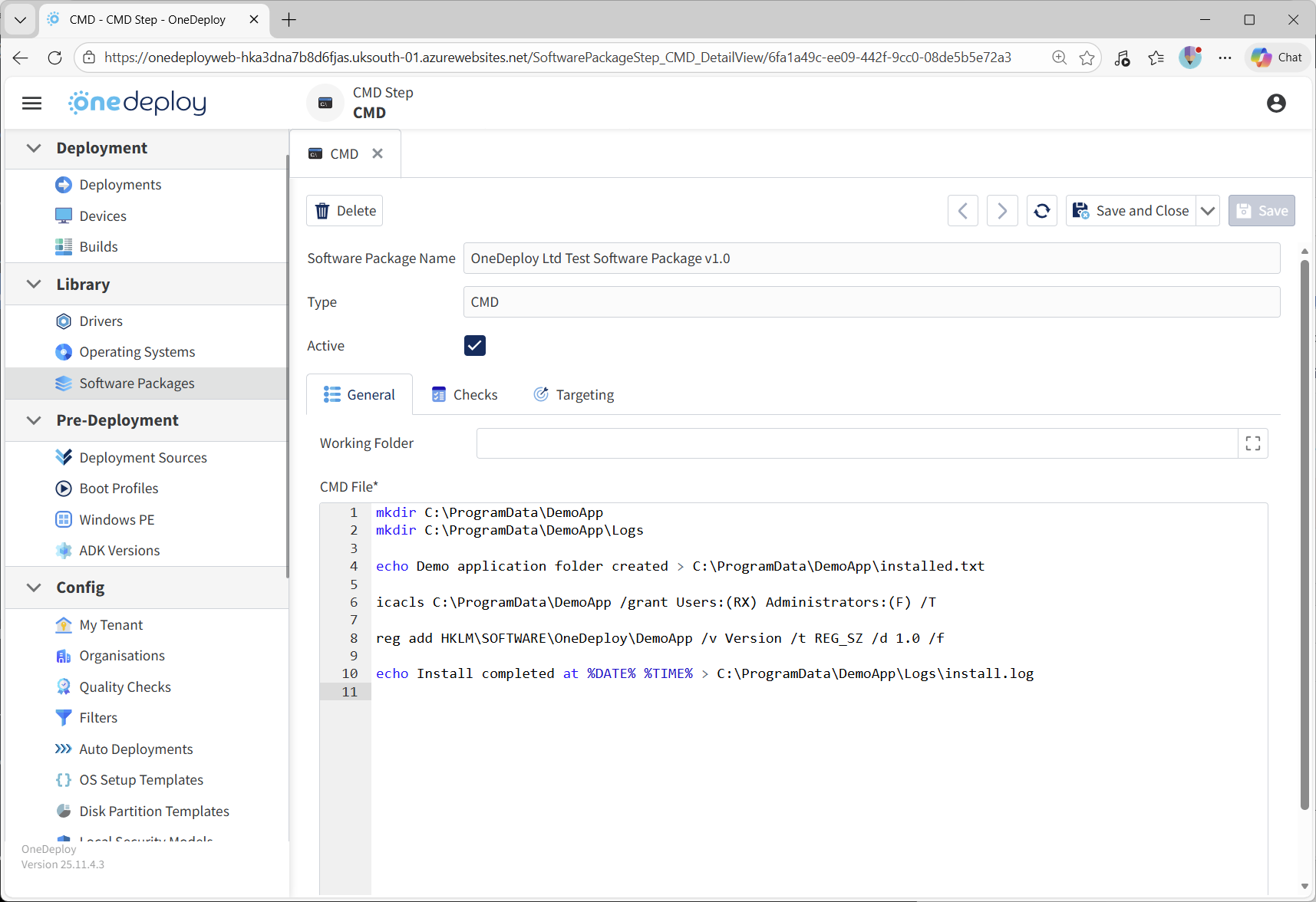
When you add a CMD step to a Software Package, the CMD properties screen is displayed.

From this screen, you can:

  • Enter or paste commands in the CMD text editor
  • Enable or disable the step
  • Define a Working Folder used when commands are executed
  • Configure Checks to validate successful execution
  • Configure Targeting to control when the step runs
Entering commands

Commands entered into the editor are executed sequentially during this step.

You can enter:

  • Single-line commands
  • Multiple commands across multiple lines
  • Any command supported by the Windows command interpreter

Commands are executed in the order they appear in the editor.

Working Folder

The Working Folder defines the directory context used when the CMD commands are executed.

If set, all relative paths used in the command editor are resolved from this folder.
If left blank, commands run using the default execution context.

Setting a Working Folder can help simplify command syntax and reduce the risk of path-related errors.

Active and inactive steps

The Active option controls whether the CMD step runs as part of the Software Package.

  • Active steps are executed during deployment
  • Inactive steps are skipped without being deleted

This is useful for testing, troubleshooting, or temporarily disabling logic without removing it.

CMD step and batch files

The CMD step does not directly reference a .CMD or .BAT file.

If you already have an existing batch file, you can use it in one of the following ways:

  • Paste the contents of the file directly into the CMD step editor (recommended)
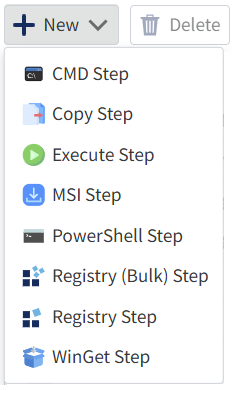
  • Treat the batch file as an executable and use the Execute Step type instead, specifying the .CMD or .BAT path and filename in the Executable Path field
Using Checks and Targeting

You can optionally use the Checks and Targeting tabs with CMD steps.

  • Checks can confirm that expected outcomes occurred (such as a file being created, or to check for a text string within a file)
  • Targeting can limit execution to specific devices or conditions

Using these options helps improve reliability and control over when commands run.

Common questions

Can I run multiple commands in a single CMD step?

Yes.
You can include multiple commands, each on its own line, and they will run in sequence.

Should I use CMD or PowerShell?

Use CMD for simple command-line tasks.
For advanced scripting, logic, or error handling, consider using a PowerShell step.

Can I disable a CMD step without deleting it?

Yes.
Unchecking Active prevents the step from running while keeping its configuration intact.

Related articles

  • Software Packages overview
  • Steps tab overview
  • Execute step
  • PowerShell step
  • Using Checks in Software Package steps
Updated on February 10, 2026

What are your Feelings

Software Package Steps – ExecuteSoftware Packaging Best Practices
  • hello@onedeploy.com
  • UK:+44 1462 514624/ US:+1 415 907 7314

Copyright 2026 OneDeploy Ltd Privacy Policy Cookie Policy