



Microsoft periodically releases updated versions of the Windows Assessment and Deployment Kit (ADK).
New ADK versions often include:
- Updated Windows PE components
- Improved hardware support in the boot environment
- Newer versions of deployment tools such as DISM, which are used to service and customise Windows images
For this reason, it may occasionally be beneficial to upgrade OneDeploy from the ADK version used during onboarding to a newer release.
This article explains how to upgrade your Windows ADK version and import the updated components into OneDeploy.
When should I do this?
Most environments will not need to upgrade the ADK frequently.
You may consider upgrading if:
- You are deploying newer hardware that requires updated WinPE support
- Microsoft has released a newer ADK with important fixes
- You want to test a newer Windows PE version before using it in production
Before you begin
Important: You cannot have two versions of the Windows ADK installed on the same Management Computer.
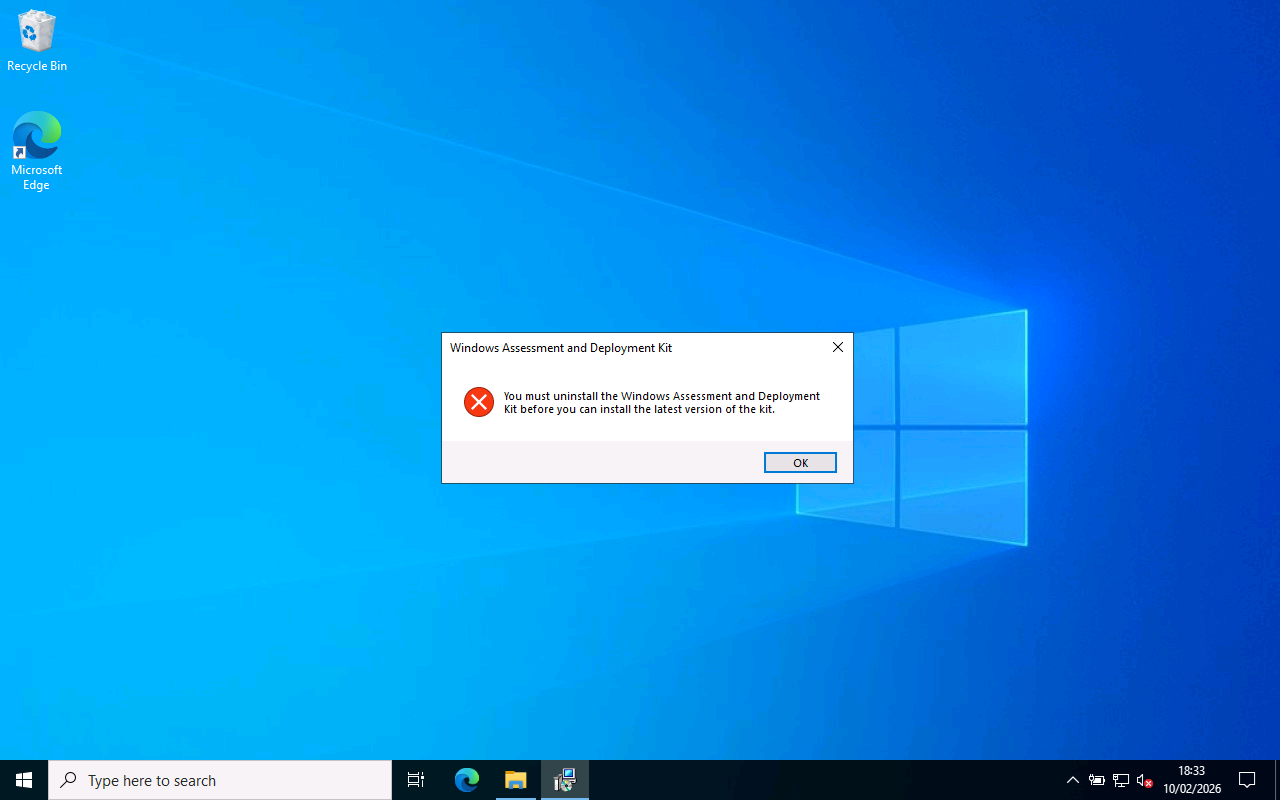
You must uninstall the previous ADK version before installing the new one.
Step 1: Remove the old ADK version
If an existing ADK version is installed, you may see an error indicating that it must be removed before continuing.
Uninstall both of the following components:
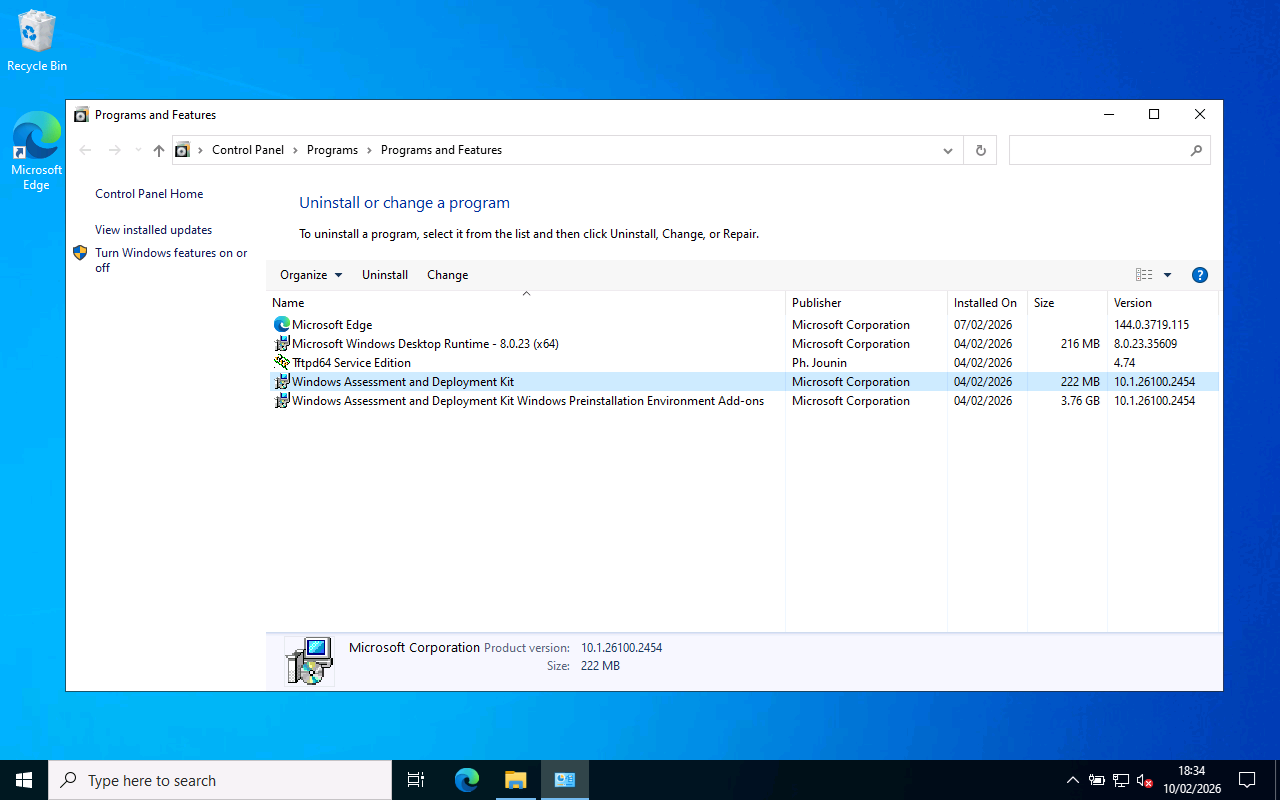
Step 2: Install the new ADK and WinPE Add-ons
After uninstalling the previous version:
- Install the latest Windows ADK
- Install the matching Windows PE Add-ons
Recommended installation options
You only need the Deployment Tools feature from the ADK installer.
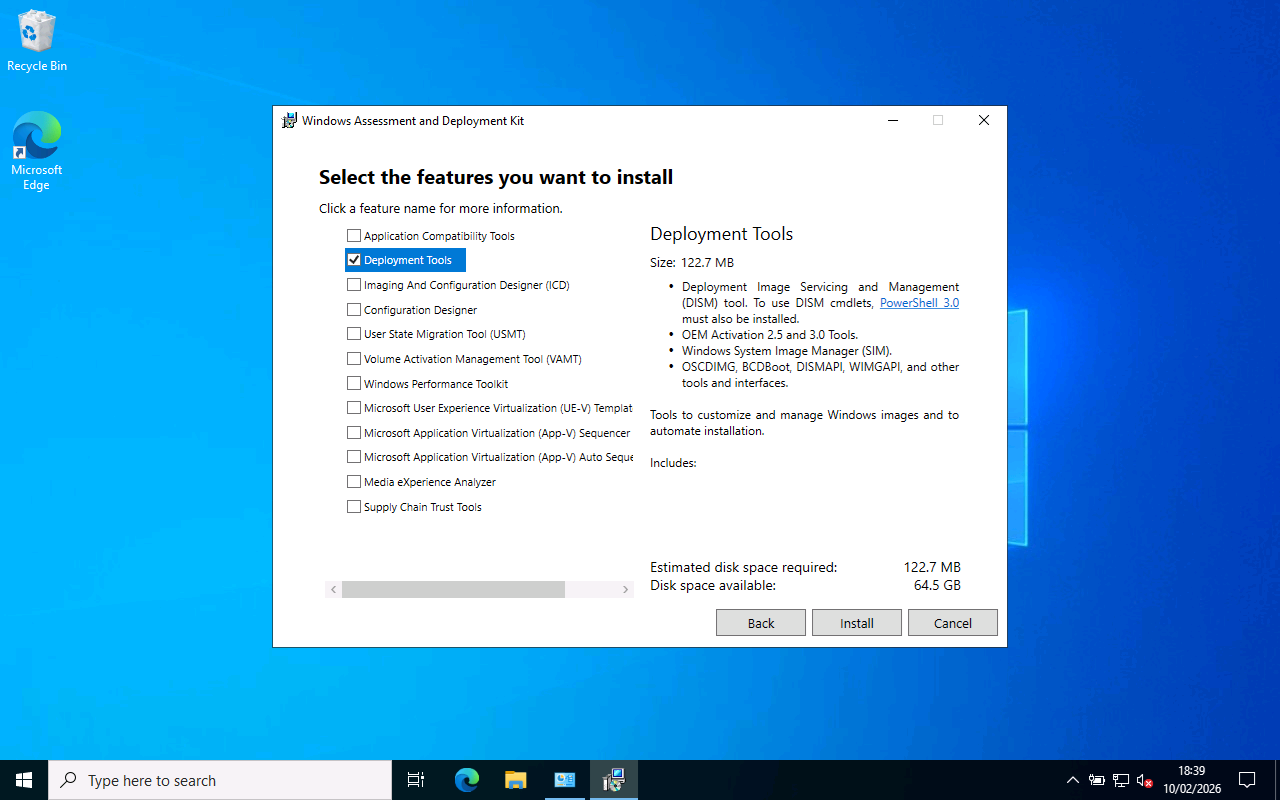
Other features can be deselected, although the default installation options will also work.
Make sure the Windows PE Add-on is installed, as this provides the WinPE boot environments required by OneDeploy.
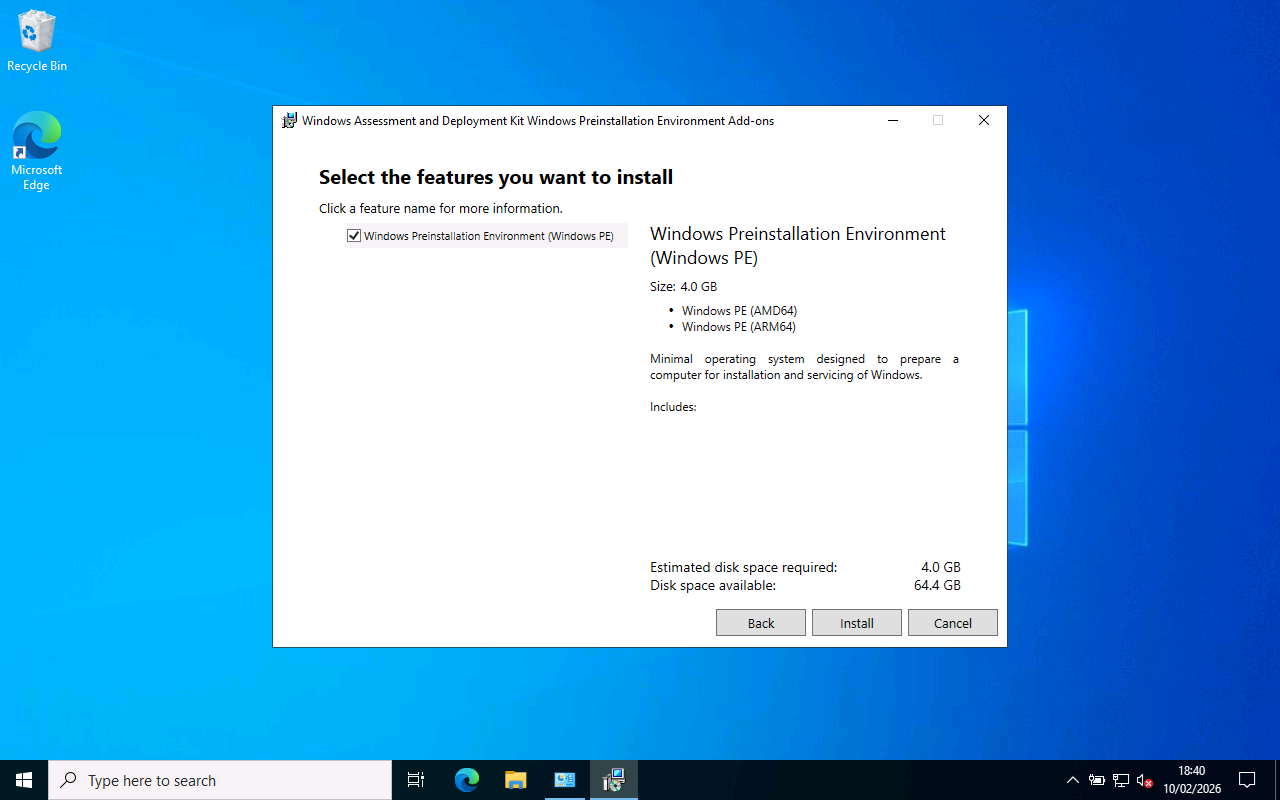
Step 3: Import the new ADK into OneDeploy
Once installation is complete, open the OneDeploy WebApp and navigate to:
Pre-Deployment → ADK Versions
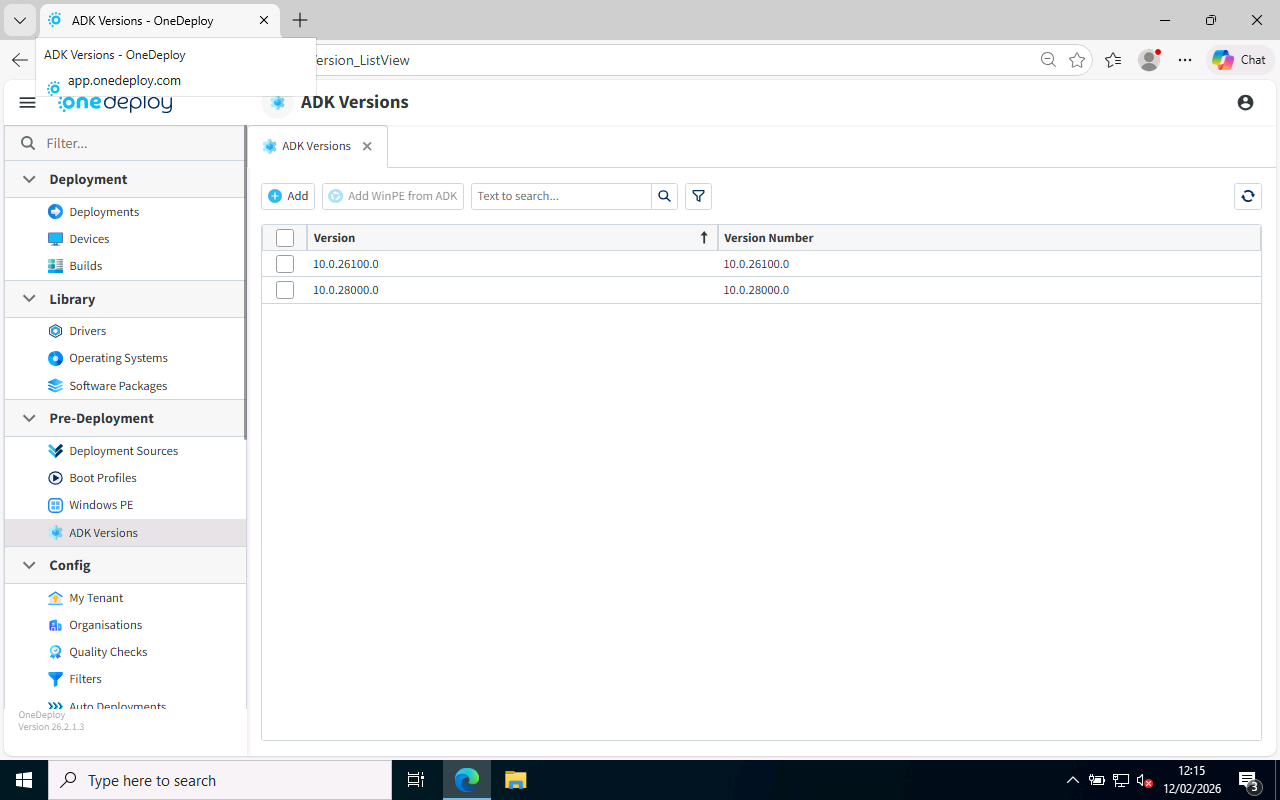
The ADK Versions list shows the versions currently available in your environment.
Click Add
Click Add to import the components from your newly installed ADK.

OneDeploy will detect ADK installations from the Management Computer you are using.
Step 4: Select the ADK version to import
The newly installed ADK version should be selected by default.
Click Next to continue.
Step 5: Confirm import options
The next screen asks how the new components should be imported and prepared.
For most scenarios, the default options are recommended.

Click Next to begin importing the ADK components.
Step 6: Wait for the import to complete
OneDeploy will import:
- Deployment tools (such as DISM utilities)
- Windows PE environments for supported architectures
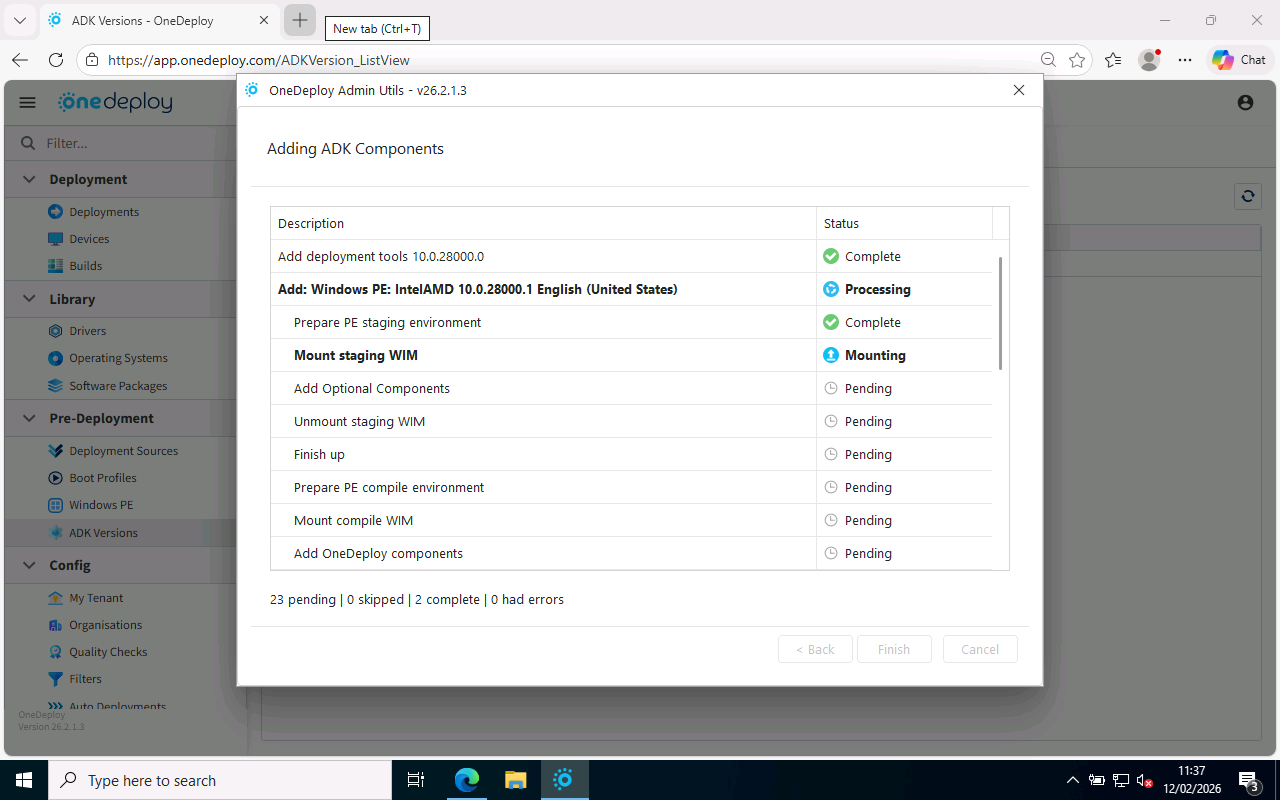
Progress is shown during the import process.
Once complete, the new ADK version will appear in the ADK Versions list.
Step 7: Confirm Windows PE has been added
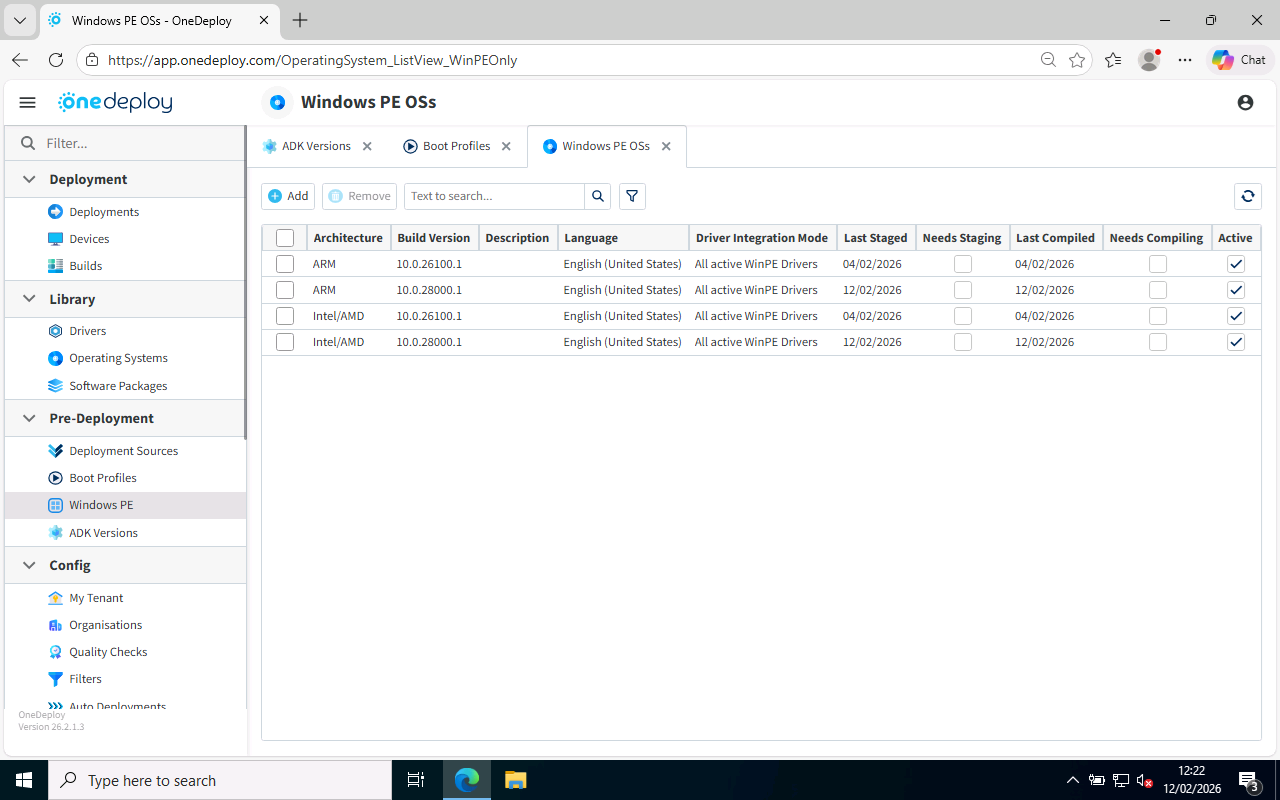
After import, the new Windows PE environments will be listed under:
Pre-Deployment → Windows PE
You should see new entries for the imported WinPE versions (for example, Intel/AMD and ARM).
How do I start using the new ADK components?
Importing the ADK does not automatically change your Boot Profiles.
To begin using the new Windows PE version, go to:
Pre-Deployment → Boot Profiles
From here, you can either:
- Create a new Boot Profile using the newly imported WinPE version
or - Edit an existing Boot Profile to switch it to the new WinPE version
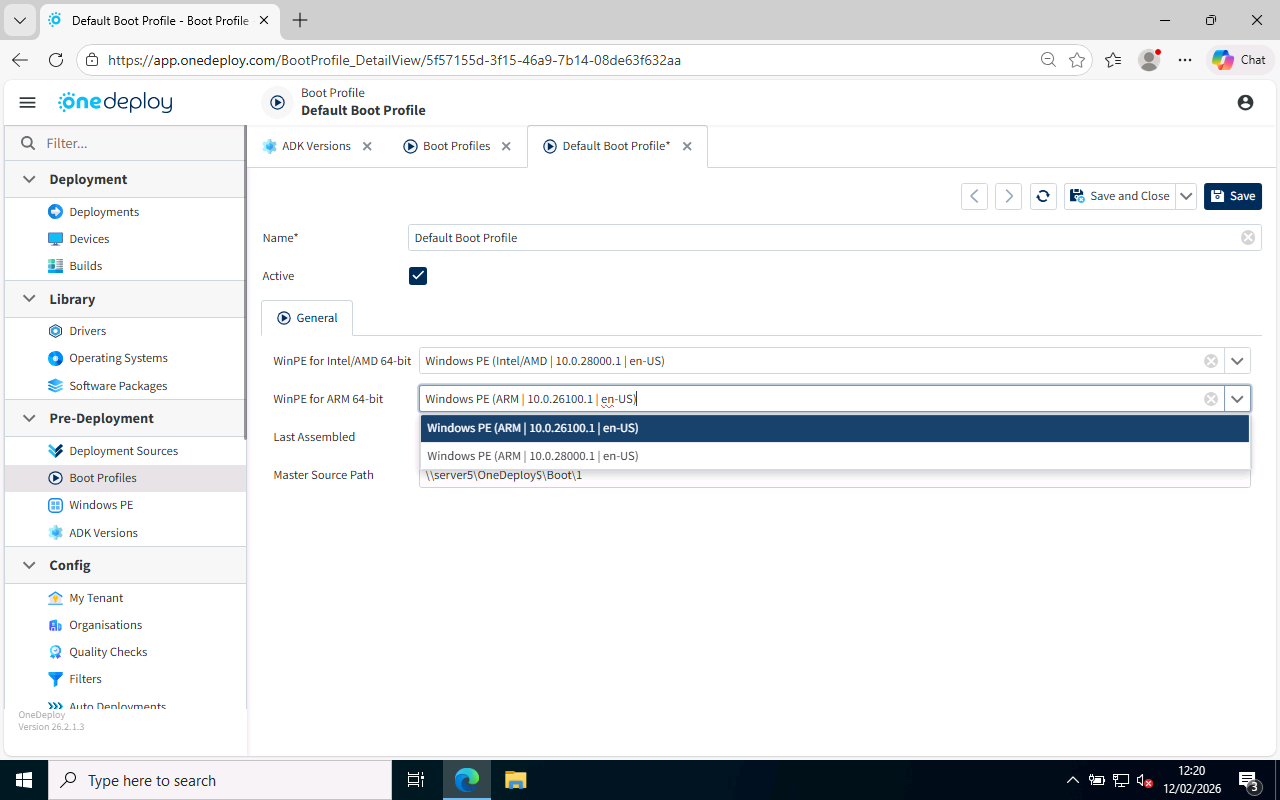
This allows you to maintain multiple boot environments, which is useful for:
- Testing Driver integration without affecting production deployments
- Validating newer WinPE versions
- Supporting rare cases where different device models require incompatible WinPE drivers
Summary (Simple Version)
- Uninstall the old Windows ADK and WinPE Add-ons and install the new versions
- In OneDeploy, go to Pre-Deployment → ADK Versions
- Click Add to import the updated components
- Update or create Boot Profiles to begin using the new Windows PE version
Advanced Options
The import wizard includes additional options for advanced scenarios.
When would I unselect ‘Automatically Stage Windows PE if required’?
Stage is normally left enabled. You may disable it only for troubleshooting purposes.
When would I unselect ‘Automatically Compile Windows PE if required’?
Compile is normally left enabled. You might disable it if you want to import WinPE first before adding additional Windows PE drivers
When would I use “Add a new Windows PE OS even if a matching version already exists”?
This option can be used to:
- Reset a WinPE environment back to the original ADK state (troubleshooting)
- Create multiple copies of the same WinPE version for Driver testing
When would I use “Set new Windows PE OS to not integrate any relevant Drivers”?
This controls which drivers are automatically included when WinPE is compiled.
Use this option if you want the WinPE instance to start with no integrated drivers.
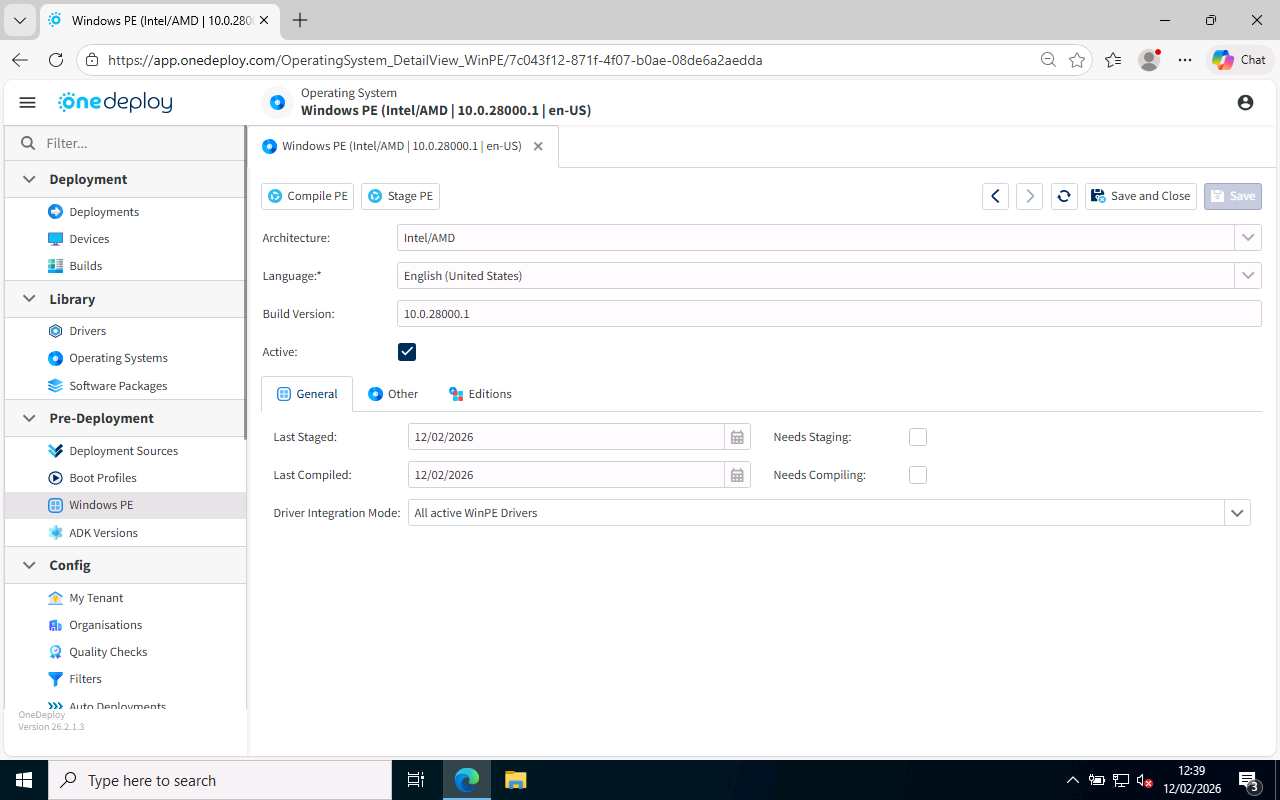
You can change this later by selecting the Driver Integration Mode option for an instance of Windows PE in:
Pre-Deployment → Windows PE
Common Questions
Do I need to upgrade the ADK regularly?
Not necessarily. Many environments may never need to change the ADK version after onboarding unless newer hardware or Microsoft updates require it. We typically see this as a ‘once every couple of years’ type activity and is normally driven by new hardware making use of the built-in Driver support in Windows PE without having to add your own drivers.
Does importing a new ADK automatically update my Boot Profiles?
No. Boot Profiles must be updated manually when you are ready to start using the newer Windows PE version.
Can I keep older WinPE versions after upgrading?
Yes. OneDeploy allows multiple WinPE versions to exist so you can test or maintain compatibility.
Should I review my custom Windows PE drivers after upgrading the ADK?
Yes. After upgrading the Windows ADK and importing a newer Windows PE version, it is recommended to review any custom drivers you have configured for integration into Windows PE (this is the per-Driver setting ‘Available To WinPE’).
Newer Windows PE versions may already include native support for hardware that previously required additional Driver integration. In these cases, custom drivers may no longer be necessary.
Additionally, older drivers may not be fully compatible with the newer Windows PE version, or may no longer be applicable. Reviewing your integrated drivers helps ensure:
- You are not including redundant drivers
- You avoid potential compatibility issues
- Your Windows PE environment remains clean, compact and optimised
Related Articles
- ADK Versions
- Boot Profiles
- Windows PE
- Deployment Sources