
Home Logo logo
  • The OneDeploy Platform
    • Build vs. Image: The Deployment Revolution
    • Scalability and Performance
    • Remote Sites: Deployment without border
    • A Unified Deployment Platform
  • About OneDeploy
  • For MSP’s
  • News and Events
    • Autopilot is not Deployment
    • OneDeploy Sponsoring Workplace Ninjas, Belgium June 26
    • The Latest OneDeploy Release Simplifies Windows Deployment Across ARM and Intel Devices
    • OneDeploy – The Ideal Successor to MDT
    • Why we killed the image
    • How a London Stadium Recovered from the CrowdStrike Outage in Time for a Concert
    • OneDeploy Sponsoring Modern Endpoint Management Summit, Paris
  • Support and Resources
    • Videos
    • Documentation
  • Contact
Book a Demo
  • The OneDeploy Platform
    • Build vs. Image: The Deployment Revolution
    • Scalability and Performance
    • Remote Sites: Deployment without border
    • A Unified Deployment Platform
  • About OneDeploy
  • For MSP’s
  • News and Events
    • Autopilot is not Deployment
    • OneDeploy Sponsoring Workplace Ninjas, Belgium June 26
    • The Latest OneDeploy Release Simplifies Windows Deployment Across ARM and Intel Devices
    • OneDeploy – The Ideal Successor to MDT
    • Why we killed the image
    • How a London Stadium Recovered from the CrowdStrike Outage in Time for a Concert
    • OneDeploy Sponsoring Modern Endpoint Management Summit, Paris
  • Support and Resources
    • Videos
    • Documentation
  • Contact

Introduction

3
  • What is OneDeploy?
  • Concepts and Planning
  • Getting Started – Technical Onboarding

Using OneDeploy

43
  • Config
    • Windows Autopilot – Getting Started
    • Windows Autopilot Integration – OneDeploy Steps
    • Windows Autopilot Integration – Microsoft Entra
    • Organisations – Summary
    • My Tenant
  • Deployment
    • Builds
    • Devices
    • Deployments
    • Builds
      • Build General Settings
      • Builds Overview
      • Configuring the Operating System(s) for a Build
      • Applying Quality Checks to a Build
      • Configuring the Out of Box Experience
      • Domain and Accounts
      • Assigning Software Packages to a Build
  • Library
    • Library Overview
    • Drivers
      • DriverApps
      • Drivers Overview
      • Drivers Summary View
      • Adding Drivers
      • Driver Properties
    • Operating Systems
      • Adding and Managing Operating Systems
    • Software Packages
      • Software Packaging Best Practices
      • Defining Installation Steps for a Software Package
      • Software Package Steps – PowerShell
      • Software Packages Overview
      • Software Package Steps – Registry (Bulk)
      • Software Package Steps – Registry
      • Software Package Steps – Copy
      • Software Package Steps – MSI
      • Software Package Steps – WinGet
      • Software Package Steps – Execute
      • Software Package Steps – CMD
  • Pre-Deployment
    • Windows PE
    • ADK Versions
    • Boot Profiles
    • Deployment Sources
    • Pre-Deployment Overview
  • Definitions
    • Secrets
    • Software
    • Definitions Overview
    • Device Models
    • Vendors

Reference

7
  • How To: Create USB Boot and Deployment Media
  • How To: Create USB Boot Media
  • Technical Overview – Windows Autopilot
  • Test formatting page
  • How To: Update a build from 24H2 to 25H2
  • How To: Upgrade Your Windows ADK Version
  • LAN-Based vs USB Deployment Sources
View Categories
  • Home
  • Docs
  • Using OneDeploy
  • Deployment
  • Builds
  • Builds Overview

Builds Overview

1 min read

Overview

This article explains how to view and configure Builds in OneDeploy, including the core build properties that control how devices are named and how deployments are initiated.


When should I use this?

Use the Builds section to:

  • Create new builds for device deployment
  • Review or amend existing builds
  • Configure how devices are named during deployment
  • Control whether a deployment summary is shown before a build starts

How to view builds

  1. In the navigation pane, expand Deployment.
  2. Click Builds.

The Builds view opens and displays all builds that have been created in OneDeploy.


Understanding the Builds list

The Builds list shows all configured builds across one or more organisations.

Each build entry includes information such as:

  • The Organisation the build belongs to
  • The build name
  • The operating system platform
  • The weakest support status
  • Whether the build is Active

From this view, you can select an existing build to edit it or create a new one.


Creating a new build

To create a new build, click New in the Builds list.

The Build details screen opens.

The top half of the screen contains the main build properties, which are described in this article.
Additional configuration options are available in tabs in the lower half of the screen and are documented separately.


Editing an existing build

To edit an existing build, click on the Build you wish to edit in the Builds list.

The Build details screen opens.
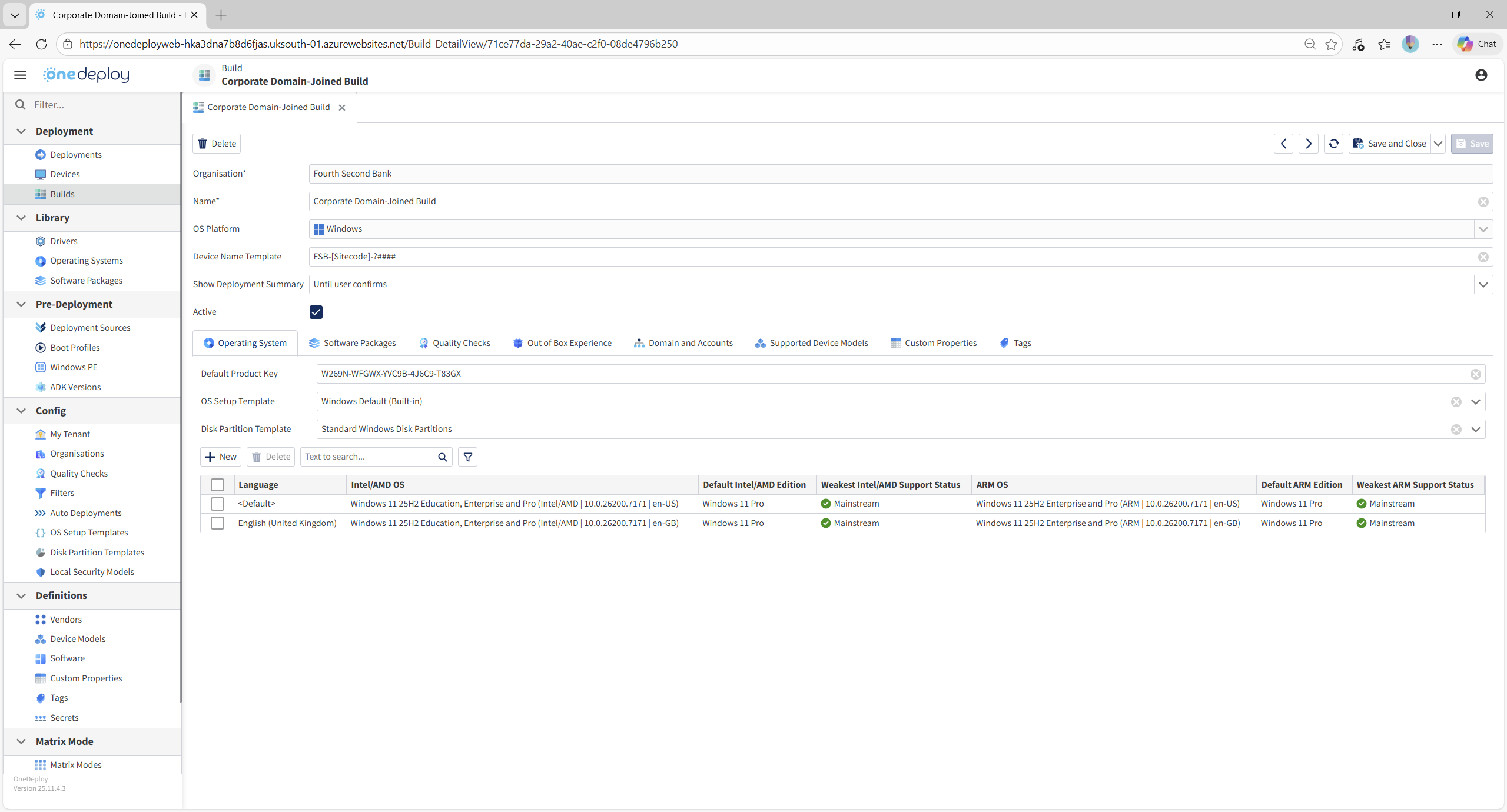

Configuring build properties

The following options are configured in the top section of the Build screen.


Organisation

The Organisation setting determines which Organisation the build belongs to.

  • This is relevant when OneDeploy is running in Multi-tenant Mode.
  • Once selected, the Organisation for this build cannot be changed later.

Build Name

The Build Name is how the build is identified:

  • During deployment
  • Throughout the OneDeploy WebApp

Choose a name that clearly reflects the purpose of the build.  You can rename builds by entering a new Build Name.


OS Platform

The OS Platform defines the family of operating system that will be deployed as part of the build.

For example:

  • Microsoft Windows

This setting determines which operating system options are available in later configuration steps.


What happens next?

Once a build is configured:

  • It becomes available for deployment
  • Devices built using the build will follow the configured naming and summary behaviour

Further build configuration is completed using the tabs in the lower section of the Build screen, which are documented separately.


Common questions

Can I change the Organisation after creating a build?
No. Once set, the Organisation cannot be changed.

Are timed deployment summaries required?
No. They are optional and are primarily intended for automated deployments.


Related articles

  • Deployments
  • Devices
  • Auto Deployments
  • Locations
Updated on February 17, 2026

What are your Feelings

Build General SettingsConfiguring the Operating System(s) for a Build
  • hello@onedeploy.com
  • UK:+44 1462 514624/ US:+1 415 907 7314

Copyright 2026 OneDeploy Ltd Privacy Policy Cookie Policy