



Configuring the Out of Box Experience (OOBE) for a Build
Overview
The Out of Box Experience (OOBE) tab controls what happens after a build deployment completes, including whether the device presents a first-use experience to the end user, performs an automatic sign-in, or returns to Windows OOBE for scenarios such as Autopilot.
When should I use this?
Use the OOBE settings when:
- Devices are handed directly to end users after deployment
- You are preparing devices for Windows Autopilot
- You want a “factory fresh” first-boot experience
- Devices are shipped to a remote location after being built
What is OOBE?
OOBE (Out of Box Experience) is the set of Windows setup screens shown to a user when a device is first powered on.
Depending on configuration, this may include:
- Language and region selection
- Account setup
- Work or school enrolment
- Device management and policy enrolment (for example, Autopilot)
How to access OOBE settings
- In the navigation pane, click Deployment → Builds.
- Select a build.
- Open the Out of Box Experience tab.
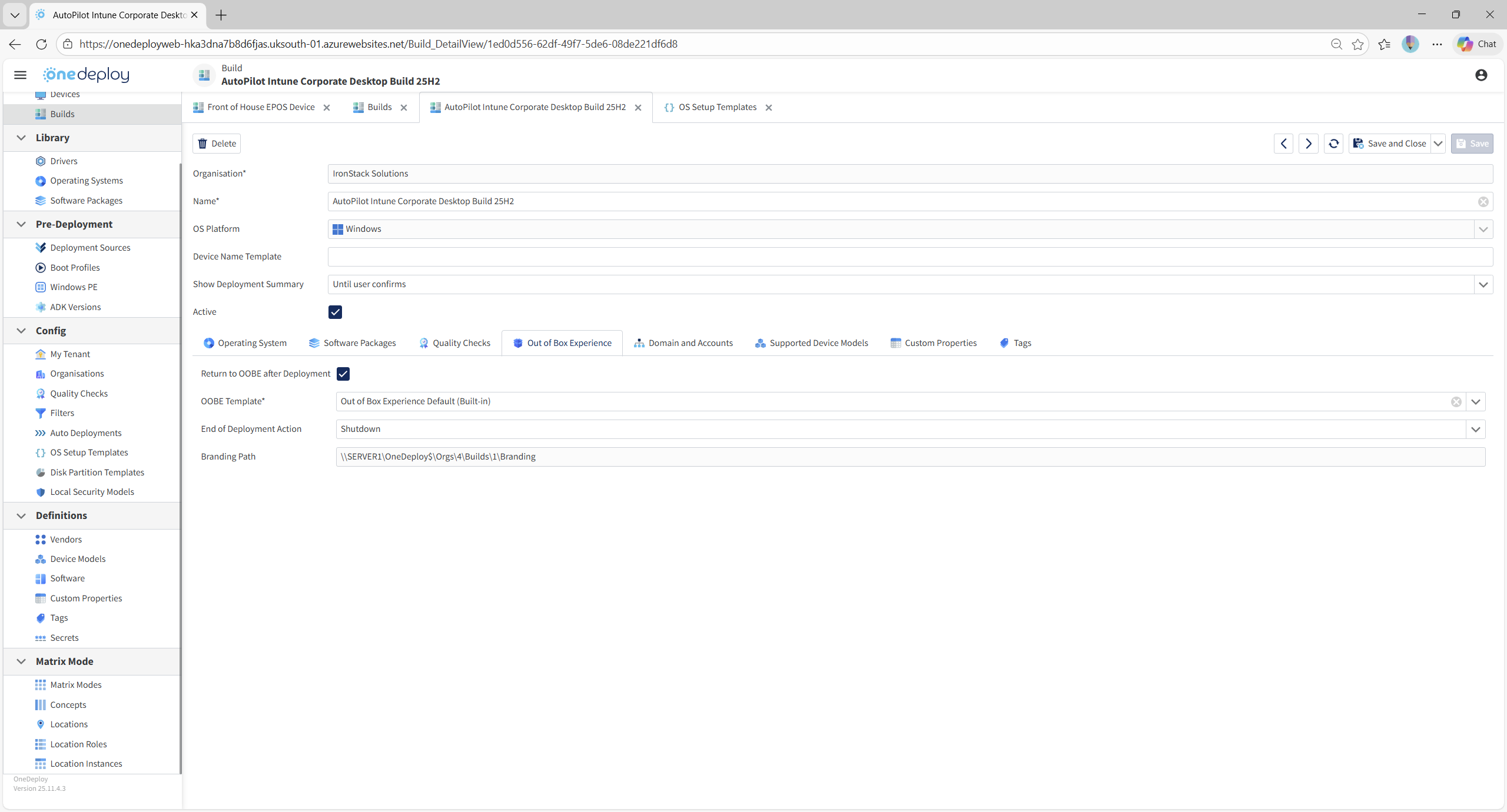
End-of-build behaviour options
When a build completes, OneDeploy can be configured to leave the device in one of several states:
-
Standard Windows sign-in screen
The device boots to the Windows sign-in screen, ready for a local or domain user to sign in. -
Automatic sign-in
The device automatically signs in using a predefined account (where configured elsewhere in the build). -
Return to OOBE
The device returns to the Windows Out of Box Experience, simulating a newly shipped device.
Returning to OOBE is commonly used for:
- Windows Autopilot enrolment
- Zero-touch deployment scenarios
- Devices that should not be logged into by an administrator
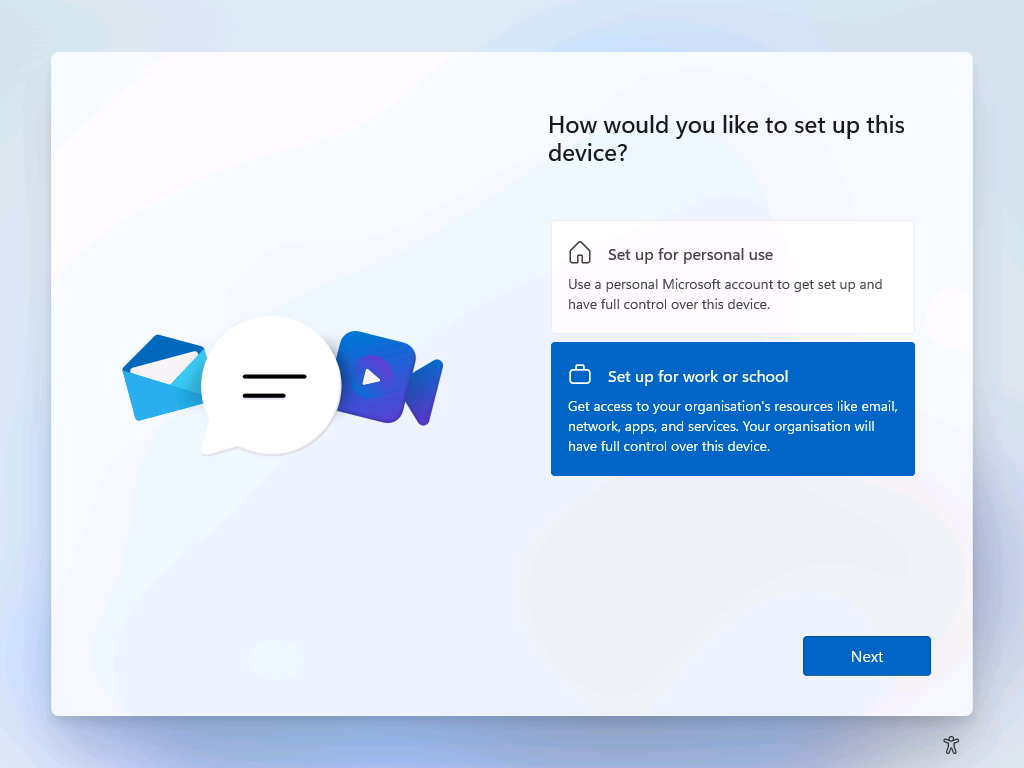
Returning a device to OOBE
To reset the device to OOBE at the end of the build:
-
Tick Return to OOBE after Deployment.
When enabled, the OOBE Template and End of Deployment Action options become available.
OOBE Template
The OOBE Template defines how Windows behaves during the Out of Box Experience.
- Built-in templates are provided to get started quickly
- Custom templates can be created in Config → OS Setup Templates
- Built-in templates are marked (Built-in) and cannot be edited directly
If unsure, select Out of Box Experience Default (Built-in).
End of Deployment Action
This setting controls what happens immediately after the build completes:
- Reboot
- Shutdown
- Prompt for Shutdown
This is useful depending on how the device will be handled next:
- Reboot — best if a user will complete OOBE immediately
- Shutdown — suitable if the device is being shipped
- Prompt for Shutdown — allows a final decision at deployment time
Branding Path
The Branding Path defines where OneDeploy looks for branding assets used on the pre-logon wallpaper.
- The path points to a location within your Deployment Source
- Branding is applied regardless of whether Return to OOBE is enabled
- This allows consistent corporate branding during first boot or sign-in
Example branding at the pre-logon screen:

Windows Autopilot considerations
If using OOBE for Windows Autopilot scenarios, ensure:
- Network connectivity is available
- Required tenant and enrolment prerequisites are configured
OneDeploy can handle the device registration in Autopilot automatically once certain pre-requisites have been met, allowing on-the-fly Autopilot builds on devices that are previously unknown or unregistered in the tenancy.
What happens next?
Once OOBE settings are configured:
- OneDeploy completes the build
- The selected end-of-deployment action occurs
- The device presents the expected first-use experience
This ensures a clean and predictable handover to the end user.
Common questions
Do I have to use OOBE?
No. OOBE is optional and depends on how the device will be used after deployment.
Can branding be applied without returning to OOBE?
Yes. Branding is applied regardless of OOBE selection.
Is this required for Autopilot?
Yes. Devices intended for Autopilot should return to OOBE after deployment.
Related articles
- Builds
- OS Setup Templates
- Quality Checks
- Domain and Accounts
- Windows Autopilot