



Overview
This article explains how to view and explore devices in OneDeploy, including previously built devices and detailed information captured during the most recent deployment.

When should I use this?
Use the Devices section to:
- Review hardware that OneDeploy has previously built
- Inspect deployment history for a specific device
- Review drivers, software, and quality Checks applied during the last build
- Pre-configure devices for Auto Deployment before a build is performed
Unless you intend to use Auto Deployment for a device OneDeploy has not yet seen, you don’t need to use the Devices section – it is provided purely for reference.
How to view devices
- In the navigation pane, expand Deployment.
- Click Devices.
The Devices view opens and displays a list of devices OneDeploy has previously seen along with any devices you may have added manually.
Understanding the Devices list
The Devices list shows all hardware that OneDeploy has detected during previous deployment activity.
Each device appears in the list when:
- A deployment has been run on the device, or
- The device has been added manually
The list includes high-level information such as:
- Organisation
- Vendor and model
- Serial number
- CPU Architecture
- Installed memory
- Primary disk size
- When the device was last seen
This view provides a quick overview of known hardware across your environment.
Adding devices manually
Devices can be added manually to the Devices list.
This is useful when you want to:
- Pre-configure Auto Deployment behaviour
- Define how a device should be handled before it is first built
Manually added devices will appear alongside devices discovered during deployments.
Viewing device details
To view more information about a device:
-
Click a device in the Devices list.
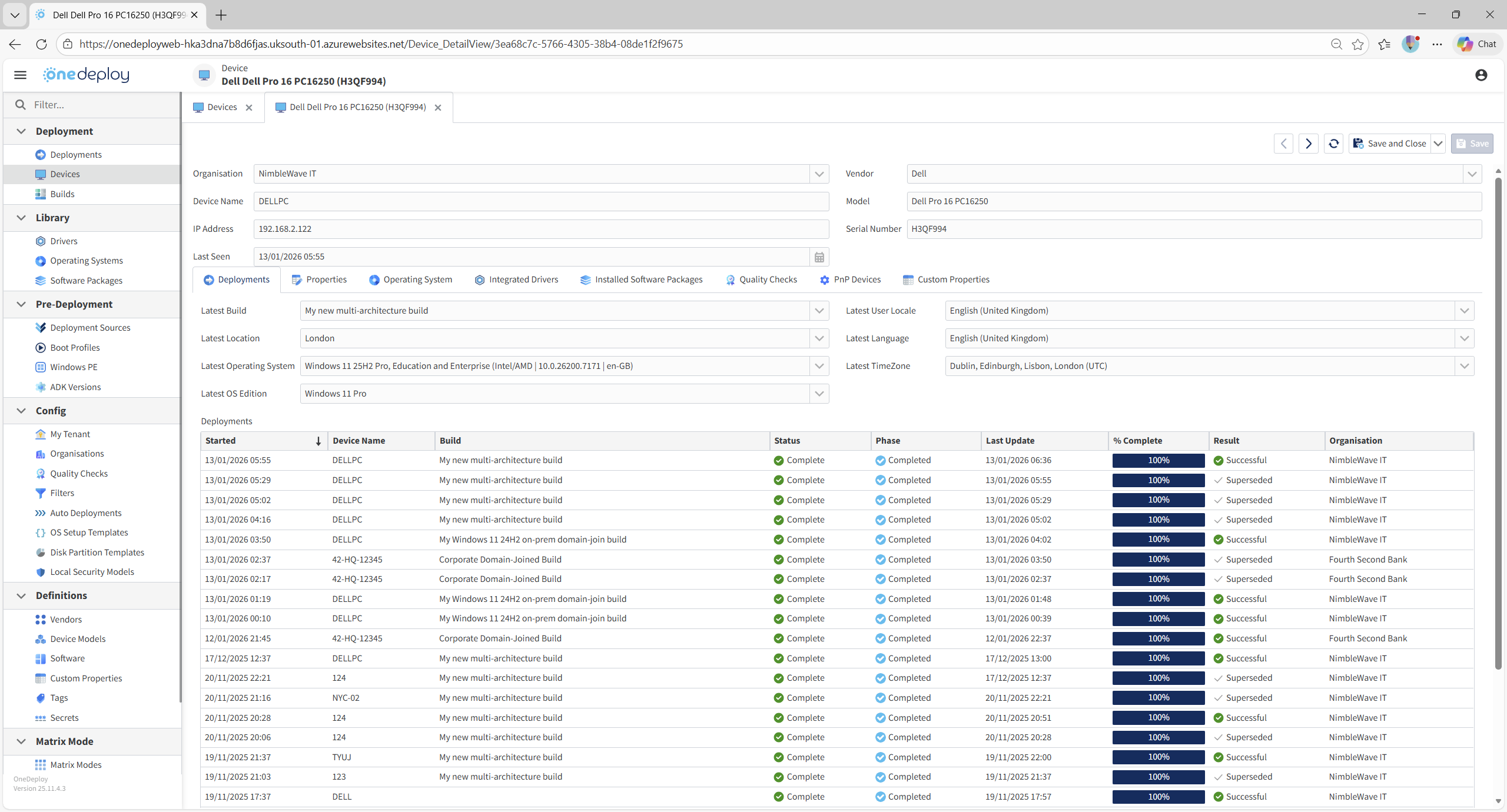
The Device detail view opens and displays:
- Core device information (Organisation, model, network details)
- Information from the most recent build
- A full history of OneDeploy deployments performed on that hardware
Reviewing deployment history
The Deployments tab (in the lower section of the page) lists all OneDeploy builds that have been run on the selected device.
Each entry includes:
- When the deployment started
- The build that was applied
- Deployment status and result
- Percentage completion
This allows you to review both successful and superseded builds for the same hardware over time.
Understanding additional device tabs
The device detail view includes several tabs that expose further information captured during the last build event.
Operating System
Shows the Operating System that was deployed during the most recent build for this device (including language and locale information).
Integrated Drivers
Shows the drivers that were selected from the OneDeploy library and integrated during the most recent build for this device.
Installed Software Packages
Lists the software packages and applications that were installed as part of the most recent build.
Quality Checks
Displays the quality Checks that were executed during the build and their outcomes.
PnP Devices
Shows the hardware scan results detected on the device.
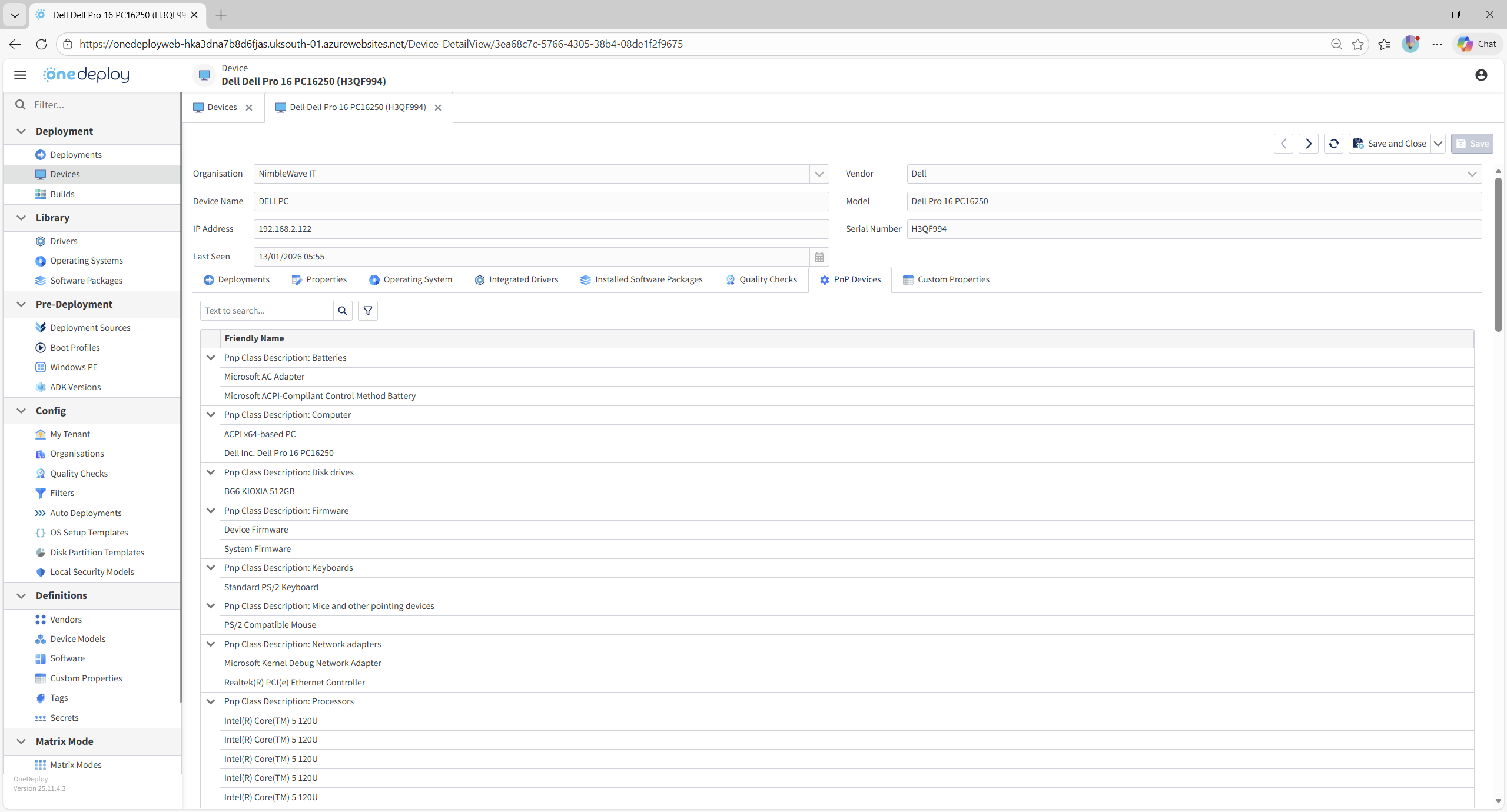
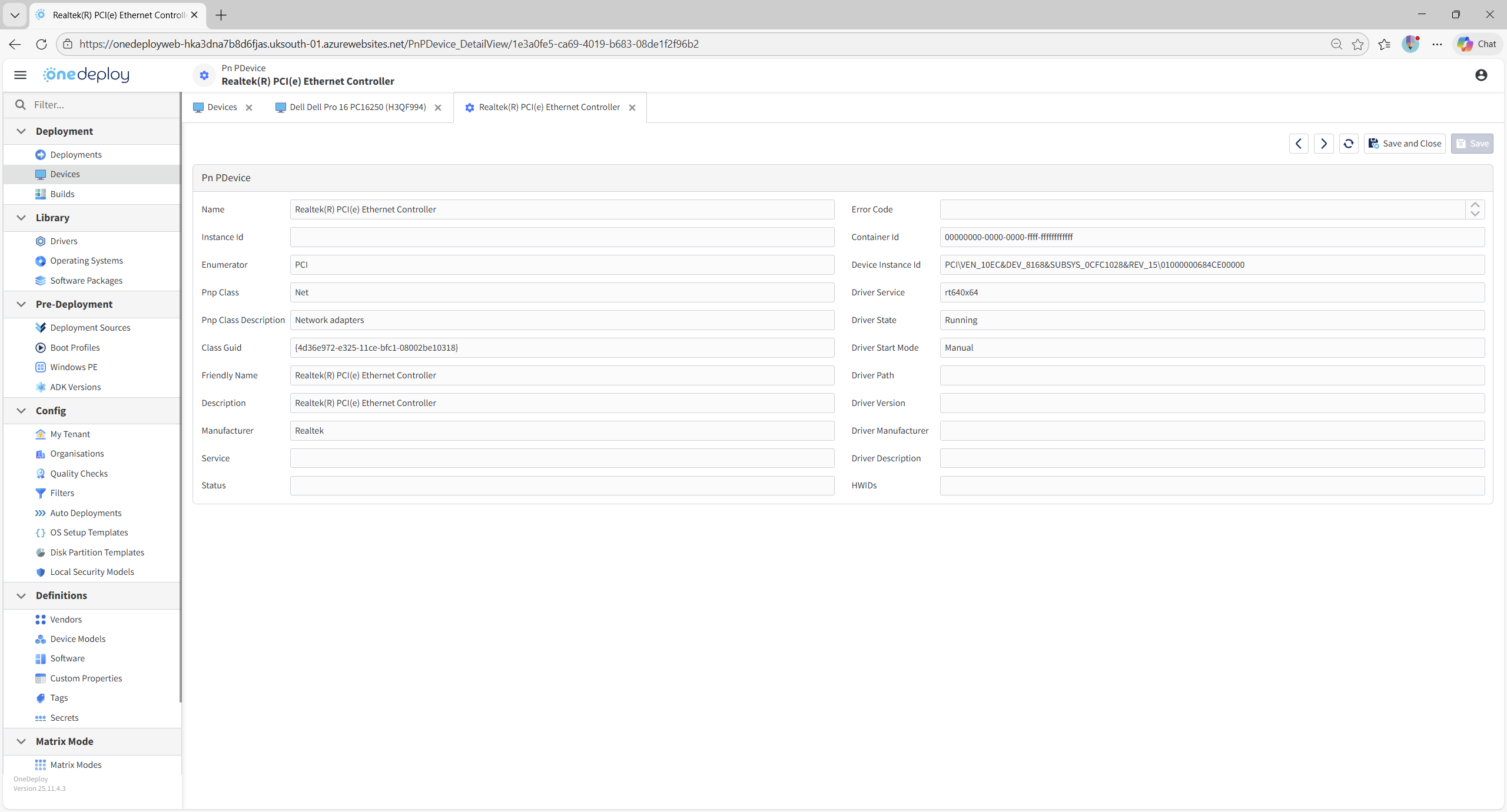
You can click individual Plug and Play (PnP) devices to view more granular hardware information, such as hardware IDs, hardware classes and friendly names.
What happens next?
Device records remain available after a build completes and are updated when the device is seen again during future deployments.
You can return to the Devices section at any time to:
- Review hardware inventory
- Investigate build history
- Inspect how devices were configured during their last deployment
Common questions
Why don’t I see a device in the Devices list?
A device appears in the list after a deployment has been run on it, or if it has been added manually. If telemetry is disabled, or build deployments are performed in a heavily-firewalled or air-gapped/offline environment, they may not appear in the Devices list.
Does the Devices section show live hardware data?
The information shown reflects data captured during the most recent deployment for that device.
Can I inspect individual hardware components?
Yes. Use the PnP Devices tab and click into individual devices for more detailed hardware information.
Related articles (optional)
- Deployments
- Builds
- Auto Deployments