



Windows PE (Windows Preinstallation Environment) is the lightweight operating system that devices temporarily boot into during deployment.
When performing a deployment using PXE Boot or a USB Boot device, OneDeploy runs inside Windows PE to:
- Connect to Deployment Sources
- Install the selected Operating System
- Integrate drivers and packages
- Begin the build process
The Windows PE section allows you to manage the WinPE environments available in OneDeploy.
What can I do in this section?
In Pre-Deployment → Windows PE, you can:
- View the Windows PE versions available to OneDeploy
- Remove older Windows PE versions that are no longer required
- Control how drivers are integrated into Windows PE
- Compile or stage Windows PE after changes
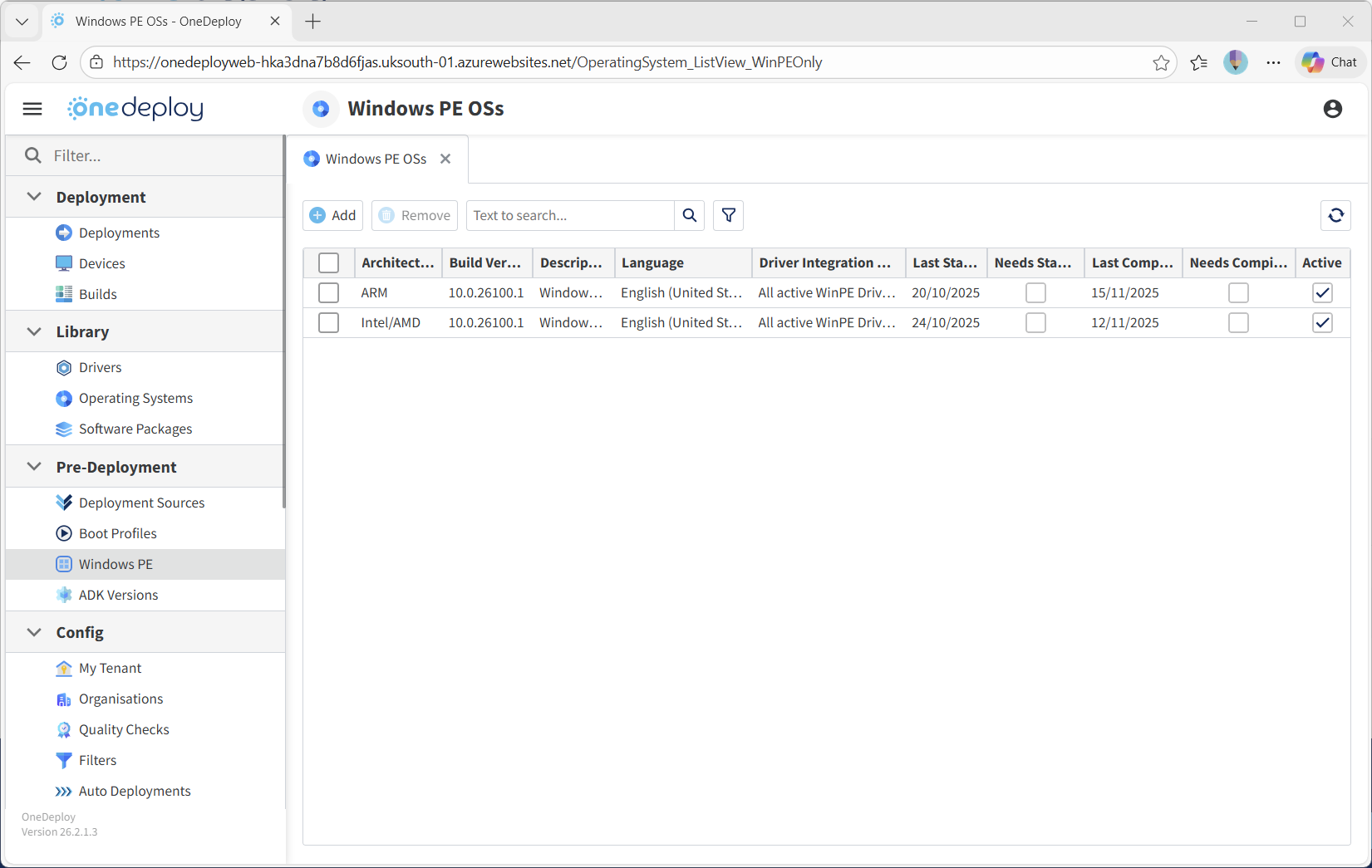
Viewing available Windows PE versions
The Windows PE list shows all WinPE environments currently available in your OneDeploy environment, including:
- Windows PE versions imported from the Windows ADK during onboarding
- Additional Windows PE versions added later through ADK upgrades
Note: New Windows PE versions are added from Pre-Deployment → ADK Versions
Viewing Windows PE properties
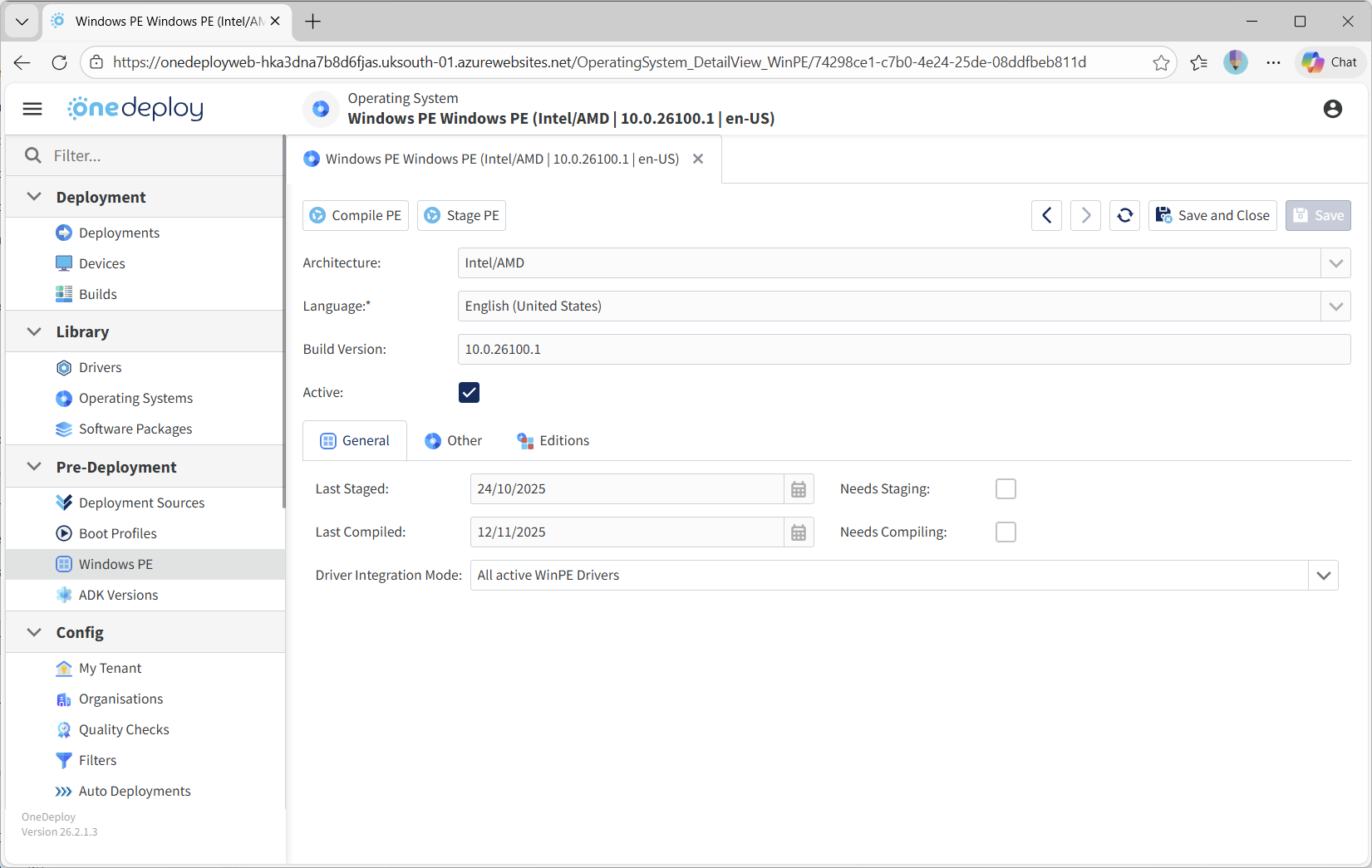
To view a Windows PE instance, click its entry in the list.
Most fields are read-only, but from this screen you can:
- Update Windows PE
- Mark the Windows PE instance as Active or Inactive
When you click Update for an instance of Windows PE, the following event occur:
- OneDeploy will take the generic Windows ADK Windows PE and add OneDeploy component
- Integrate drivers into this Windows PE as per its ‘Driver Integration Mode’ setting
Active / Inactive
If the Active checkbox is cleared:
- The Windows PE instance becomes unavailable in all other OneDeploy selection dialogs
- It will not be usable in Boot Profiles or deployments
This is useful when retiring older WinPE versions without deleting them immediately.
Driver Integration Mode
The Driver Integration Mode setting provides advanced control over which drivers are included each time Windows PE is compiled.
This is especially useful when:

Available modes include:
All Active WinPE Drivers
This is the default and most common option.
When selected:
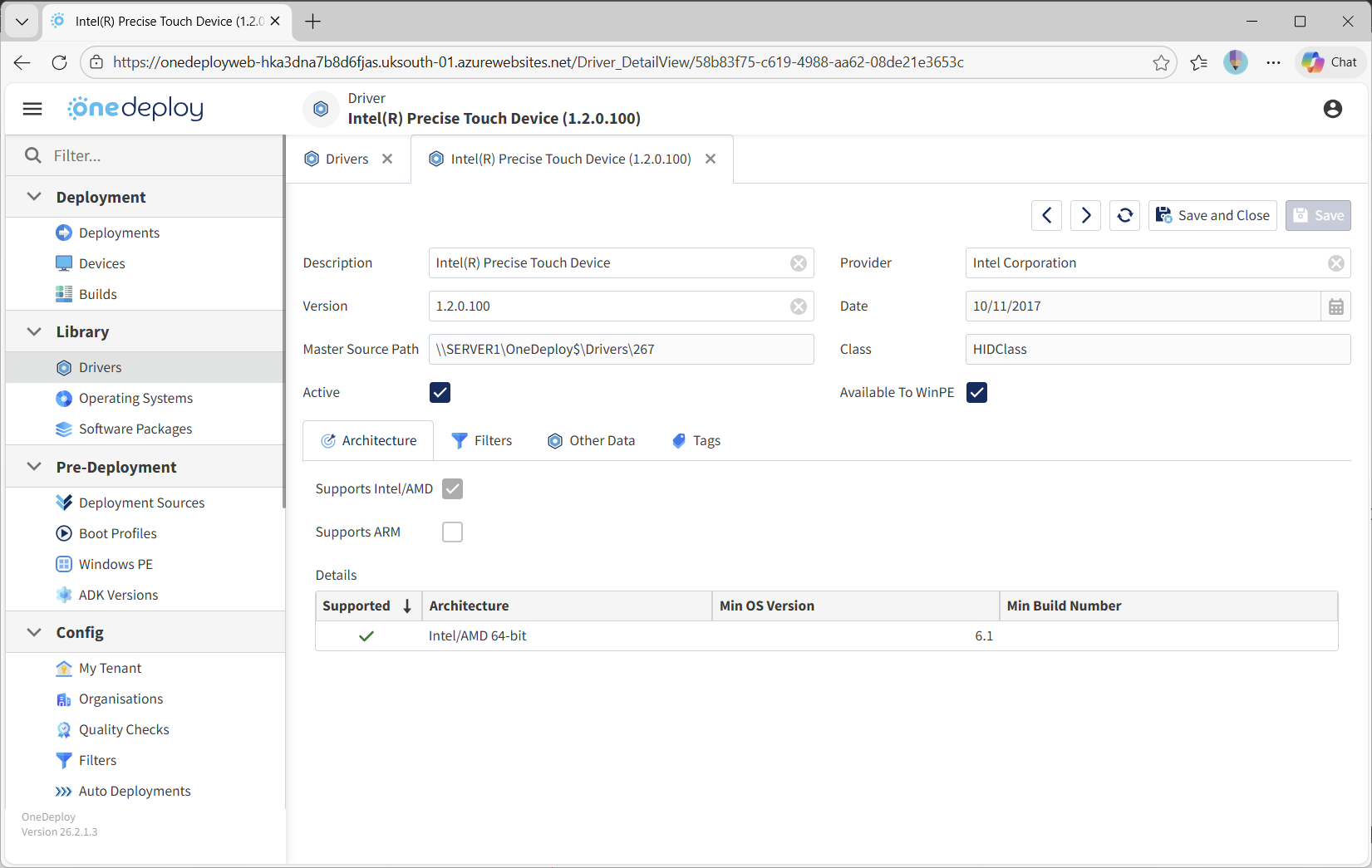
- Any Driver marked as Available to WinPE will be integrated during the next Compile
- Drivers must match Architecture and any configured filters
Example Driver with ‘Available to WinPE’ option set:
Only specified Drivers
This option enables a Drivers table where you can manually select which drivers should be integrated.
Only the drivers you explicitly choose will be included, even if other drivers are marked as Available to WinPE.
This is useful for:
- Testing new Driver support
- Checking whether older WinPE drivers are still required
- Isolating Driver-related boot issues

No Drivers
This option keeps the Windows PE environment exactly as provided by the ADK.
When selected:
- No drivers are integrated during Compile
- The Available to WinPE flag is ignored
This is useful for:
- Troubleshooting Driver problems
- Testing a clean WinPE baseline
- Evaluating new ADK / WinPE versions without custom drivers
Common Questions
Do I need to manage Windows PE regularly?
No. Most environments rarely need to change WinPE once onboarding is complete, unless upgrading the ADK or supporting new hardware.
Should I review WinPE drivers after upgrading the ADK or Windows PE version?
Yes. Newer Windows PE versions may include built-in support for hardware that previously required manual Driver integration. Older drivers may also be incompatible or no longer relevant.
What is the safest way to test WinPE changes?
Create a new Boot Profile using the updated WinPE version, rather than changing the production Boot Profile immediately.
Related Articles
- ADK Versions
- Boot Profiles
- How To: Upgrade Your Windows ADK Version
- Drivers