



PowerShell step (Software Packages)
The PowerShell step allows you to run PowerShell commands and scripts during a Software Package installation.
This step is functionally similar to the CMD step but is designed for more advanced scripting, logic, and configuration tasks where PowerShell is more suitable.
When to use a PowerShell step
Use a PowerShell step when you need to:
- Run PowerShell commands
- Perform conditional logic or complex configuration
- Create or modify files, folders, or registry entries
- Apply permissions or system settings
- Write structured output or logs
- Perform tasks that are difficult or impractical using CMD
For simple command-line tasks, a CMD step may be sufficient.
PowerShell step screen overview
When you add a PowerShell step to a Software Package, the PowerShell properties screen is displayed.
From this screen, you can:
- Enter PowerShell commands
- Enable or disable the step
- Define a Working Folder used when the script runs
- Configure Checks to validate successful execution
- Configure Targeting to control when the step runs
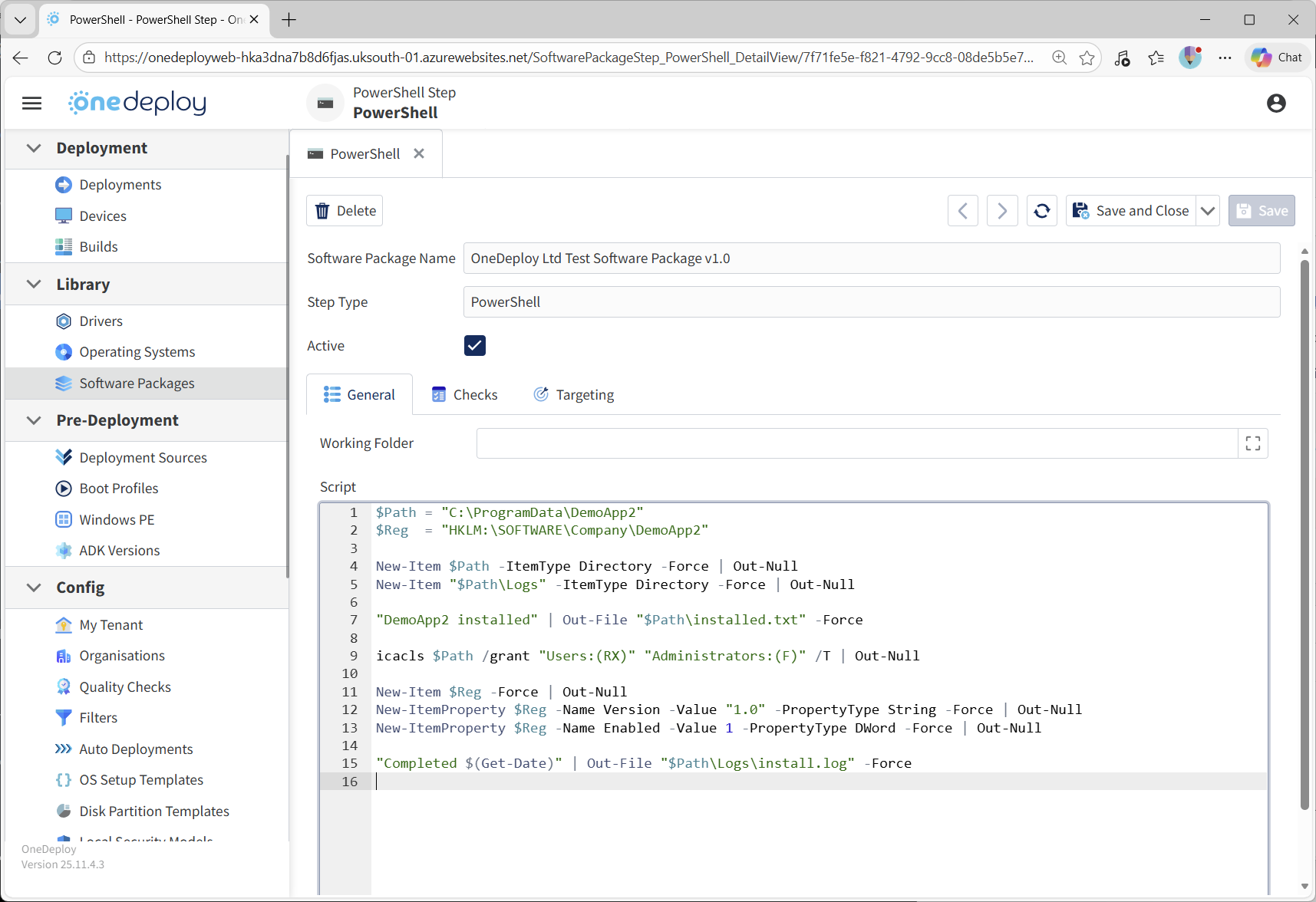
Entering PowerShell script content
The script editor allows you to enter PowerShell commands directly.
You can:
- Enter single-line or multi-line scripts
- Define variables and functions
- Use built-in PowerShell cmdlets
- Run external commands where required
All commands are executed in sequence as part of this step.
Working Folder
The Working Folder defines the directory context used when the PowerShell script runs.
If set, relative paths used within the script are resolved from this location.
If left blank, the script runs using the default execution context.
Defining a Working Folder can help simplify scripts and reduce the risk of path-related issues.
Active and inactive steps
The Active option controls whether the PowerShell step is executed.
- Active steps run during deployment
- Inactive steps are skipped without being removed from the Software Package editor
This is useful for testing, troubleshooting, or temporarily disabling script logic.
PowerShell scripts and files
The PowerShell step does not directly reference a .ps1 file. Paste the contents of the script directly into the PowerShell step editor.
Using Checks and Targeting
You can optionally configure Checks and Targeting for PowerShell steps.
- Checks can confirm that expected results occurred, such as files, folders, or registry entries being created
- Targeting allows the step to run only on specific devices or under certain conditions
Using these options helps improve reliability and control during deployment.
Best practice guidance
When using PowerShell steps:
- Ensure scripts run silently and do not prompt for input
- Avoid forcing reboots during script execution
- Write changes at the system level where possible
- Avoid writing data to user-specific profile locations
- Test scripts manually before adding them to a Software Package
Common questions
Should I use PowerShell or CMD?
Use PowerShell for complex logic, configuration, or scripting.
Use CMD for simple command-line tasks.
Can I disable a PowerShell step without deleting it?
Yes.
Unchecking Active prevents the step from running while keeping the script intact.
Can I run multiple commands in one PowerShell step?
Yes.
You can include full scripts with multiple commands, variables, and logic in a single step.
Related articles
- Software Packages overview
- Steps tab overview
- CMD step
- Execute step
- Using Checks in Software Package steps