



Drivers Summary Screen
The Drivers Summary screen displays in a list view all the drivers currently held in the OneDeploy Driver library.
To access this screen, navigate to:
Library → Drivers
This view provides a central place to manage Driver availability, WinPE support, and Driver lifecycle.

What You Can Do From This Screen
From the Drivers Summary screen, you can:
- Add new drivers to the library
- Select one or more drivers for removal
- Enable or disable a Driver for use in WinPE
- Open a Driver to view its properties
Adding a Driver
To add a new Driver to the library:
- Click Add
- Follow the steps in the Add Drivers workflow
For full instructions, see the Add Drivers article (documented elsewhere).
Removing Drivers
Drivers can be permanently removed from the library if they are no longer required.
To remove one or more drivers:
- Select the Driver(s) using the checkbox to the left of each entry
- Click Remove
- Click Yes to confirm the deletion
Once removed, the Driver will no longer be available to any builds or deployments.
Important Considerations Before Deleting Drivers
Deleting a Driver that is still required by deployed hardware may result in missing or non-functional devices during deployment.
Recommendation:
Before deleting a Driver, mark it as Inactive in OneDeploy and perform test deployments to confirm it is no longer required. This allows you to quickly re-enable the Driver if issues are encountered.
Once you are confident the Driver is no longer needed, it can then be safely deleted from the library.
Enable for WinPE
Some hardware requires specific drivers to function correctly in Windows PE (WinPE). This commonly includes newer storage controllers (such as NVMe) and network adapters.
OneDeploy allows you to reuse drivers from your existing Driver library to keep WinPE boot images up to date and compatible with newer hardware.
When to Enable Drivers for WinPE
Only enable drivers for WinPE when the hardware component must function during the WinPE phase of deployment.
Typical examples include:
- Storage controllers required to see the target disk
- Network adapters required to establish connectivity in WinPE
What to Avoid Adding to WinPE
Avoid enabling drivers for WinPE that are not required during pre-OS deployment. Examples include:
- Display drivers
- Audio drivers
- Wi-Fi drivers (unless explicitly required)
- Large, multi-component Driver packages
Adding unnecessary drivers increases WinPE image size and compile time.
Best Practices for WinPE Drivers
- Only add drivers that are strictly required in WinPE
- Keep WinPE Driver content minimal
- Where possible, extract and add only the specific Driver files needed
- Avoid enabling WinPE on large folders containing many unrelated drivers
Recommendation:
If a Driver is required for WinPE, isolate it into its own folder, add it to the OneDeploy library separately, and then enable Enable for WinPE on that specific Driver entry.
Recompiling WinPE After Enabling Drivers
After marking one or more drivers as available for WinPE, the WinPE image must be recompiled.
To recompile WinPE:
- Navigate to Pre-Deployment → Windows PE
- Select the WinPE OS you wish to update
- Click Compile PE
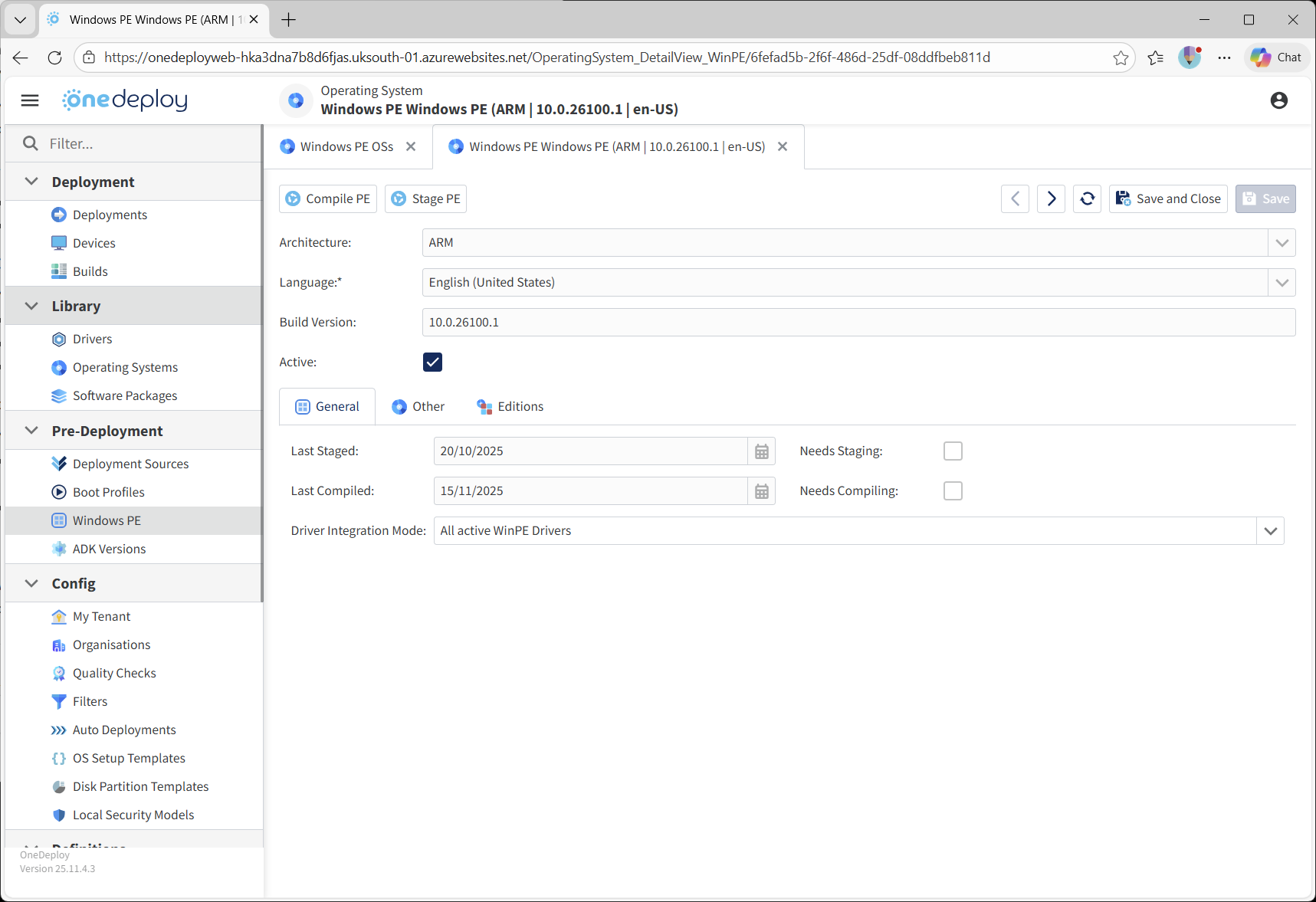
The updated WinPE image will include all currently enabled WinPE drivers.
Common Questions
Do I need to recompile WinPE every time I add or change a WinPE Driver?
Yes. Any time a Driver is enabled or disabled for WinPE, the relevant WinPE image must be recompiled for the change to take effect. Until the WinPE OS is recompiled, deployments will continue using the previously compiled image.
Should all drivers in the library be enabled for WinPE?
No. Only drivers that are required during the WinPE phase of deployment should be enabled. Enabling unnecessary drivers increases WinPE image size and compilation time, and can introduce avoidable complexity.
What types of drivers are most commonly required in WinPE?
The most common WinPE Driver requirements are:
- Storage controllers (for example NVMe or RAID controllers)
- Network adapters required to establish connectivity during WinPE
- Keyboard, mouse, touchscreen
Most other device drivers are only required once Windows is installed and should not be added to WinPE.
Can I enable WinPE on a folder containing multiple drivers?
While this is technically possible, it is not recommended.
Large folders often contain many drivers that are not required in WinPE. Best practice is to isolate only the required Driver files, add them as a separate OneDeploy Driver library entry, and enable WinPE on that specific Driver.
What happens if I delete a Driver that is still needed?
If a required Driver is deleted from the library, devices that depend on it may deploy without the correct Driver being installed.
For this reason, try marking drivers as Inactive first, test deployments, and only delete the Driver once you are confident it is no longer required.
There is no ‘un-do’ in the deletion operation, so if the deleted Driver is still required, you must re-import it back into your Driver library.
Does enabling a Driver for WinPE also install it in Windows?
No. Enabling Enable for WinPE only controls whether the Driver is injected into the WinPE boot image. Driver installation into the deployed operating system is handled separately through the normal Driver matching process.
Related Articles
- Add Drivers
- DriverApps Overview
- Windows PE Overview
- Compiling Windows PE