



Configuring Software Packages for a Build
Overview
This article explains how to configure Software Packages for a build in OneDeploy, including how applications are sequenced, reordered, rebooted, and conditionally installed during deployment.
When should I use this?
Use the Software Packages tab when you want to:
- Install applications as part of the initial build deployment
- Control the order in which software is installed
- Insert reboots into the deployment sequence
- Conditionally install applications based on hardware characteristics
How to access Software Packages configuration
- In the navigation pane, expand Deployment.
- Click Builds.
- Select an existing build or create a new one.
- Open the Software Packages tab.
Understanding Software Packages in a build
The Software Packages section defines which applications are installed as part of a build deployment.
Software Packages are optional.
A build can be deployed successfully without installing any applications.
Including applications during build vs delivering them later
There is no single correct approach to application delivery.
Some organisations prefer to:
- Install applications during the initial build
- Deliver applications after deployment using tools such as:
- Group Policy
- Microsoft Endpoint Configuration Manager (SCCM)
- Microsoft Intune
- Third-party RMM platforms
Many environments use a combination of both approaches:
- Core or foundational applications are installed during the build
- Less frequently used or role-specific applications are delivered later
OneDeploy supports this flexibility by allowing Software Packages to be included or excluded on a per-build basis.
Prerequisites
Before adding Software Packages to a build:
- All applications must already exist in the Library → Software Packages section
- Once added to the OneDeploy library, software packages can be selected for installation during a build
How to add software packages to a build
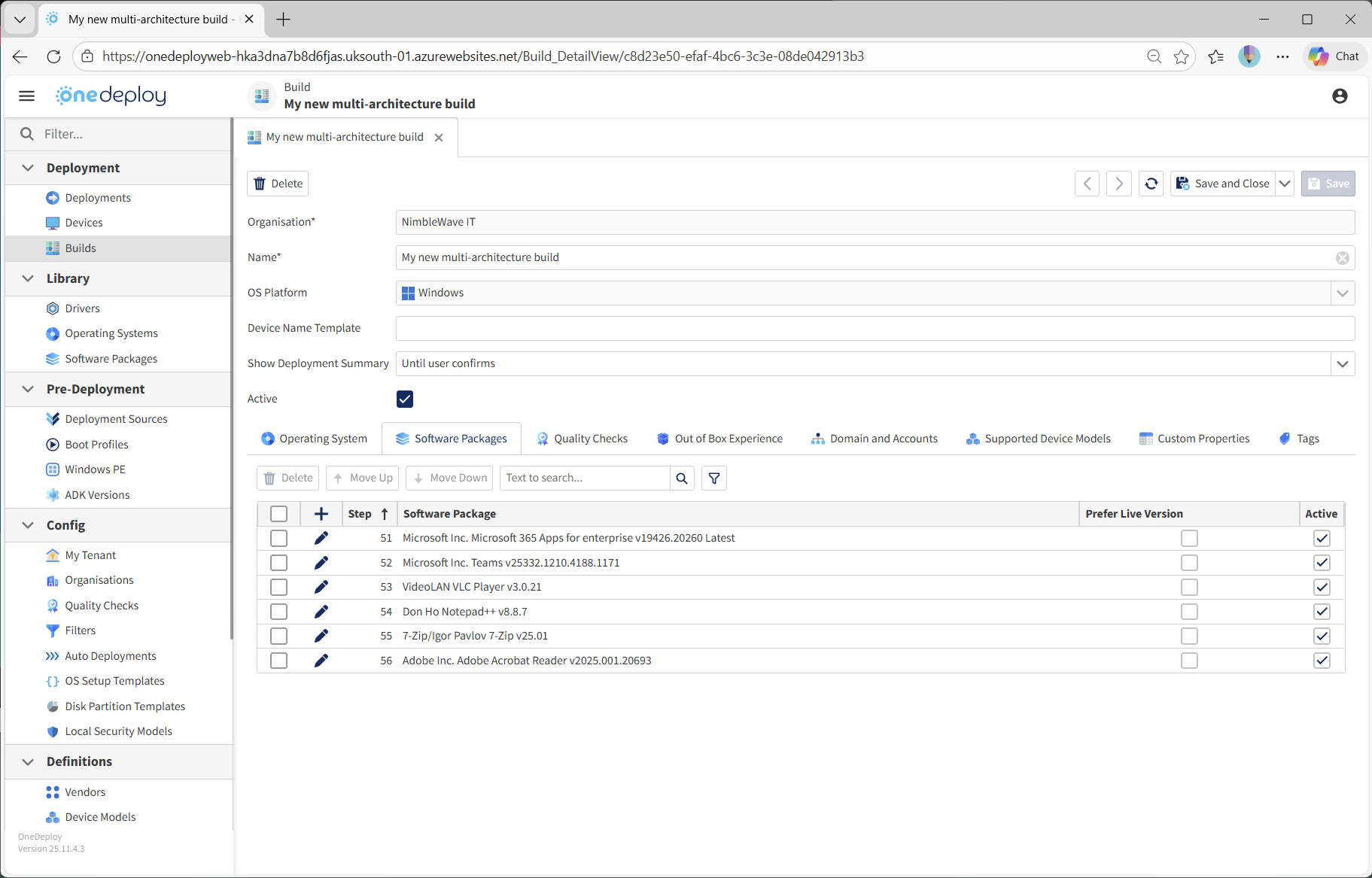
- Open the Software Packages tab for the build.
- Click the + icon in the column header.
- Select a Software Package from the library.
- Click the Save (floppy disk) icon on the row to save the change.

Understanding the installation order
Software Packages are installed according to the value in the Step column.
- Lower step numbers are installed first
- Packages are executed from top to bottom
- This is similar in concept to a task sequence
If you make changes within a row, you must click the Save icon for that row.
Reordering software packages
To change the installation order:
- Select one or more software packages using the checkbox on the left.
- Use Move Up or Move Down to adjust their order.
Tip:
After adding a new Software Package, click Save in the top-right corner of the build first.
Until the build is saved, the Move Up and Move Down buttons remain disabled for new entries.
Enabling and disabling software packages
Each Software Package has an Active checkbox.
- Checked → the package is installed during deployment
- Unchecked → the package is skipped
This allows packages to be temporarily disabled without removing them from the build.
Inserting reboots into the build sequence
You can insert a reboot by adding the built-in <Reboot> Software Package.
- Click the + icon.
- Select
<Reboot>from the list.
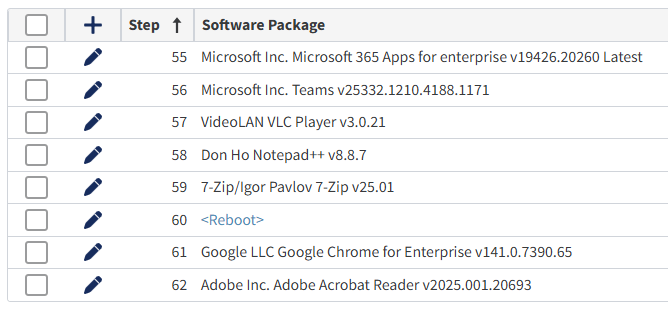
When the build reaches this step:
- OneDeploy reboots the device
- Logs back in automatically
- Continues the task sequence
This is useful for:
- Prerequisites for a subsequent Software Package installation that require a restart in order to be recognised
- Subsequent software packages that will only install if no ‘Pending reboot’ flag has been set by a previous installation
You do not need to add a <Reboot> step at the end of the list.
OneDeploy automatically performs a final reboot when the build deployment completes, even if the Software Packages list is empty.
Upon reboot, the device will return to the Windows logon screen, OOBE or auto logged in user, depending on your build properties.
Using DriverApps with <DriverMatcher>
The built-in <DriverMatcher> Software Package item enables conditional installation of applications marked as DriverApps.
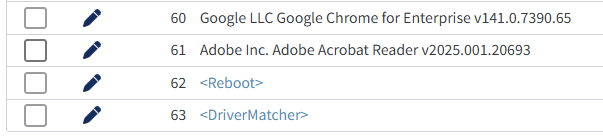
What is a DriverApp?
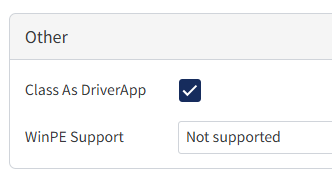
A DriverApp is a regular Software Package with filtering applied to control when it installs. These properties are set per application in the Library → Software Packages section.
.
Examples include:
- OEM utilities (for example, Dell OpenManage or HP ProLiant Support Pack)
- Drivers delivered as EXE or MSI installers
- Vendor-specific support tools
Why use DriverApps?
Using DriverApps avoids:
- Hard-coding OEM-specific packages into every build
- Constantly editing builds when new OEM packages are added
Instead:
- All Software Packages marked as DriverApp in the library are evaluated
- Only the appropriate packages are installed based on the hardware (or other filters)
This keeps builds clean, flexible, and easier to maintain.
Notes and behaviour
- Software Packages are installed using a temporary local administrator account
- This account is removed when the deployment completes
- The built-in Windows Administrator account is not enabled or used by default
- The built-in administrator account remains disabled unless explicitly enabled in the build configuration
What happens next?
Once Software Packages are configured:
- Applications install automatically during deployment
- The sequence follows the defined step order
- Conditional packages are evaluated where applicable
- The device restarts automatically when the build completes
- Remember to Publish your changes into your Deployment Source to make your edits live
Common questions
Do I have to include software packages in a build?
No. Software Packages are optional.
Can I temporarily disable a package without removing it?
Yes. Uncheck the Active box.
Do I need to add a reboot at the end of the list?
No. OneDeploy automatically performs a final reboot.
Do I need to worry about logging in manually to get software packages in the list to install?
No. OneDeploy automatically handles this for you.
Related articles
- Software Packages (Library)
- Builds
- DriverApps
- Quality Checks