



Boot Profiles controls which Windows PE environment that OneDeploy uses when a device boots into the pre-deployment phase (for example, during a PXE or USB Boot).
A Boot Profile is essentially a configured copy of Windows PE, including the version, Architecture support, and Driver behaviour.
What is a Boot Profile?
A Boot Profile is a reusable Windows PE configuration that OneDeploy can use during deployment.
Boot Profiles allow you to customise how Windows PE behaves in different scenarios, such as:
-
Having multiple versions of Windows PE available side-by-side from different Windows ADKs
(useful when upgrading the Windows ADK and testing a newer version before switching fully) -
Creating multiple copies of the same Windows PE version, but with different Driver integration settings
(useful for troubleshooting specific device models or testing Driver changes without affecting production deployments)
Default Boot Profile
During OneDeploy onboarding, a Default Boot Profile is created automatically.
For many environments, this Default Boot Profile is the only one you will ever need.
Additional Boot Profiles are mainly intended for advanced or testing scenarios.
Viewing Boot Profiles
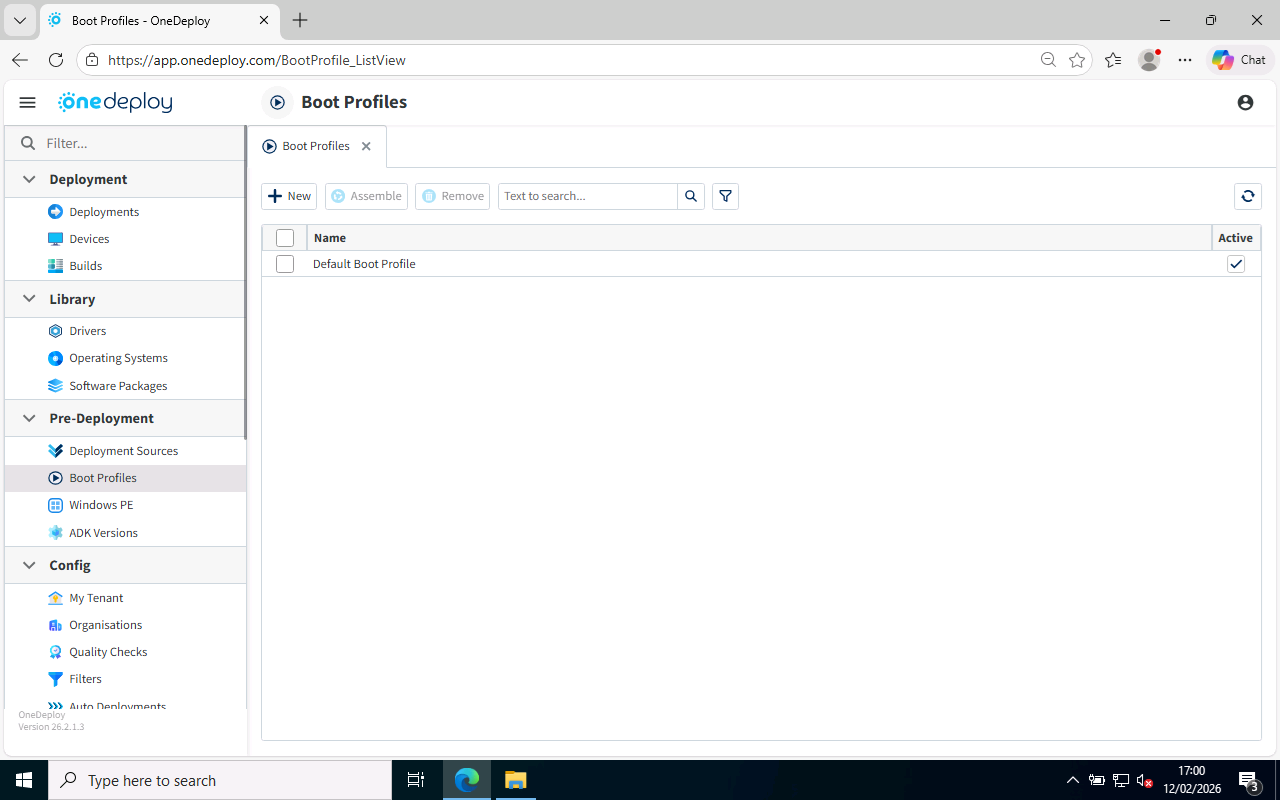
Boot Profiles can be found in:
Pre-Deployment → Boot Profiles
PreDeployment-BootProfiles-Main.png
From this screen, you can:
- Create a new Boot Profile
- View and edit an existing Boot Profile
- Remove Boot Profiles that are no longer required
Creating a Boot Profile
To add a new Boot Profile:
- Navigate to Pre-Deployment → Boot Profiles
- Click New
Editing Boot Profile Properties
To view or edit a Boot Profile, click its entry in the list.
The Boot Profile details screen allows you to:
- Mark the Boot Profile as Active or Inactive
- Select the base version of Windows PE for each Architecture (Intel/AMD 64-bit and ARM 64-bit)
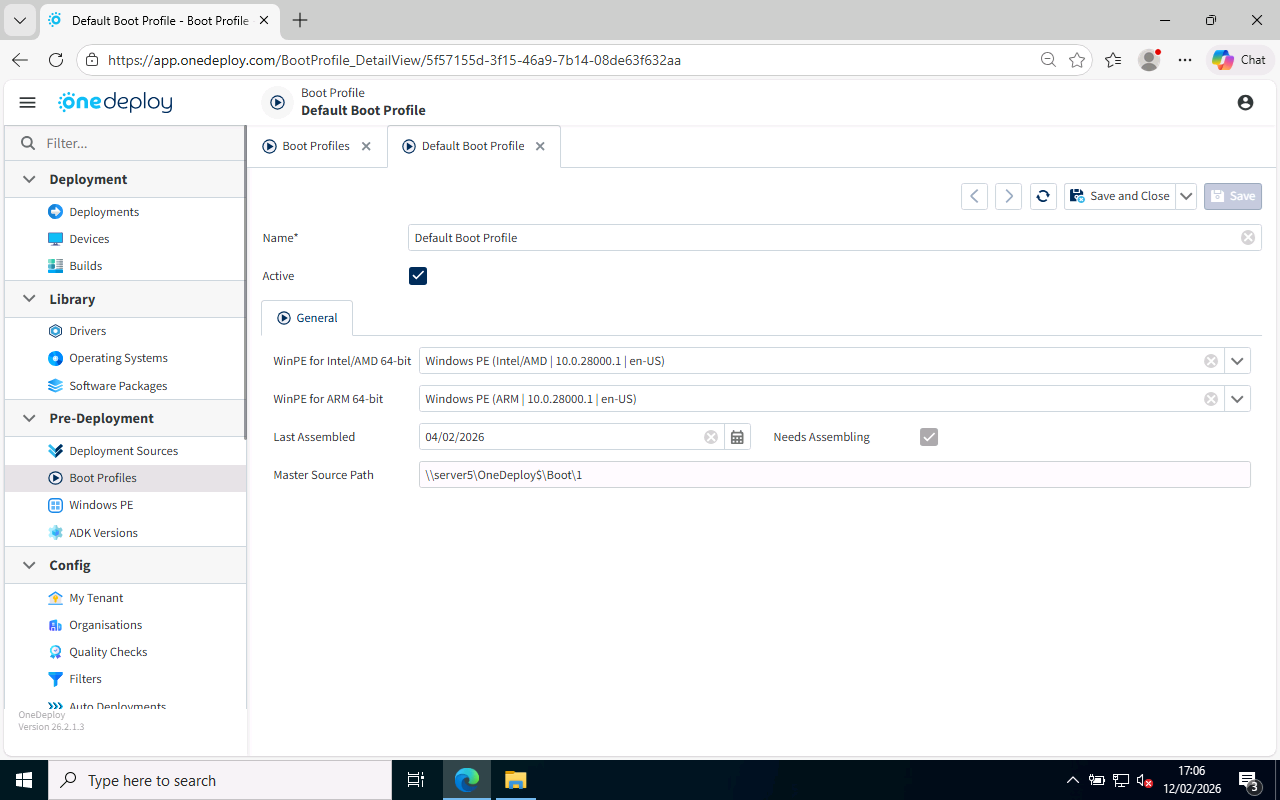
The available Windows PE versions come from Pre-Deployment → Windows PE
Removing Boot Profiles
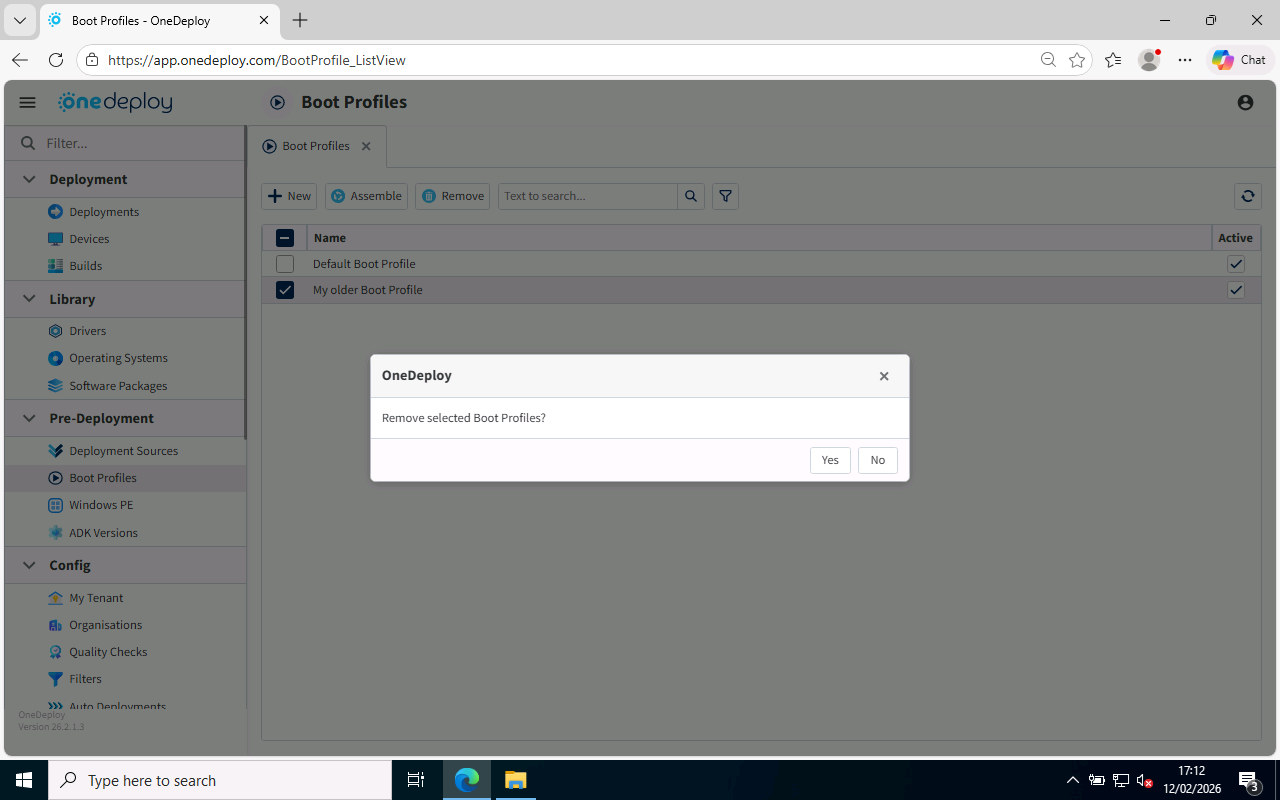
To remove one or more Boot Profiles:
- Tick the checkbox next to the Boot Profile(s) in the list
- Click Remove
- Confirm the removal when prompted
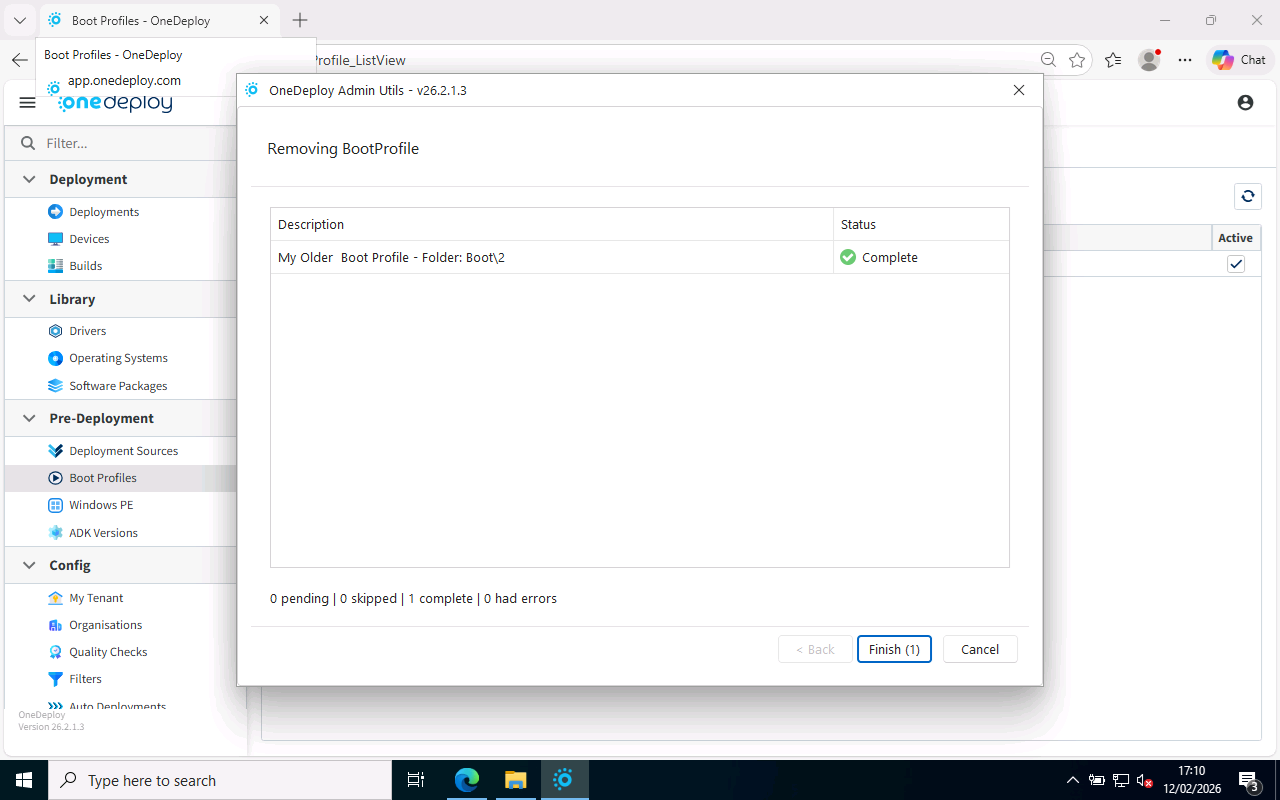
Important: You should always keep at least one Boot Profile available, as OneDeploy requires a Boot Profile in order to perform deployments.
Common Questions
Do I need more than one Boot Profile?
In most environments, no.
The Default Boot Profile created during onboarding is sufficient for normal deployments.
You would typically only create additional Boot Profiles if you are:
- Testing a newer Windows ADK / Windows PE version
- Troubleshooting Driver integration issues
- Supporting unusual or incompatible hardware models
Related Articles
- Windows PE
- ADK Versions
- How to: Upgrade your Windows ADK Version
- Boot Profiles Overview