



Selecting a Driver from the Drivers Summary screen opens its properties page.
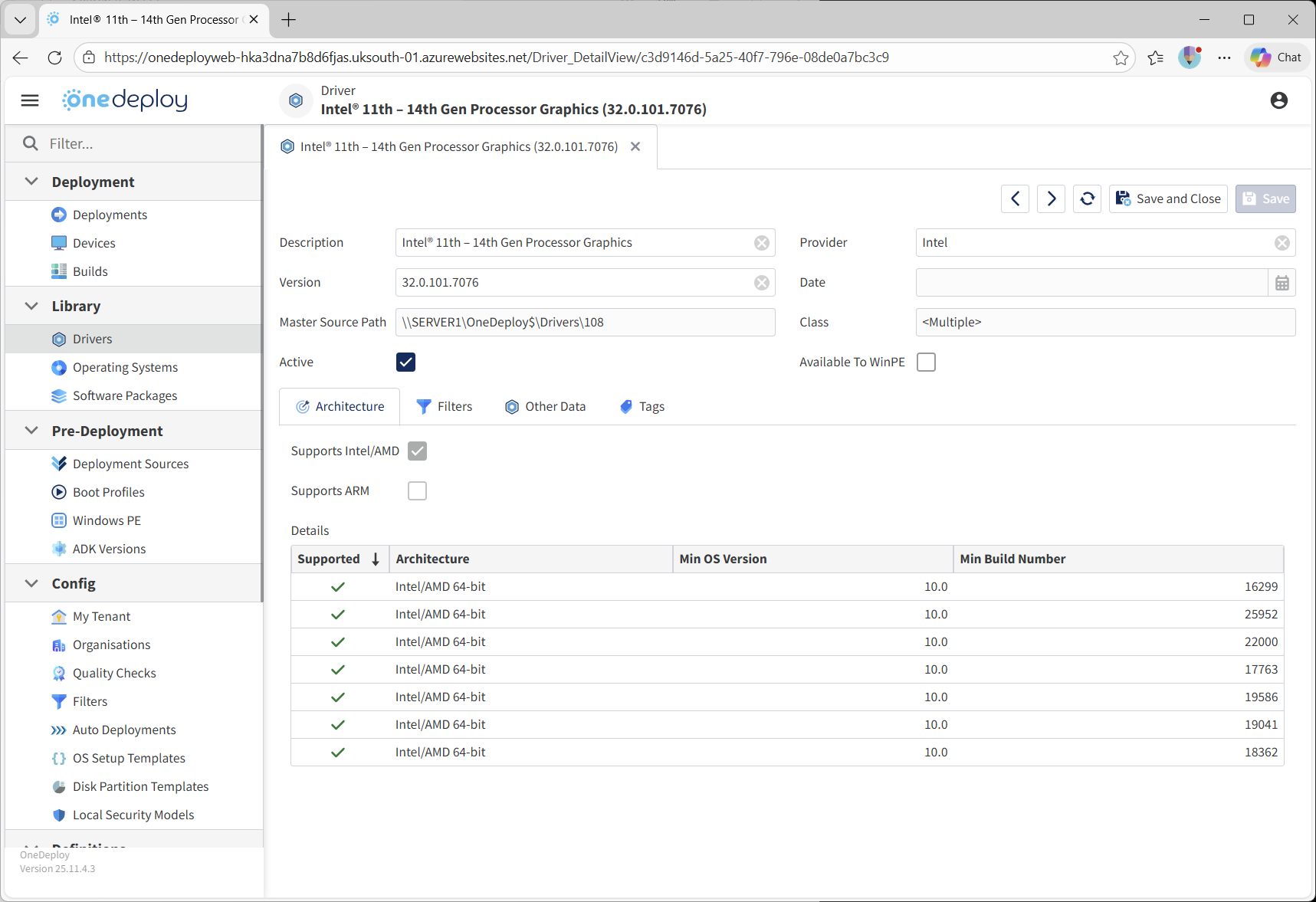
This page allows you to view Driver metadata, control availability, and apply rules that determine when and where a Driver can be used.
General Driver Properties
The top section of the screen displays the core Driver properties.
Description and Version
-
Description
A friendly name for the Driver. This can be edited to make the Driver easier to identify. -
Version
The Driver version. This can also be edited if required.
Active
-
When unchecked, the Driver is effectively hidden and will not be offered to any deployments.
This is useful when testing the retirement of a Driver without deleting it.
Available to WinPE
-
Available to WinPE marks the Driver as eligible for integration during the Windows PE stage.
-
This controls whether the Driver is considered during WinPE-phase Driver integration.
For guidance on when and why to enable this option, see the Drivers Summary article.
Driver Property Tabs
The lower half of the screen contains several tabs:
-
Filters
-
Other Data
Architecture Tab
The Architecture tab displays technical information about the imported Driver.
This information is read-only and is extracted directly from the Driver’s INF files.
Architecture Support
This section shows whether the Driver supports:
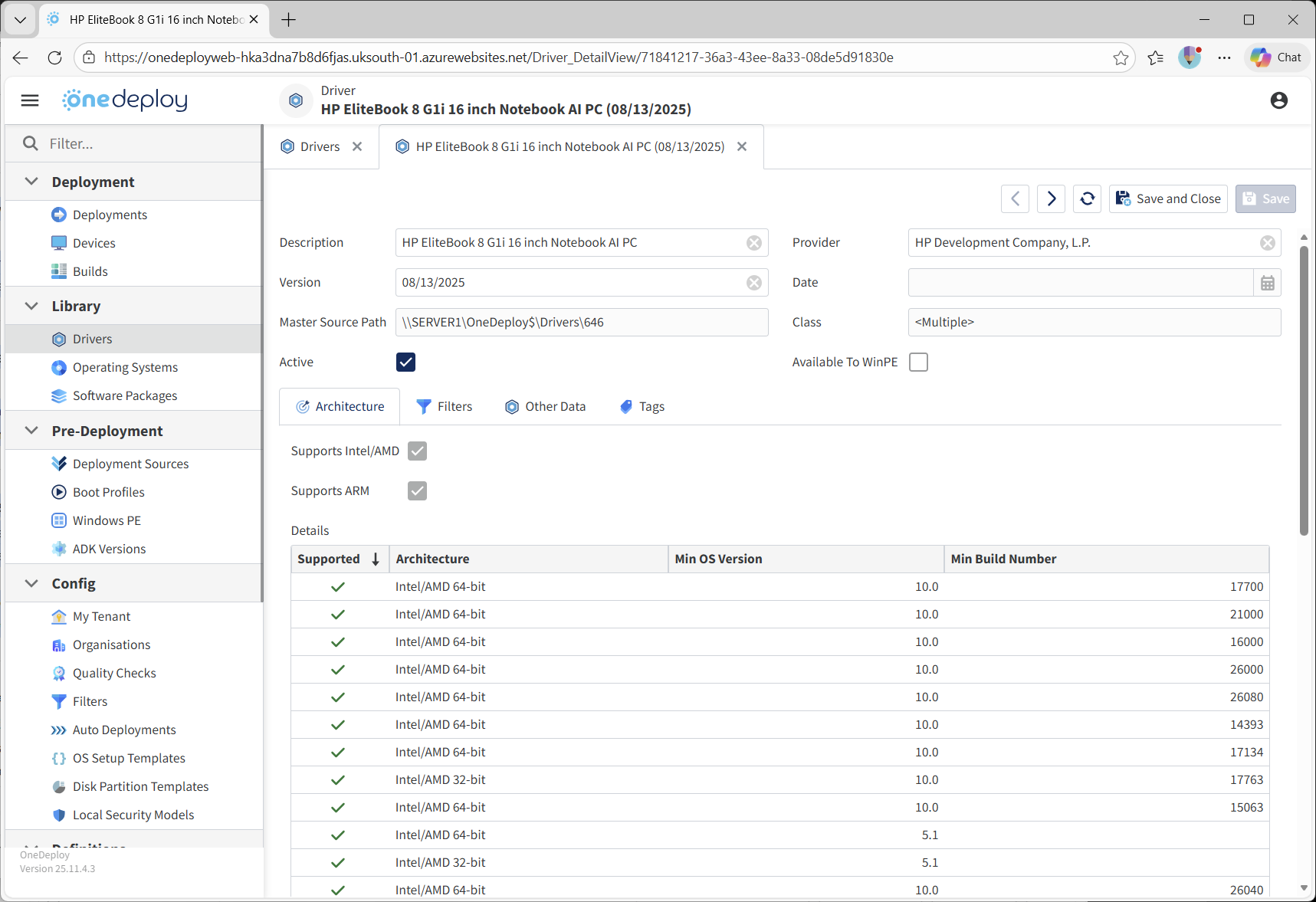
This allows OneDeploy to avoid attempting to apply a Driver to incompatible hardware.
Operating System Applicability
The Architecture tab also shows:
- Minimum supported OS version
- Minimum supported OS build number
This data is read directly from the INF files.
OneDeploy uses this information to ensure a Driver is not injected into an operating system that would reject it due to version or build constraints. Some drivers are broadly applicable across OS versions, while others are highly specific to certain Windows builds and have been written as such by the Driver provider.
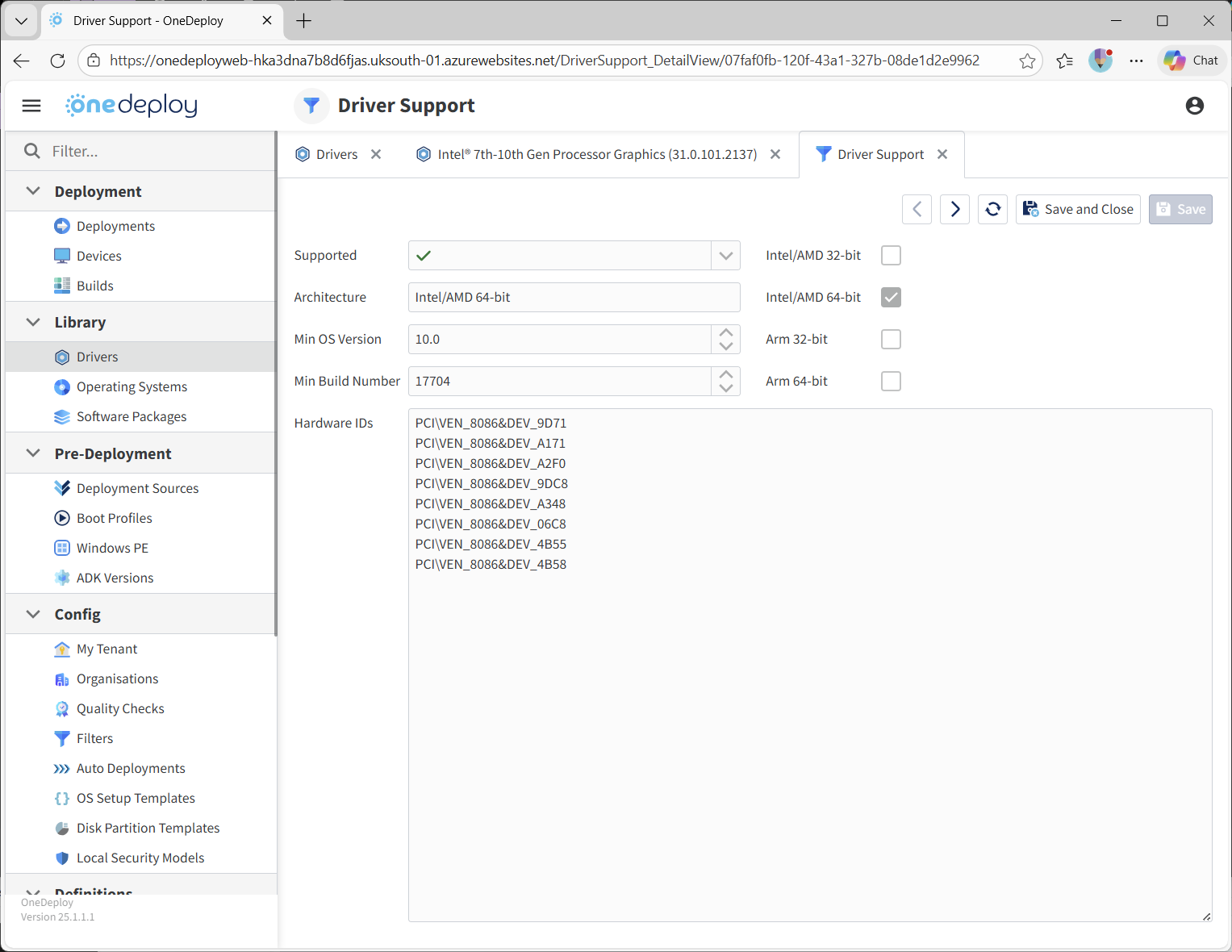
Details View
You can click into the Details field to view expanded information about:
- OS version applicability
- Hardware IDs referenced by the Driver
This is intended for advanced diagnosis and troubleshooting when analysing why a Driver is (or is not) being selected.
Filters Tab
The Filters tab allows you to control the applicability of a Driver using filters that have already been defined under:
Config → Filters
By default, drivers in OneDeploy are available to all compatible hardware. Filters allow you to restrict or exclude this behaviour. See the Examples section below.
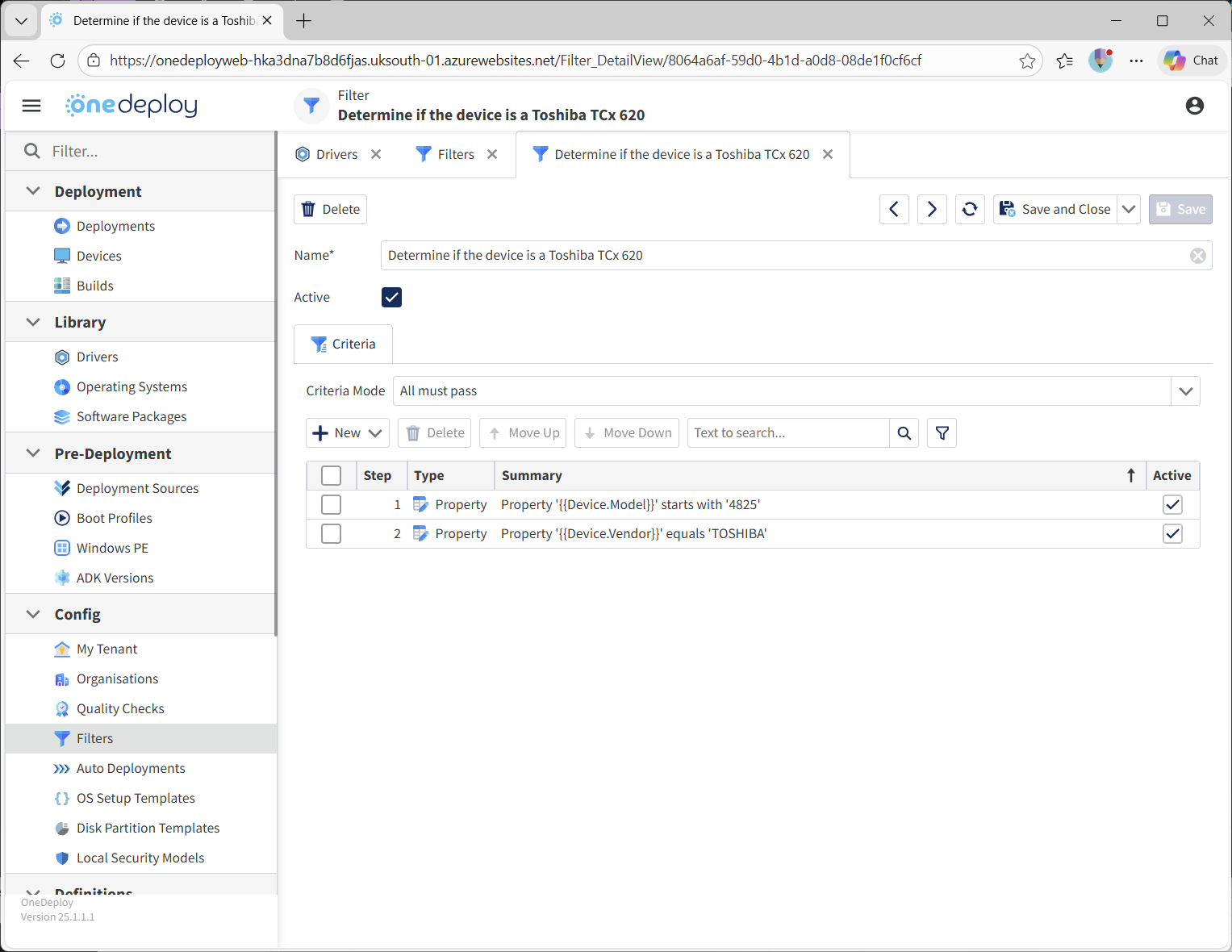
Example: Allowing a Driver Only on Specific Hardware
You can create filters that check BIOS-reported values such as Vendor or model.
For example:
- Vendor equals
TOSHIBA - Model string starts with
4825
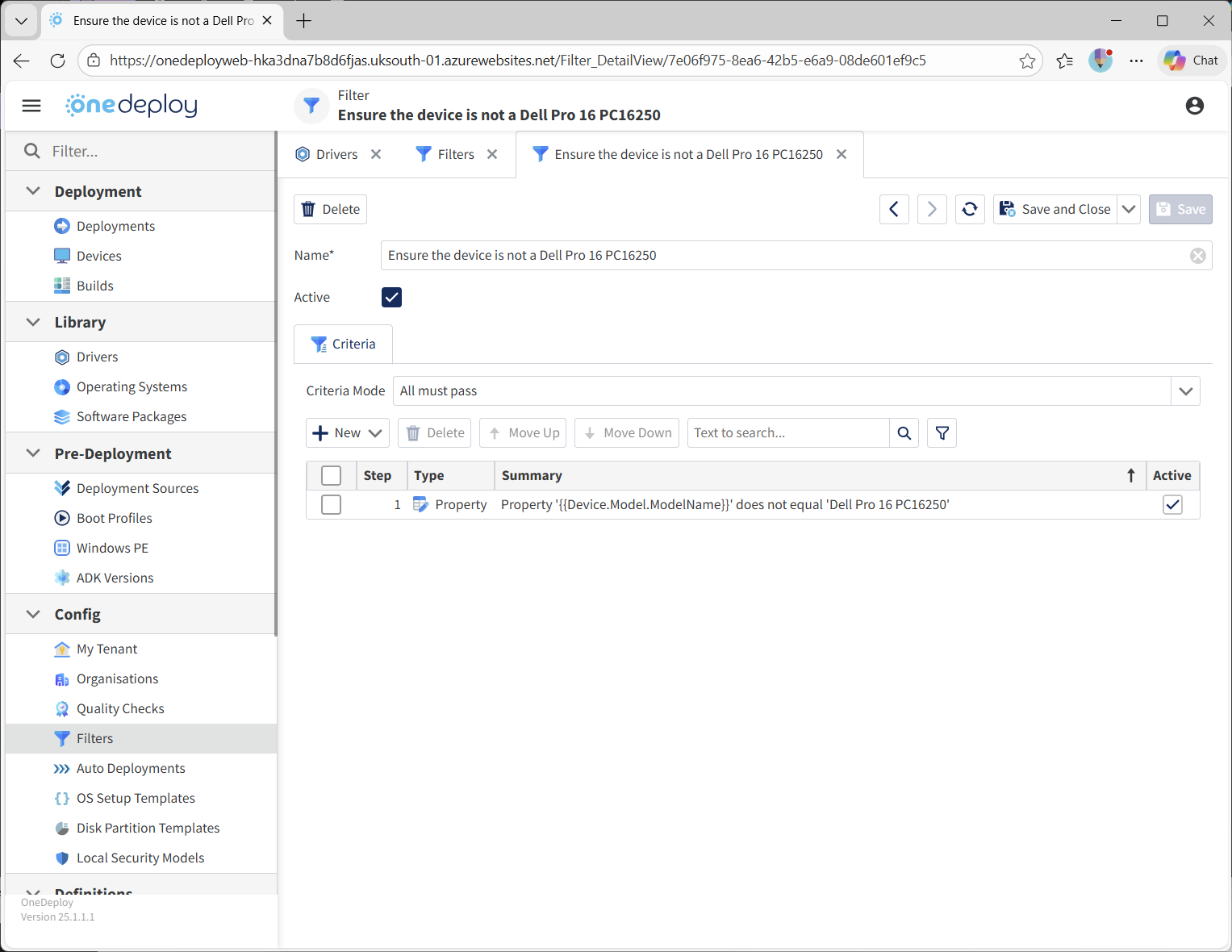
Example: Excluding a Driver From Specific Hardware
Filters can also be used to prevent a Driver from being applied.
For example:
-
Do not use this Driver if the model string equals
Dell Pro 16 PC16250
Example: Restricting an OEM Driver Pack to a Single Model
This example shows an OEM Driver pack restricted to a specific hardware model.
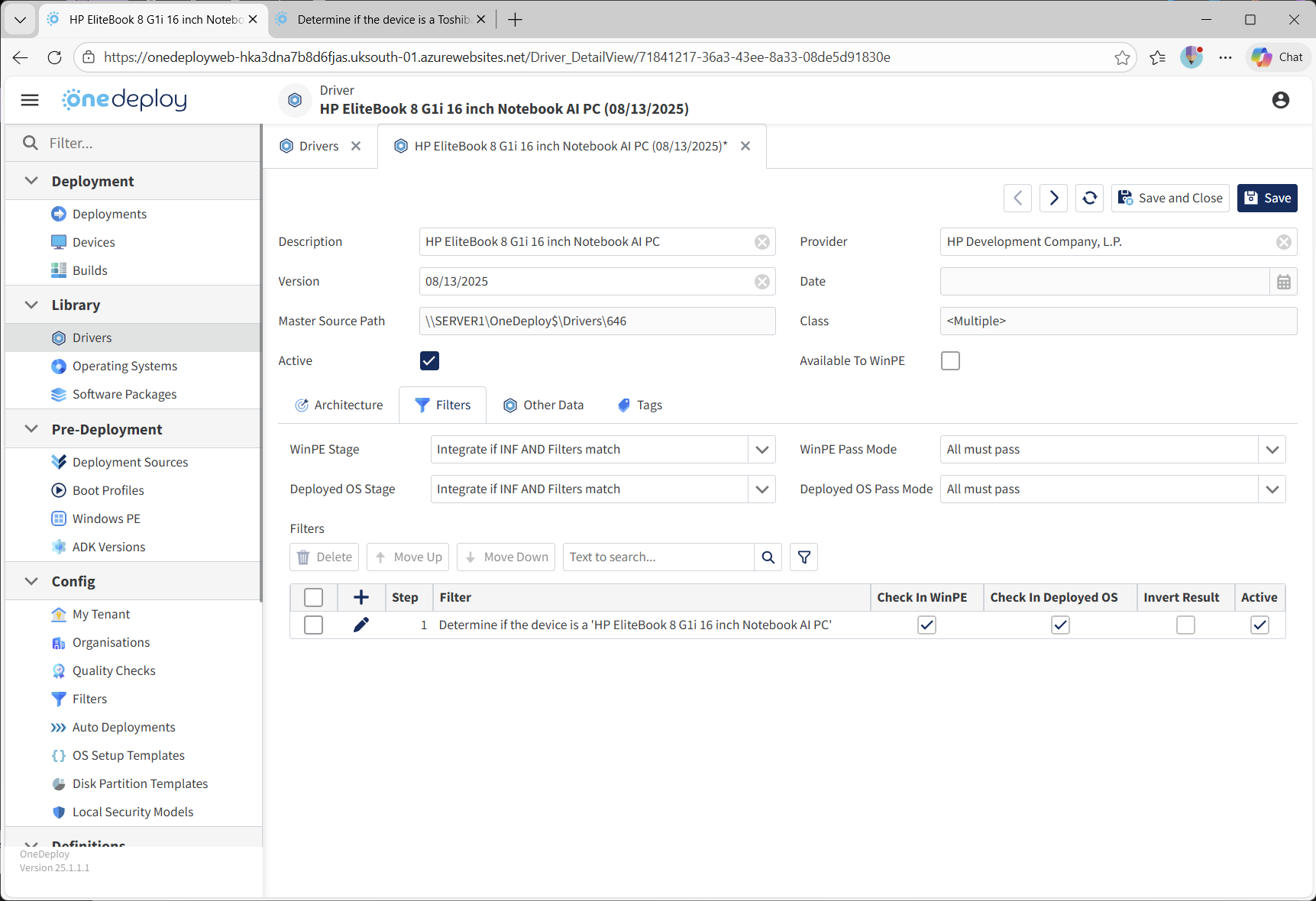
In this configuration:
-
The Filter Checks for the model string
HP EliteBook 8 G1i 16 inch Notebook AI PC -
Both WinPE Stage and Deployed OS Stage are set to
Integrate if INF AND Filters match -
Pass Mode is set to All must pass
For this Driver to be used:
- The hardware must match the Driver’s INF files
- The Filter criteria must also match, in this case, if the device’s model string as read from the BIOS is not ‘HP EliteBook 8 G1i 16 inch Notebook AI PC’ then the Filter is not true and the Driver will not be used. For any other model of PC, this Driver will not be offered.
If either condition fails, the Driver is not offered to builds.
Other Data Tab
The Other Data tab is a read-only view containing a compiled summary of the Driver’s contents.
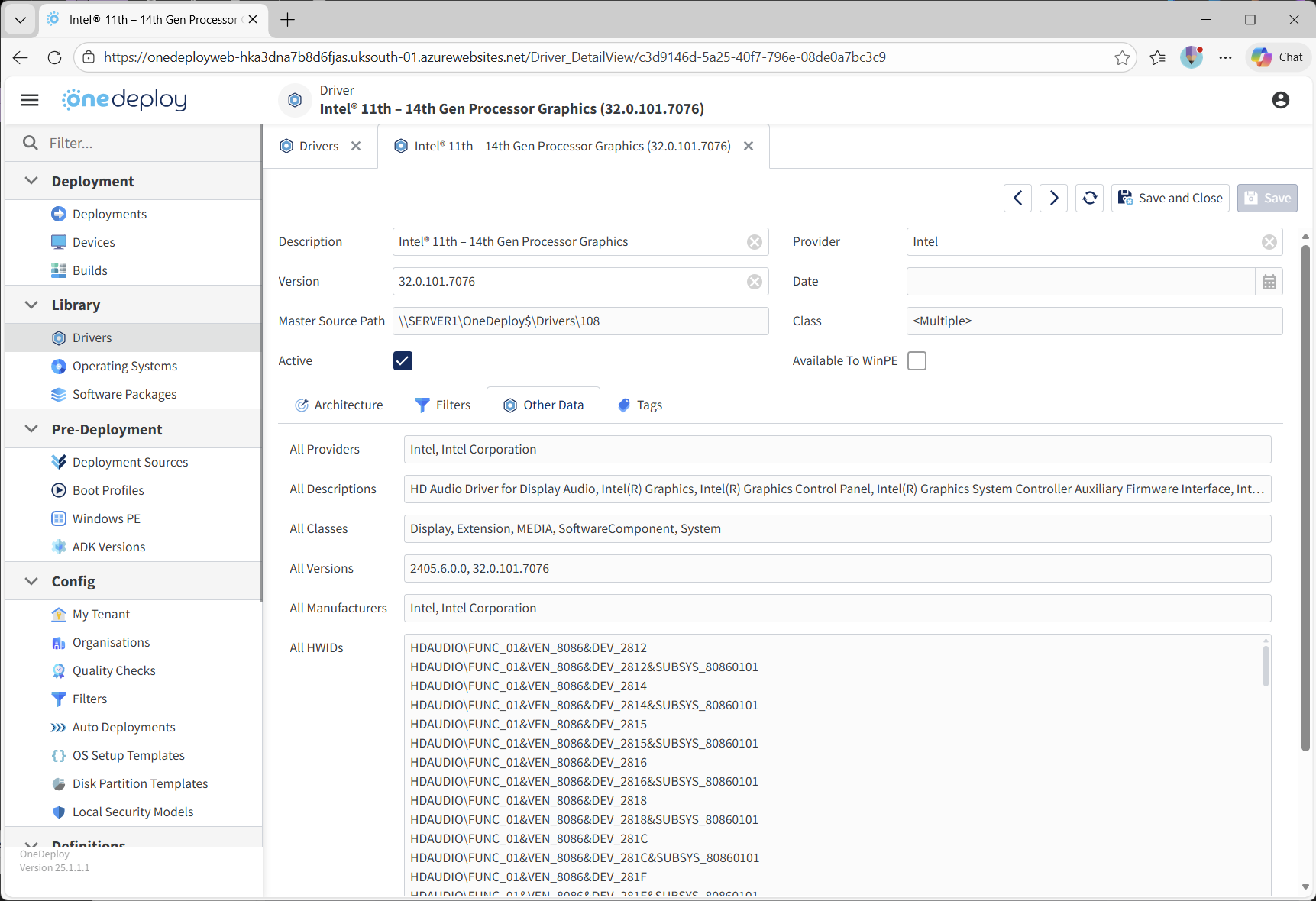
This includes:
- Driver classes (for example: Display, Audio, System)
- All discovered version strings
- All hardware ID strings found within the Driver
This information is what OneDeploy uses when scanning local hardware during deployment.
If a hardware component matches data listed here, and all other criteria are met (such as filters, OS compatibility, and best-match selection), the Driver is offered to the device being built.
This tab is particularly useful when troubleshooting unexpected Driver matching behaviour.
Common Questions
What happens if a Driver is marked Inactive?
Inactive drivers are not offered to any builds or deployments. The Driver remains in the library and can be reactivated at any time.
Do filters replace INF-based hardware matching?
No. Filters are evaluated in addition to INF-based hardware matching. Both must pass for a Driver to be used when configured this way.
Can filters be checked at different deployment stages?
Yes. Filters can be evaluated during the WinPE stage, the deployed OS stage, or both, depending on how the Driver is configured.
Why does a Driver show as compatible but not get installed?
Common reasons include:
- Filter criteria not matching
- OS version or build incompatibility
- Another Driver being selected as a better match
The Architecture and Other Data tabs are useful starting points for diagnosis.
Related Articles
- Drivers Overview
- Drivers Summary Screen
- Add Drivers
- Driver Filters
- Windows PE Overview