



Copy step (Software Packages)
The Copy step allows you to copy files or folders from your Deployment Source package to a location on the target machine during a build.
This step is commonly used to place application files, configuration files, or supporting content on the device before or after an install step runs.
When to use a Copy step
Use a Copy step when you need to:
- Copy application files before running an installer
- Place configuration files on the device
- Stage files required by a later install step
- Rename files during deployment
- Ensure files exist in a known location before execution
Copy step screen overview
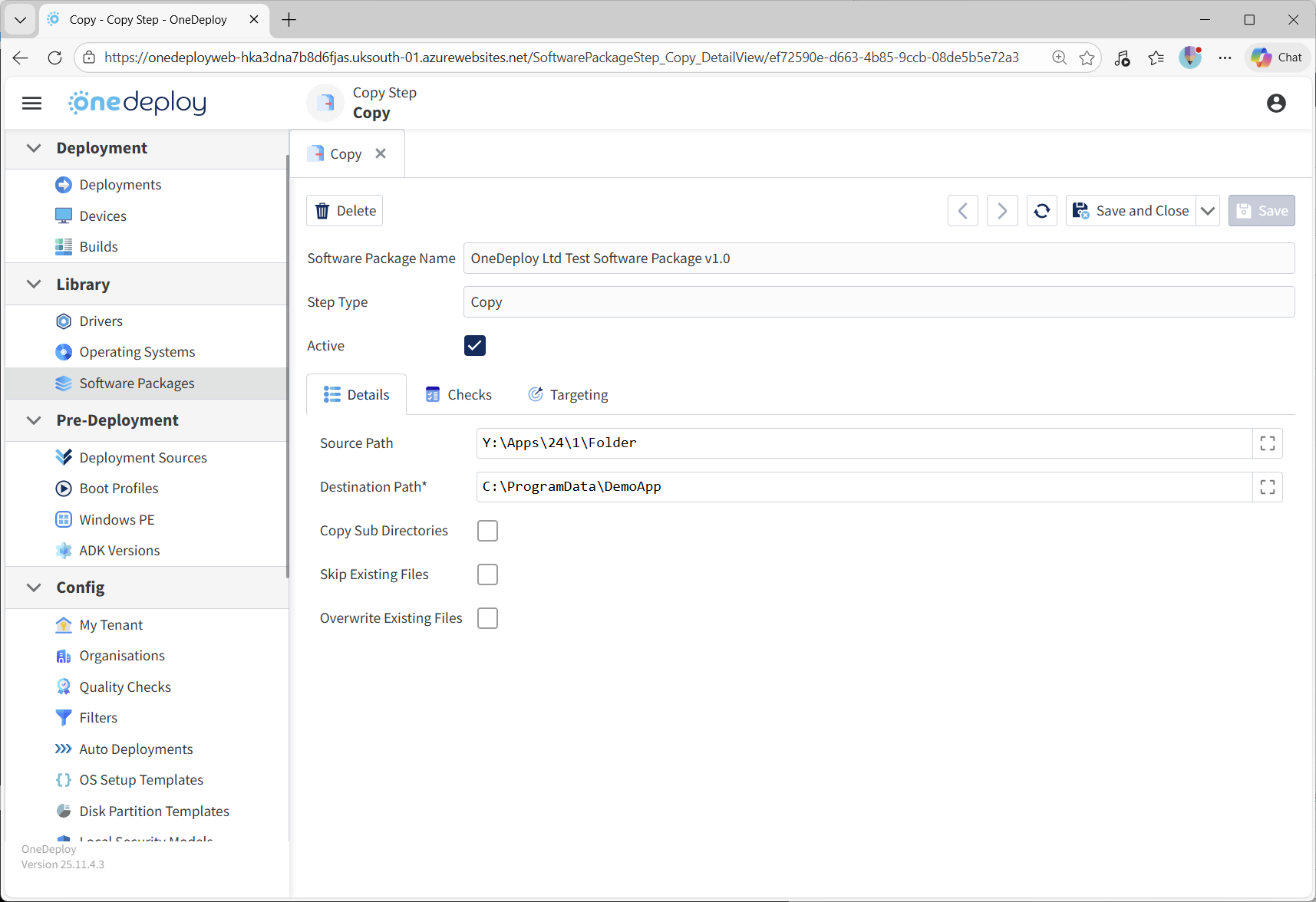
When you add a new step to a Software Package and select Copy, the Copy step properties screen is displayed.
From this screen, you can:
- Specify the source file or folder to copy
- Define the destination path on the target machine
- Configure copy behaviour and overwrite rules
- Apply optional Checks and Targeting rules
What you can copy
The Copy step supports the following scenarios:
- A single file
- Multiple files using wildcard patterns
- The contents of an entire folder
- A file copied into a folder
- A file copied and renamed at the destination
Source Path
The Source Path defines what will be copied from the Deployment Source.
You can enter one of the following.
Copy a specific file
Example:Y:\Apps\24\1\program.exe
The specified file is copied to the destination.
Copy the contents of a folder
Examples:Y:\Apps\24\1\FolderNameY:\Apps\24\1\FolderName\
A trailing backslash is optional.
In both cases, the contents of the folder are copied — not the folder itself.
Copy multiple files using wildcards
Examples:bin*.dlllogs*.txtimages*.png*.bmp
Wildcards allow you to copy only the files that match a specific pattern.
Destination Path
The Destination Path defines where files will be copied to on the target device.
Copy to a folder
Examples:C:\Program Files\MyAppC:\Temp\
If the destination folder does not exist, it is created automatically.
Copy to a specific file
Example:C:\ProgramData\MyApp\config.json
This option is only valid when copying a single file.
It allows the file to be renamed as part of the copy operation.
Copy options
The following options control how files are copied.
Copy Subdirectories
When enabled, subfolders are included when copying folders or wildcard matches.
Skip Existing Files
When enabled, files that already exist at the destination are left unchanged.
Overwrite Existing Files
When enabled, existing files are replaced.
This option overrides Skip Existing Files if both are selected.
Examples
Copy an entire folder’s contents
Source:Y:\Apps\24\1\FolderName
Destination:C:\Program Files\MyApp\
The contents of ‘FolderName’ are copied, not the folder itself.
Copy only DLL files
Source:Y:\Apps\24\1\bin\*.dll
Destination:C:\Program Files\MyApp\
Copy a single file and rename it
Source:Y:\Apps\24\1\configuration\default.json
Destination:C:\ProgramData\MyApp\config.json
Using Checks with Copy steps
It is recommended to use the Checks tab with Copy steps to define success criteria for the operation.
Checks can be used to confirm that required files or folders exist after the copy completes, helping to detect issues early and improve deployment reliability.
Common questions
Will the Copy step create folders automatically?
Yes.
If the destination folder does not exist, it will be created automatically.
Can I rename files during a copy?
Yes.
Specify a full destination file path when copying a single file.
What happens if a file already exists?
This depends on the selected copy options:
- Skip Existing Files leaves the file unchanged
- Overwrite Existing Files replaces it
Related articles
- Software Packages overview
- Steps tab overview
- Using Checks in Software Package steps
- Targeting steps in Software Packages